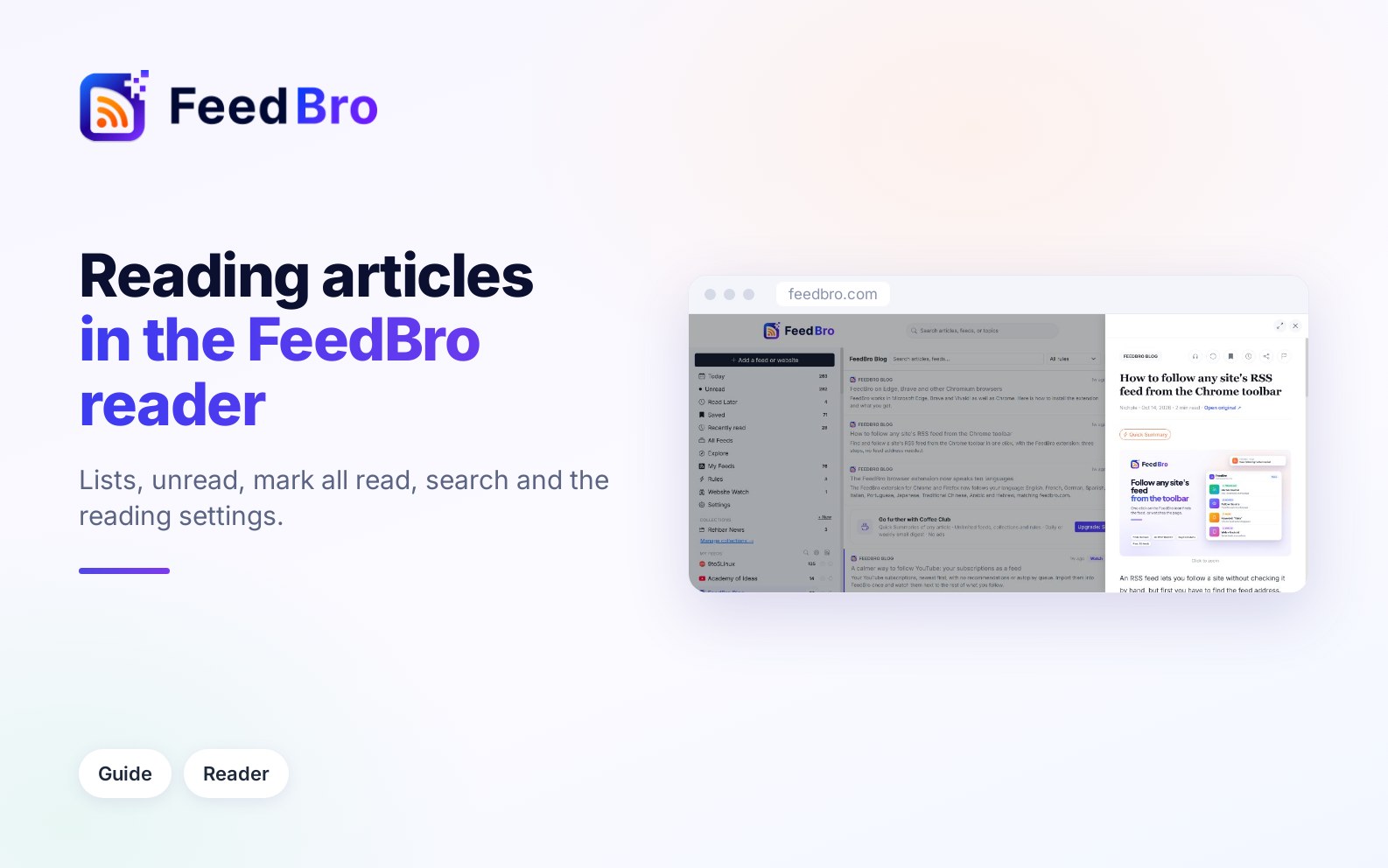
The parts of FeedBro you use most are the list of articles and the reader that opens when you tap one. You can set both up the way you like, decide when an article counts as read, clear a long list in one go and search everything you follow.
A feed (or RSS feed) is a list a website publishes of its newest articles. FeedBro checks the feeds you follow and puts their new articles into your list, newest first.
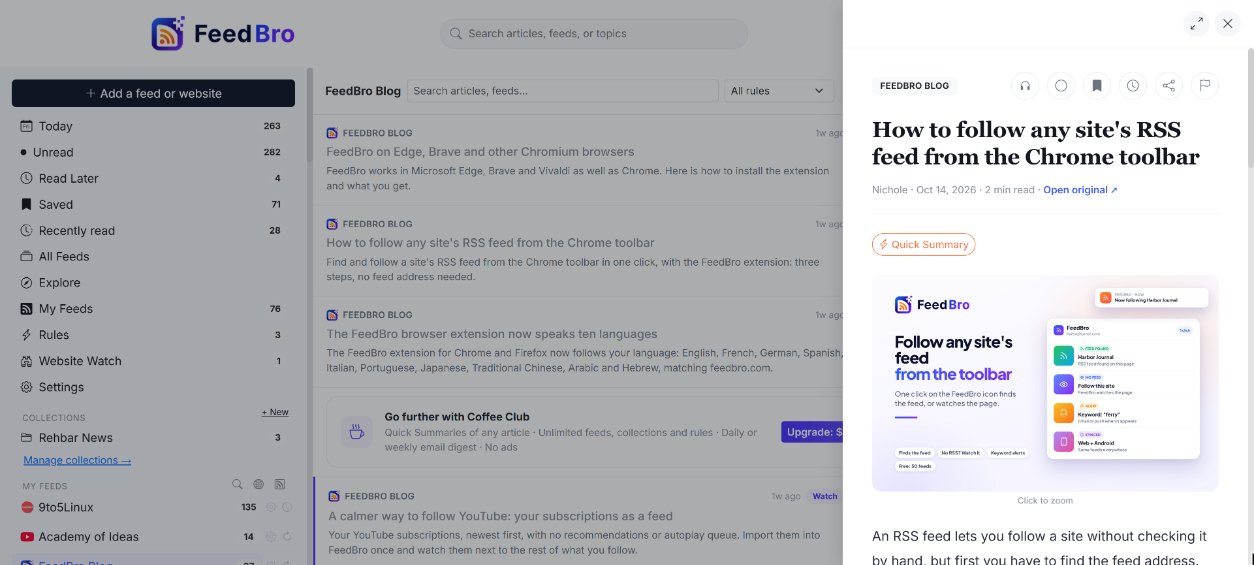
The dashboard
When you sign in you land on the dashboard. On a computer it has three columns: the menu on the left, the article list in the middle, and a column on the right with your unread count and Trending this week.
The menu on the left holds your lists:
- Today has every article from your feeds, newest first. It starts with today's articles and carries on into older ones, with a line marked Earlier where today ends.
- Unread has only what you have not read yet.
- Read Later and Saved hold articles you kept (the Read Later and Saved guide covers them).
- Recently read lists what you opened, the last one first. The number beside it counts what you read in the last 24 hours.
- All Feeds has everything from all your feeds.
- Then come your Collections (groups of feeds you made) and, under My Feeds, each feed on its own. Tap a feed to see only its articles. If you follow more than 8 feeds, a small search icon next to My Feeds lets you find one by name.
On a phone the menu is hidden. To open it, tap Menu in the bar at the bottom of the screen, or the three lines at the top left of the list. Under the search box there is also a row of buttons for the main lists: All, Unread, Collections, Saved, Read Later, Recently read, Website Watch and Rules. Swipe the row sideways to see them all.
How to read an article
- Tap or click an article in the list.
- The reader opens. On a computer it slides in from the right. On a phone it comes up from the bottom and fills the screen.
- Scroll to read. Pictures and videos stay in the article, and you can tap a picture to zoom in.
- To close the reader, tap the X at the top or press Esc on a keyboard. On a phone you can also pull the reader down from its top bar.
On a computer, the arrows button next to the X switches to Wide view, a larger window in the middle of the screen with more room to read. Click it again for Narrow view. FeedBro remembers your choice on that browser.
When you tap a link inside an article, the linked page usually opens inside FeedBro too, cleaned up for reading. Use Back at the top (or your phone's Back button) to return. Files, videos and FeedBro's own buttons still open the normal way. Under the article you may see Related Articles, the newest other posts from the same feed.
What is at the top of an article
Next to the feed's name there is a row of small buttons:
- A circle: Mark as read or Mark as unread.
- A bookmark: Save.
- A clock: Read Later.
- A share icon: Share.
- A flag: Report a problem with this article (the guide on full articles explains it).
Under the title you see the author when the feed names one, the date, an estimated reading time such as "4 min read", and Open original. That opens the article on the publisher's own website in a new tab. On a phone, pressing and holding Open original copies the link instead.
Depending on the article and your plan, you may also see Quick Summary (the main sentences from the article, part of Coffee Club) and Listen, which reads the article aloud with your device's own voices.
Sharing an article
Tap Share. On phones and browsers that have a share menu, the menu opens with the article's title and link, and you can send it to any app. Elsewhere FeedBro copies the link and shows Link copied to clipboard. FeedBro shares the publisher's own link, so the person you send it to can open it without a FeedBro account.
Read and unread
An unread article has a small dot next to its feed name in the list. Once you have read it, the dot goes away and the row looks quieter. The number next to Unread in the menu counts what is left.
You decide when an article counts as read. Open Reading preferences (described below) and pick one of these under Mark read:
- When I open it (the starting choice): an article is read as soon as you open it.
- When I scroll past it: rows in the list become read once they scroll off the top of the screen, even if you don't open them. An article you open becomes read when you reach its end, or after a few seconds if it fits on the screen.
- Only when I say so: nothing is marked read until you do it yourself.
How to mark one article read or unread
- In the reader, tap the circle button at the top.
- In the list, tap the three dots on the row and choose Mark as read or Mark as unread. The same menu has Save and Read later.
- With a keyboard, select the row with j or k and press u.
How to mark a whole list as read
This helps when you come back to hundreds of unread articles and want a fresh start.
- Open the list you want to clear. To clear everything, open Today, Unread or All Feeds. To clear one feed, tap that feed under My Feeds. To clear a collection, tap the collection.
- Tap the double check mark button above the list (its name is Mark all as read).
- FeedBro asks first, for example "Mark 240 articles as read?", and explains that articles that come in later stay unread.
- Tap Mark as read, or tap Cancel to leave everything as it was.
- A bar at the bottom confirms how many articles were marked. If you change your mind, tap Undo in that bar. The bar stays for about 10 seconds.
The button doesn't appear in Saved, Read Later, Recently read or search results, or while a rule or tag filter is on. Marking a list as read doesn't add those articles to Recently read, which lists only articles you actually opened.
The notification bell has its own Mark all as read button. That one clears only your notifications and leaves your articles as they are.
Count as unread for
This setting keeps your unread list to recent news. Articles older than the number of days you pick count as read automatically. Nothing is deleted. The articles stay in your feeds and lists, and saved ones are kept forever. The setting also means a new feed with years of old posts doesn't land in your list as thousands of unread articles.
The choices are 7 days, 14 days, 30 days (the starting choice) and 90 days. Coffee Club members can also choose Always, which keeps articles unread until you read them, however old they get.
Reading preferences
Tap the sliders button at the top right of the article list to open Reading preferences. Each setting has a small (i) that explains it in one line. Changes are saved straight away, and they apply in the FeedBro browser extension's reader too.
- Default view is the list FeedBro opens with. Choose All articles, Unread only, Saved, Read Later or one of your collections.
- Show can be Everything, Last 24 hours, Last 7 days or Last 30 days. Older articles are left out of every list, though nothing is deleted. If this empties a list, the list tells you and offers Show everything for that visit.
- Mark read and Count as unread for are explained above.
- List sets how the list looks: Normal, Compact (headlines only), or Cards (with pictures) with bigger pictures.
- Theme can be Match my device, Light, Dark or Sepia (a warm, paper-like colour). Match my device follows the dark mode setting of your phone or computer.
You can also change List, Theme, Show and Mark read under Settings › Reading. The theme is in your account menu too (your picture at the top right, or the phone menu), where the choices are Auto, Light, Dark and Sepia.
Each feed also has its own settings behind the gear next to its name. Show at most limits that feed to its newest articles. This helps with a feed that posts so much it would fill your whole list.
Scrolling back into older articles
The list loads more articles by itself as you scroll down.
How far back you can go depends on your plan. On the Free plan, each feed shows its newest 500 articles plus anything from the last 30 days, and older articles nobody has touched are moved to FeedBro's archive. On Coffee Club, when you open a single feed and scroll past its newest articles, the list carries on into its archived ones in date order, as long as Show is set to Everything. Archived articles show as read, and when you open one it works like any other article.
On every plan, anything you saved, put in Read Later or opened, or that a rule tagged, stays in your lists.
Searching
You can search in two places.
The search box above the list
- Type a word into the box that says Search articles, feeds... above your articles.
- Press Enter.
- The list changes to Results for "your word". It shows articles from your feeds whose title or summary contains the word, newest first.
On a keyboard, press / to jump straight to this box.
The Search page
On a computer, use the search box in the top bar. On a phone, open the menu at the top of the page and tap Search. Results are split into tabs:
- Articles: up to 20 articles whose title or summary matches.
- Feeds: feeds you follow with a matching name, plus matching feeds from Explore.
- Authors: author names that match.
- Collections: your collections with a matching name.
- Tags: tags your rules added. Tap one to see every article with that tag.
On the Free plan, search looks through the articles currently in your feeds. Coffee Club search also finds older, archived articles by their titles.
Keyboard shortcuts
On a computer the dashboard has keyboard shortcuts, and the same keys work in the browser extension's reader.
- j and k: move down and up the list
- Enter or o: open the article
- s: save it
- l: keep it for later
- u: mark it unread (press again to mark it read)
- r: refresh the list
- /: jump to search
- Esc: close the reading panel
This list is also under Settings › Reading. The shortcuts are switched off in the FeedBro Android app, because there a key press could easily come from the on-screen keyboard.
PDF documents
Some feeds link to a PDF file instead of a web page. On Coffee Club, the reader shows the PDF's pages right there, with Show more pages to keep going. On the Free plan you see a short note that the item is a PDF, with a link that says Coffee Club shows PDFs right here in the reader. On every plan, Open PDF opens the file itself.
On the Free plan and Coffee Club
- The reader, read and unread, Mark all as read, search, themes, layouts, shortcuts and sharing work the same on both plans.
- For Count as unread for, Free offers 7, 14, 30 or 90 days, and Coffee Club adds Always.
- For history, Free shows each feed's newest 500 articles plus the last 30 days. Coffee Club continues into the full archive when you scroll a feed, and its search finds archived titles.
- Quick Summary and the PDF preview are part of Coffee Club.
- Coffee Club has no ads. On the Free plan you may see ads in the list and around articles on the website. The Android app has no ads on either plan.
If something doesn't work
- If a list is empty but the menu shows a number, your Show setting may be hiding older articles. Tap Show everything in the empty list, or set Show back to Everything.
- If articles become read before you read them, check Mark read. With When I scroll past it, scrolling the list marks rows read. Also check Count as unread for, since articles older than that count as read.
- If you marked a whole list read by mistake, tap Undo in the bar straight away. Once the bar is gone, you have to mark the articles you need unread one by one.
- If Always is greyed out, that is because it is part of Coffee Club.
- If the article shows only a short summary, the guide on full articles explains why and what you can do.
- If you see "Could not load this article.", check your connection and try again. If the message says the article is from a feed you do not follow, reload the page.
- If keyboard shortcuts do nothing, click somewhere in the list first so the search box isn't selected. Shortcuts are off while you type in a box, and in the Android app.