FeedBro is a reader for the sites you follow. You follow blogs, news sites and YouTube channels in FeedBro, and their new articles arrive in one list, so you don't have to visit each site. FeedBro does this with RSS feeds. An RSS feed is a list a website publishes of its newest articles. Most sites have one, even if they don't show it, and you don't need to know what a feed address looks like: paste a website and FeedBro looks for its feed.
How to create an account
The Free plan has no time limit and needs no credit card.
With your email address
- Go to feedbro.com/register, or press Get FeedBro Free at the top of any FeedBro page.
- On Create your account, type your email address under Email address.
- Choose a password under Password. It needs at least 8 characters, with an uppercase letter, a lowercase letter, a number and a symbol. The list under the box ticks off each rule as you type.
- Press Create free account.
FeedBro signs you in straight away and emails you a link to confirm your address. The link works for 24 hours, and you can use FeedBro before you click it.
FeedBro refuses temporary or throwaway email addresses, and addresses whose domain can't receive mail. Use the address you normally read.
With Google
- On the same page, press Continue with Google.
- Pick your Google account. You don't need to choose a password.
If the Google button doesn't load, use the link under it, Trouble signing in? Use classic Google sign-in. The sign-up page also has Continue with GitHub and Continue with Apple, which work the same way.
If you already have an account, use Sign in at the top of the page. If you signed up with Google, sign in with the Google button again.
The first screens
A new account goes through two short screens before the reader opens.
1. What interests you?
You see a grid of topics, such as technology, science or news. Tap the ones you like (tap again to unselect) and press Continue. FeedBro uses your choices to suggest sources on the next screen. You can pick none, or press Skip, I'll add my own feed to go straight on.
2. Start following
This screen has three ways to follow your first sources, and you can use more than one:
- Add your own feed. Paste a website address, for example bbc.com, and press Add. You can leave out the https://. While you type a name, FeedBro may list matching Feeds FeedBro already knows. Tap one to follow it.
- Or pick from our recommendations. This shows up to five sources that match your topics, each with a Follow button. The search box above them (Search feeds...) finds more.
- Already using another RSS reader? Press Import OPML and choose the file your old reader exported. The guide on adding feeds explains how that works.
Everything you add shows under Added so far. You need to follow at least one source before you can go on. Then press Continue and your reader opens.
If you sign out before following anything, FeedBro brings you back to these screens the next time you sign in.
What the main screen shows
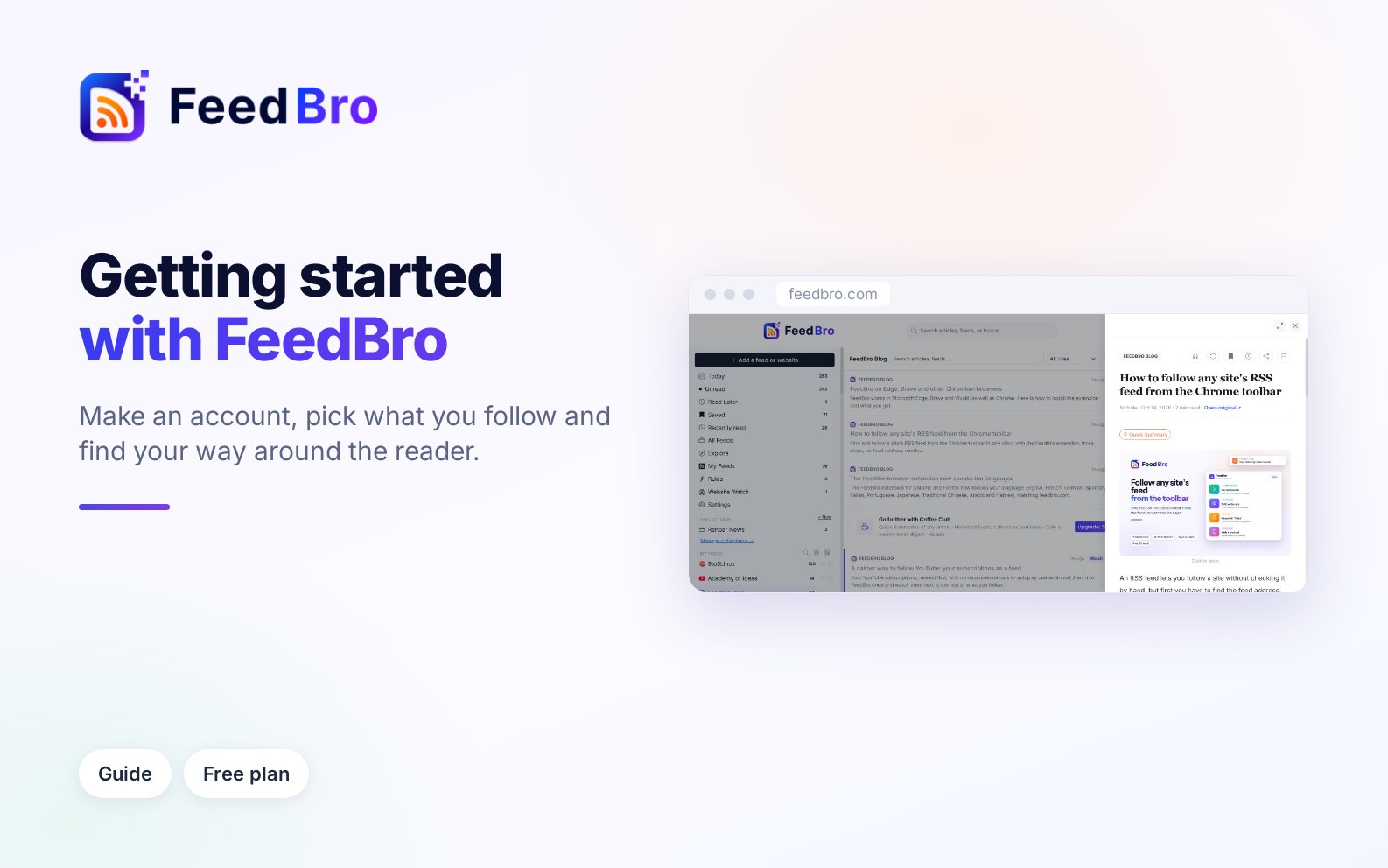
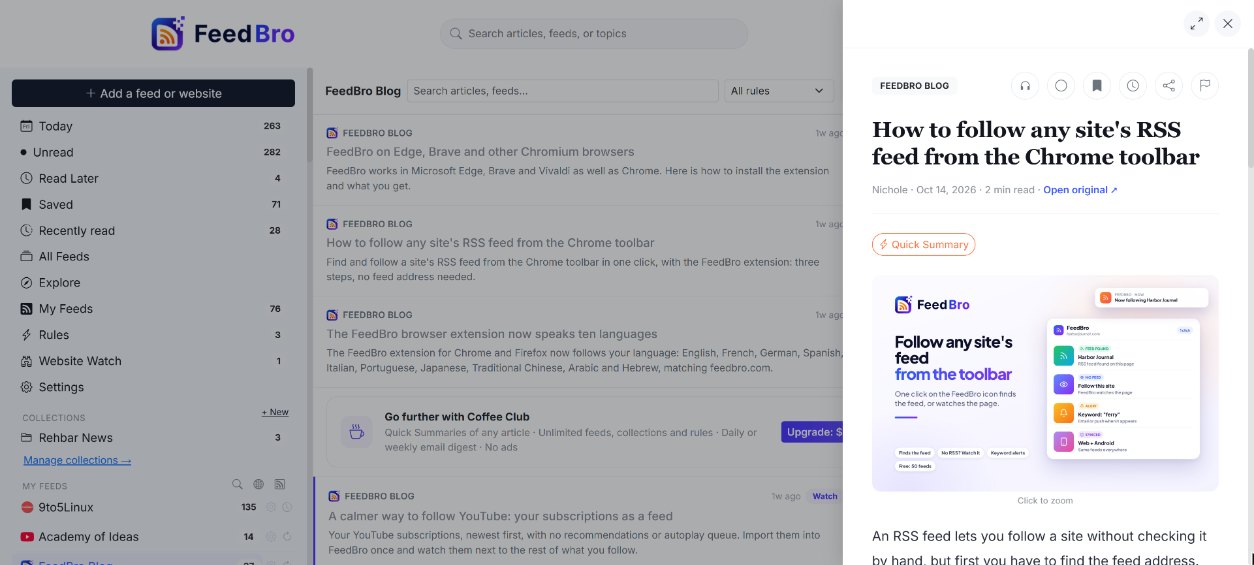
The main screen is called the dashboard. On a computer it has three columns.
The left menu
- Add a feed or website is the big button at the top, for following something new.
- Today, Unread, Read Later, Saved and Recently read are lists of articles, each with a count. All Feeds shows everything from every source.
- Explore has sources to discover, and My Feeds has the sources you follow.
- Rules holds your alerts and filters. Website Watch holds pages you watch that have no feed.
- Settings.
- Collections are folders for your feeds (the collections guide covers them).
- Under My Feeds you see every source you follow, with its number of articles and a gear icon for its settings. You can drag them into any order.
The article list
The middle column lists the articles of whatever you picked on the left, newest first. Older ones load by themselves as you scroll down. Above the list you find:
- A search box, Search articles, feeds....
- Mark all as read (the double tick), which applies to the list on screen. You can undo it right after.
- Reading preferences (the sliders icon). Here you choose which list opens first (Default view), how far back to show (Show), when an article counts as read (Mark read), how long it stays unread (Count as unread for), the look of the list (Normal, Compact (headlines only) or Cards (with pictures)) and the Theme. Each choice has an (i) button that explains it.
The right column
This column shows your Unread Articles and Active Feeds counts, and Trending this week, the articles FeedBro readers opened most this week.
On a phone
The columns fold into one. A bar at the bottom has Feeds (your list), Explore, Add (the round + in the middle), Watch and Menu, which opens the left menu. Under the search box, a row of buttons switches between All, Unread, Collections, Saved, Read Later, Recently read, Website Watch and Rules. The Android app looks and works the same way.
How to open and read an article
- Tap or click an article in the list. On your first visit, a Start here card offers Open the latest article.
- The article opens in a reading panel, on the right on a computer and as a full sheet on a phone. FeedBro shows the full text in a clean layout, even when the feed itself only sends a short teaser.
- To close it, press the X at the top or the Esc key. On a computer, the arrows button next to the X switches to Wide view.
The buttons across the top of the article are:
- Listen, which has your device read the article aloud, with pause, skip and speed controls.
- A tick to Mark as read or Mark as unread.
- The bookmark to Save the article for good, and the clock for Read Later.
- Share, and the flag to Report a problem with this article when the text is cut off, missing or wrong.
Under the title you see the author, the date, the reading time and Open original, which opens the article on the publisher's site. Coffee Club members also get a Quick Summary button.
By default an article counts as read when you open it. You can change that under Mark read in Reading preferences. In the list, the More menu on each article can also mark it read or unread, save it, or keep it for later, without opening it.
On a computer you can use the keyboard: j and k move down and up the list, Enter or o opens, s saves, l keeps for later, u marks unread, r refreshes and / jumps to search.
Where to find everything else
Settings
Open Settings from the left menu, or from the menu behind your profile picture at the top right. It has six sections:
- Reading has the same reading choices as the sliders menu, plus the list of keyboard shortcuts.
- Feeds lists every source you follow, with Import OPML, Export OPML and RSS links of your own reading.
- API has keys for reading FeedBro from your own scripts.
- Email has the Email Digest and Email Preferences.
- Extension is for connecting the FeedBro browser extension.
- Account has Edit profile, your plan, the Language FeedBro and its emails use, and the option to delete your account.
Notifications
The bell at the top of the page opens Notifications. These are notes from FeedBro, for example when a feed starts working, an import finishes or an article matches one of your rules. A dot on the bell means something is new, and Mark all as read clears it. The bell keeps the last 45 days.
Push notifications to your phone or browser come from rules and from Notify me of new articles in a feed's gear menu. Your browser asks for permission the first time you turn one on.
Plan & billing
Open the menu behind your profile picture and choose Plan & billing. The page shows your Current Plan, what it includes and what Coffee Club adds. Coffee Club members also manage payment and cancelling there. The same menu has Profile, Theme and Log out.
On the Free plan and Coffee Club
Everything in this guide works on the Free plan, which includes up to 50 feeds and 10 collections. Coffee Club ($4.99 a month, cancel any time) removes those limits. It also adds smart summaries, a daily or weekly email digest, refreshes every 15 minutes, premium fetching for hard-to-reach sites and no ads. On the Free plan the website shows a few small, labelled ads. The Android app has no ads on any plan.
Good to know
- Your account works the same on the website, in the Android app and in the browser extension for Chrome, Firefox, Edge and Brave. When you follow something in one place, it shows in all of them.
- FeedBro is available in English, French, German, Spanish, Italian, Portuguese, Japanese, Traditional Chinese, Arabic and Hebrew. You can change the language in Settings › Account › Language.
- Right after sign-up, FeedBro may ask What should we call you?. FeedBro greets you by that name on the site and in emails. You can skip the question.
If something doesn't work
- If you see "Temporary or disposable email addresses are not accepted.", sign up with your regular email address, or with Google.
- If the password is refused, check the list under the box. Every rule must be ticked.
- If you forgot your password, press Forgot password? on the sign-in page, enter your email and press Send Email. FeedBro emails you a code. Enter it and press Verify OTP, then type your new password twice and press Save. If you signed up with Google, you have no FeedBro password, so use Continue with Google.
- If Continue stays locked on the Start following screen, follow at least one source first.
- If the list says "Nothing here yet." or a feed shows no articles, check Show in Reading preferences. A short window, such as Last 24 hours, hides older articles. The empty list also offers Show everything.