Many pages you care about have no RSS feed. (An RSS feed is a list a website publishes of its newest articles, which a reader like FeedBro checks for you.) Company newsrooms, careers pages and online shops rarely have one. With Website Watch, you give FeedBro the address of a page that lists things, and FeedBro checks that page for you. Each new post, job or product then arrives in your reader as its own article, next to your feeds, and your rules and alerts work on it as they do on any other article.
What you can watch
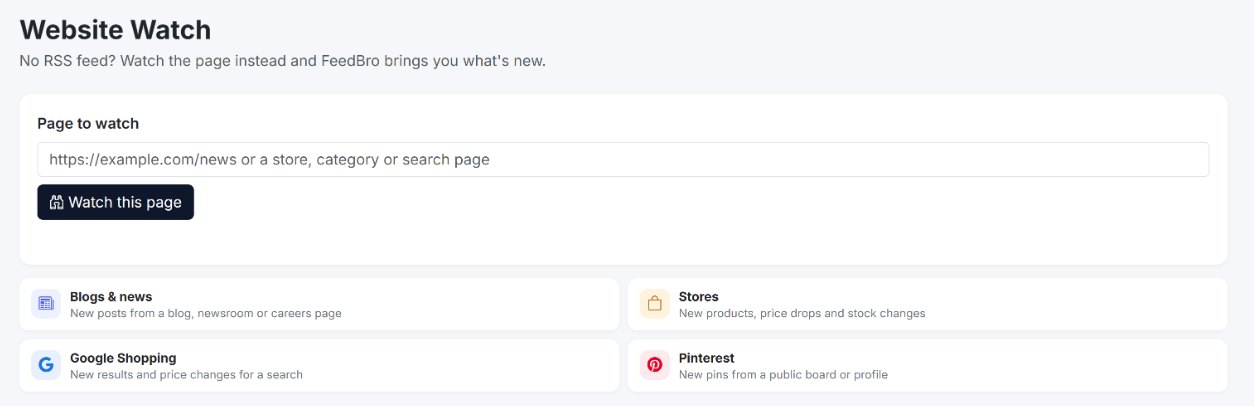
The Website Watch page shows four kinds of pages:
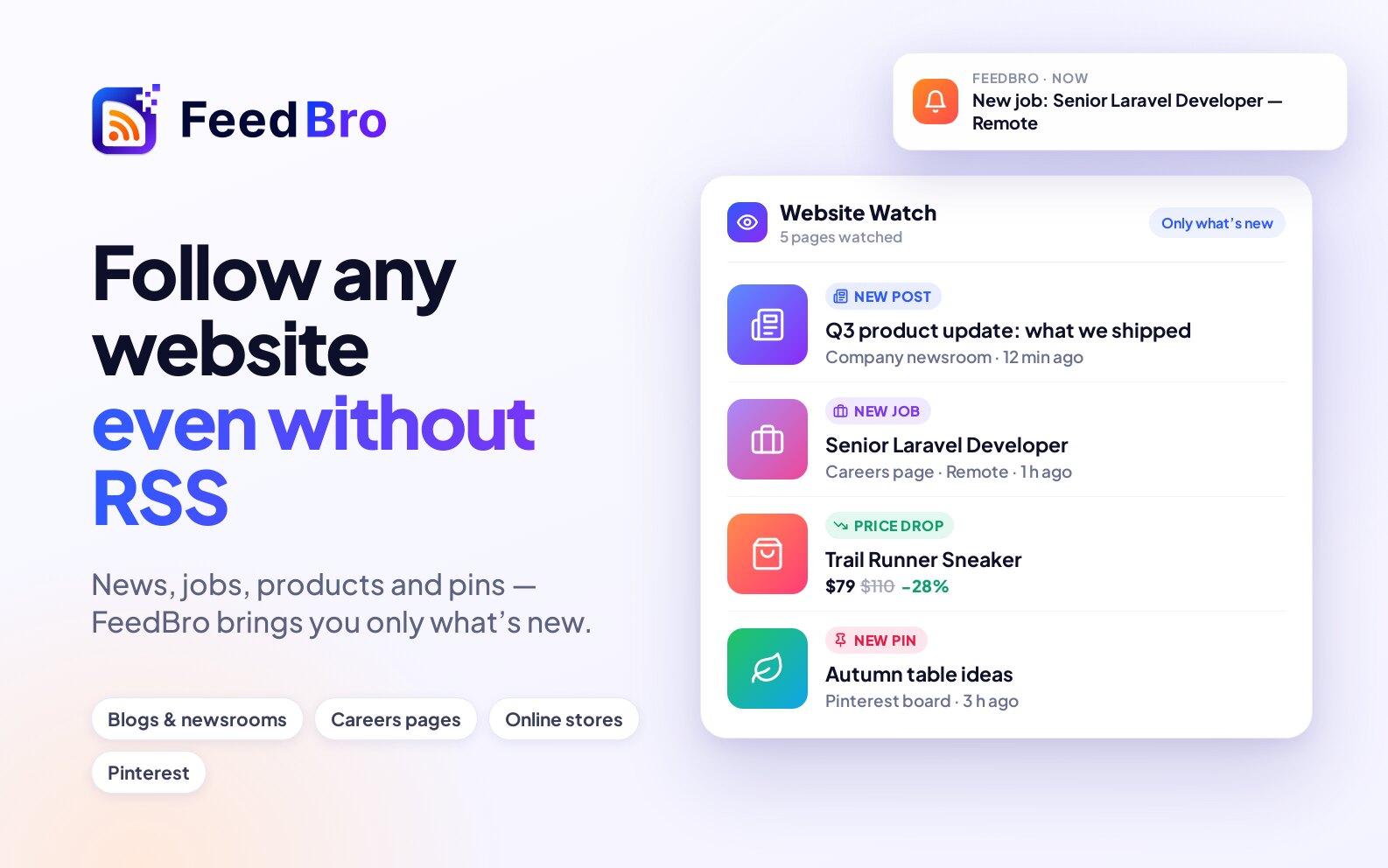
- Blogs & news watches for new posts from a blog, newsroom or careers page. Each new post or job opening becomes an article.
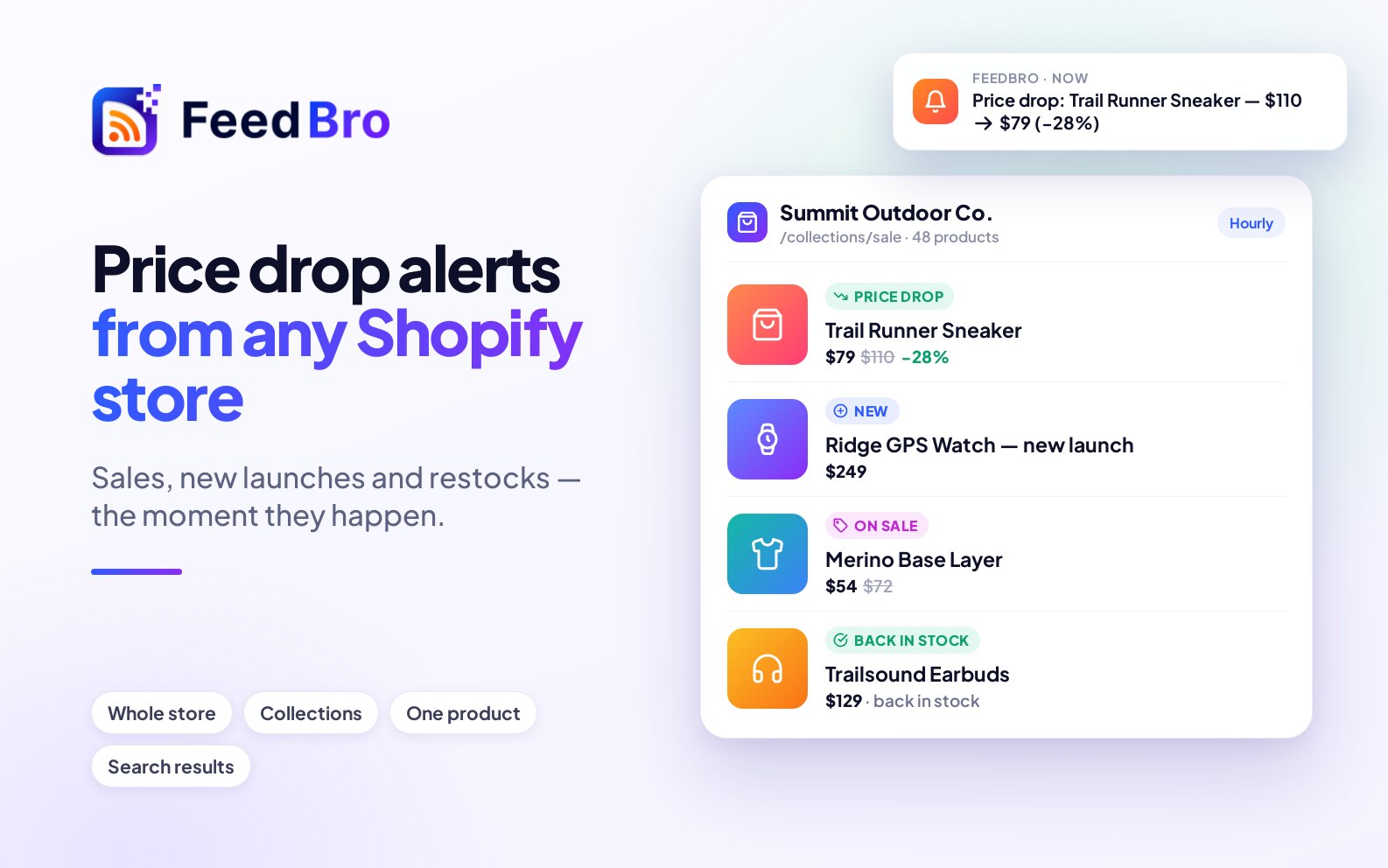
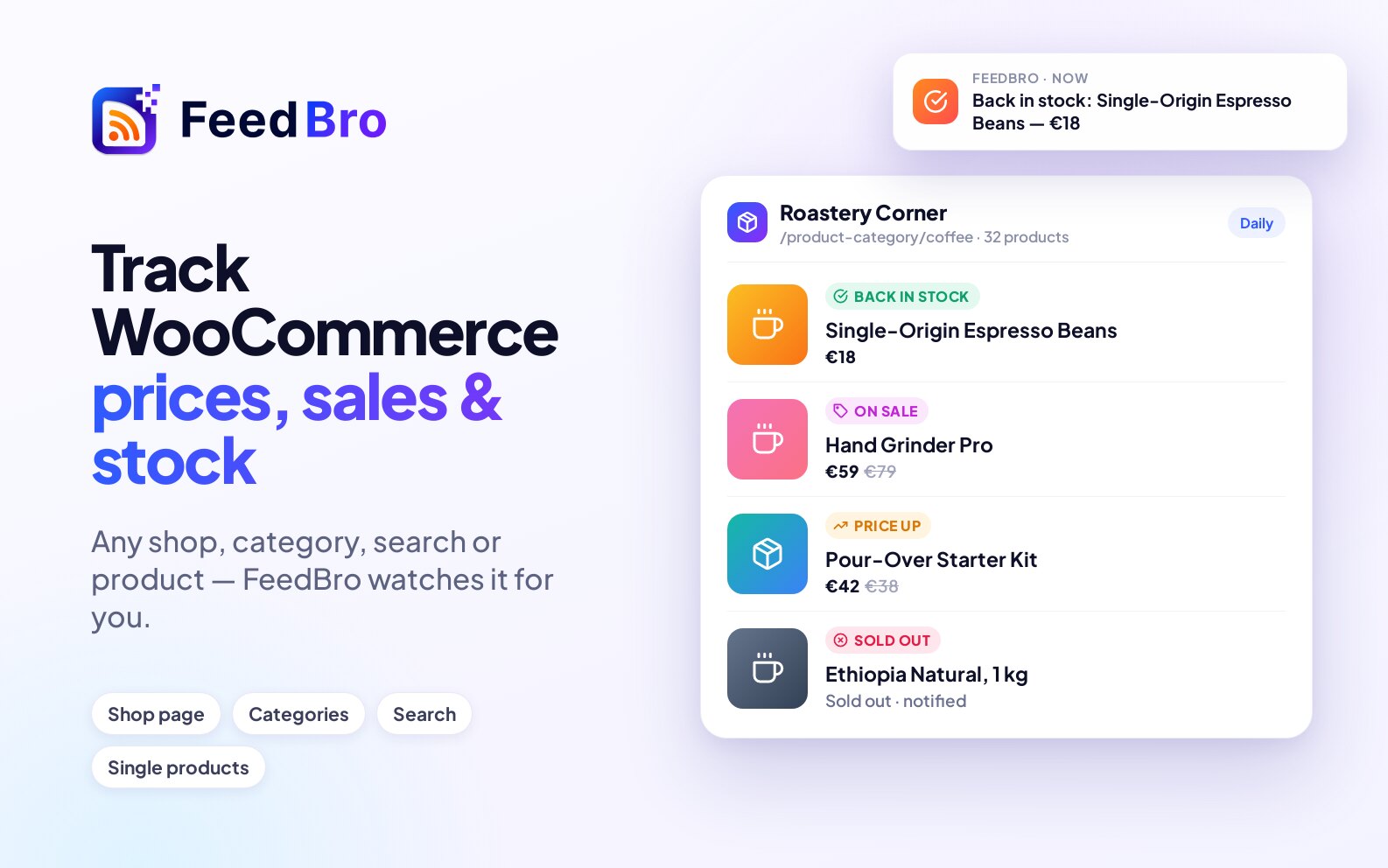
- Stores watches for new products, price drops and stock changes. FeedBro reads Shopify and WooCommerce shops from the shop's own product information, so prices and stock are exact. Other shops work when their pages describe products in the standard way search engines read, or when most items on the page show a price.
- Google Shopping watches for new results and price changes in a Google Shopping search.
- Pinterest brings in new pins from a public board or profile. A Pinterest board has its own feed, so FeedBro follows it as a feed, and it counts toward your feeds instead of your watched pages.
Public Instagram accounts are also followed through Website Watch, and each one counts as one of your watched pages.
FeedBro can only read public pages, so it can't watch a page that needs you to sign in.
How to start a watch
From the Website Watch page
- Open Website Watch. On a computer it is in the left menu of your reader and in your account menu at the top right. On a phone, tap Watch in the bar at the bottom of the screen.
- In Page to watch, paste the address of the page. You can leave out the https://.
- Press Watch this page. The button changes to Reading the page… while FeedBro opens the page and looks for its list.
- When it works, you see a message such as Watching "Acme Newsroom" (12 posts found). You'll get its new posts from now on. FeedBro then opens the watched page in your reader.
From the Add button
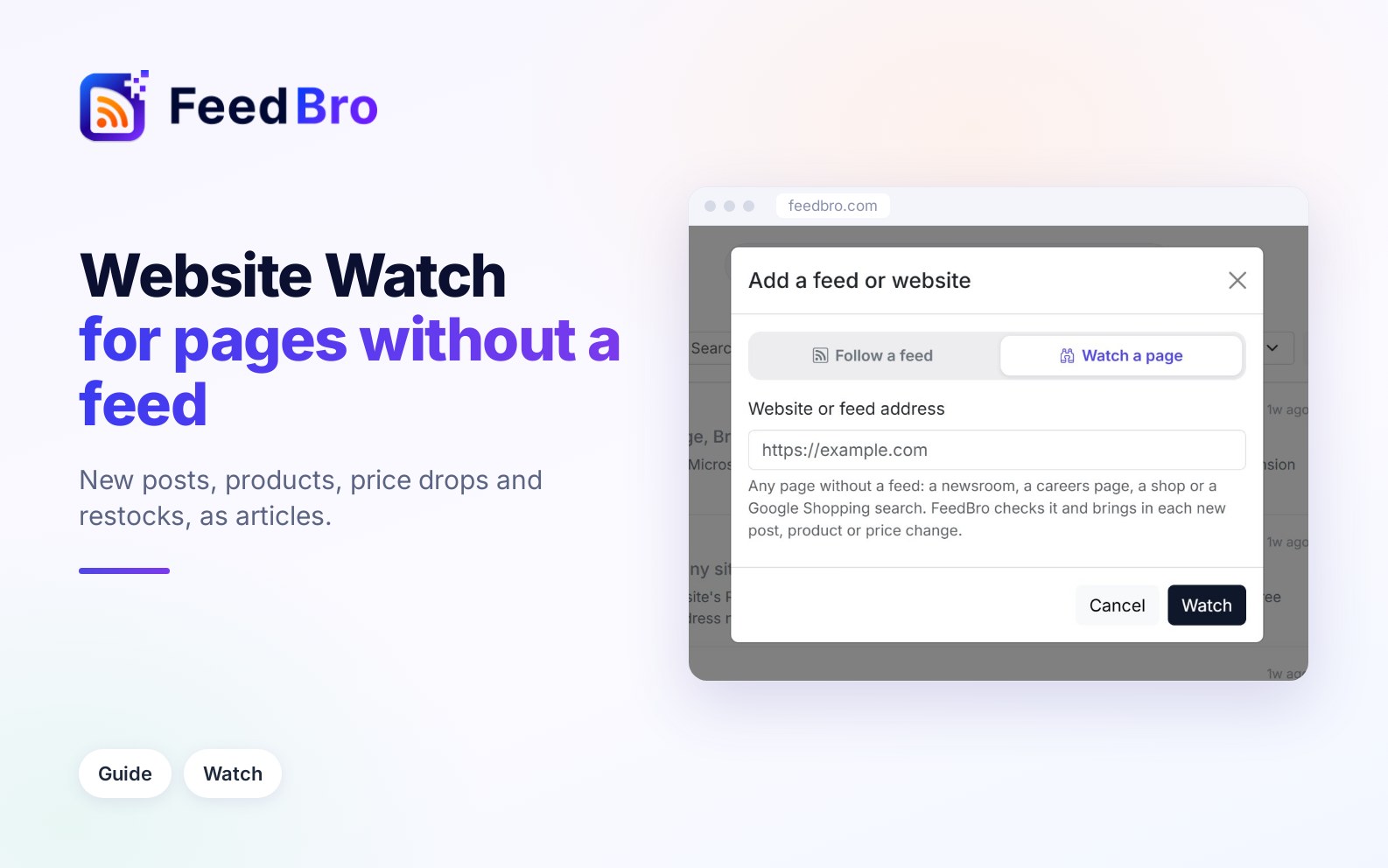
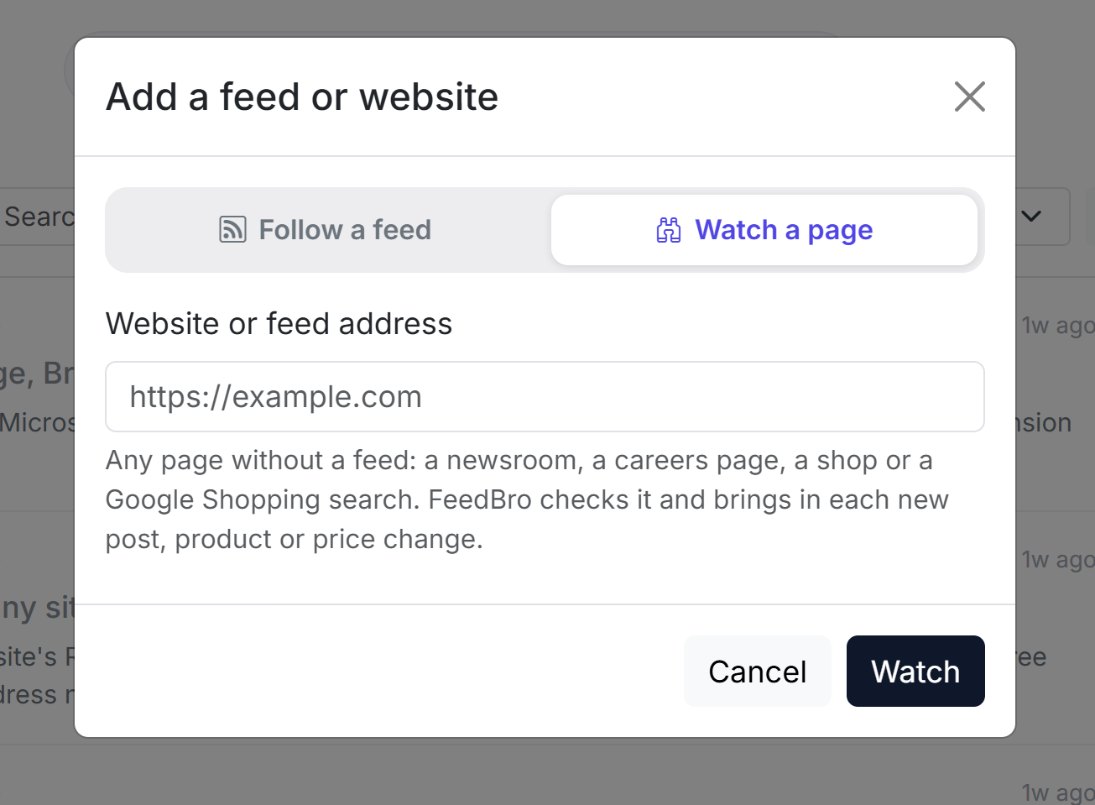
- Press Add a feed or website (on a phone, tap Add in the middle of the bottom bar).
- Choose Watch a page at the top of the window.
- Paste the address in Website or feed address and press Watch.
- FeedBro shows what it is doing, for example Opening the page… and Reading the page’s list…. Some sites take up to a minute.
If you choose Follow a feed instead and the page turns out to have no feed, FeedBro tells you There’s no RSS feed on this page. and describes what it found, for example This looks like a shop page with 31 products or This looks like a jobs page with 11 openings. Check that it is what you want, then press Watch this page instead.
From the browser extension
On a page with no feed, open the FeedBro extension from your browser's toolbar and press Watch this page. FeedBro opens Website Watch with the address already filled in. Press Watch this page there to start.
When the site has its own feed
Some sites publish a feed that you can't see on the page. A feed gives you every post with its text, so FeedBro asks first: This site has its own RSS feed. Following it gets you every post, with its text. Follow the feed instead? Press Follow the feed to follow it, or Watch the page anyway to watch the page.
Choosing the right page
- Use the page that lists things, such as a blog's main page, a newsroom's list of press releases or a company's jobs page. A single article has no list to watch.
- For a shop, pick the page that matches what you care about. The shop's home page covers everything, a category or collection covers one range, and you can also use a search results page, or a single product when you are waiting for one item.
- For Google Shopping, search on Google, switch to the Shopping results, and copy the address from your browser.
What arrives in your reader
Posts and jobs
The posts already on the page when you start are added as your starting point, without any alerts. After that, each post or job that appears later arrives as a new article with its title and link, plus its picture and a short text when the page has them. Rules and alerts act on these new ones.
Products
Every product on a watched shop page is an article of its own, with its picture, its current price and a View the product ↗ link. The products there when you start are added without alerts. On every check, each product's article is updated to the latest price and stock. When you open a product, FeedBro also reads the product's own page and adds its description under About this product.
When something changes, the change arrives as a separate article, so you can see it and get an alert for it. These are the changes:
- 💸 Price drop, with how much it went down in percent
- 📈 Price up
- 🏷️ On sale, when a sale price appears, with the old price
- ✅ Back in stock and ⛔ Sold out
- New product, when something appears that wasn't on the page before
When you open a price change, a card at the top shows the new price and the old one after was. For a drop, it also shows You save with the amount and percentage.
FeedBro doesn't report a price move under 1%, but it keeps track of small moves. Once several of them add up to 1% or more, you get one change.
A new Google Shopping watch spends its first day and a half learning which results Google shows, because Google varies them from one load to the next. During that time, results that appear for the first time are added quietly, without being announced as new products. After that, new results are reported as in any shop.
Get alerts for new posts and price changes
A push for every new item
- On the Website Watch page, press the gear button next to the watch.
- Under Notify me of new articles, choose On: a push when it posts.
- Press Save.
On the Free plan you can turn this on for 3 feeds or watched pages. Coffee Club has no limit.
Rules with shop conditions
With a rule, you choose which changes reach you, for example only price drops of 10% or more, or only one product coming back in stock.
- Open Rules from the menu and press + New Rule.
- Give it a name in Rule name.
- Under Conditions, open the first list and choose Price (in the group Price: products from shops you watch).
- In the next list, choose what has to happen:
- dropped, with an optional number in by at least % (optional). This also counts a product going on sale.
- is at or below, with an amount, for example 50.
- went on sale, is back in stock, is a new product, went up (with an optional percentage) or sold out.
- To narrow it to one brand or product, press + Add condition, choose Title and contains text, and type the name. Keep Match ALL conditions selected.
- Under Actions, tick Push notification, Email notification or both. You can also highlight, favorite, tag or hide matching articles.
- Press Save rule.
For a quicker start, tap Price drop alert under Start from an example on the Rules page. It opens a rule for drops of 10% or more with a push notification, ready to save or change.
Price conditions only work for products from shops and Google Shopping searches you watch. For posts and jobs, use text conditions, for example Title contains word "Remote".
Push notifications reach the FeedBro Android app, or your browser once you press Enable Notifications on the Rules page.
How often pages are checked
On the Free plan you can watch up to 3 pages, and each is checked once a day. FeedBro reads the first page of each list.
Coffee Club lets you watch up to 10 pages, checked every hour. When a long list continues on more pages, FeedBro reads the following pages too (up to 10): all of them on the first check, and then once a day. New items normally appear on the first page, which is read every hour.
The Website Watch page shows how many you use, for example Watching 2 of 3. Each watch also shows its address, when it was last checked, and how many posts, products or results it found.
Some pages build their list with JavaScript after they open. FeedBro can load those the way a browser does, and watching them is a Coffee Club feature. Google Shopping searches are the exception and work on every plan.
Each watched page also counts as one of your feeds, so on the Free plan your watches and feeds together stay within 50.
Edit a watch
- Open Website Watch and press the gear button next to the watch.
- Change what you need:
- Name is the name shown in your reader.
- Show at most keeps only the newest 10, 20, 50 or 100 articles in your list, or All its articles.
- Notify me of new articles sends a push for each new item.
- Press Save.
You can't change the address of a watch. To watch a different page, stop this watch and start a new one.
The same gear is next to the watch in your reader's left menu. In the reader's list of feeds, the globe button shows only your watched pages.
Stop watching a page
- Open Website Watch.
- Press Stop watching next to the page.
- Confirm. FeedBro stops checking the page and you won't get its new posts any more.
You can also use Stop watching in the gear menu in your reader's left menu. Articles you saved or put in Read Later stay.
If something doesn't work
When a check fails, the watch shows a short warning on the Website Watch page, and FeedBro keeps trying on its next checks. These are the warnings you may see:
- We couldn't find a list of posts on that page. You probably pasted a single post. Use the page that lists the posts, such as the blog's or newsroom's main page.
- Found 12 posts on that page, but it builds its list with JavaScript. This page needs a browser to show its list, which is a Coffee Club feature.
- We couldn't find the posts on this page any more. The site may have changed its layout. FeedBro looks at the page again on every check and picks up the new layout when it can. If the warning stays for days, open the page to see whether it still lists anything, or stop the watch and start it again on the right page.
- We couldn't open that page right now. The site was slow or turned FeedBro away, and FeedBro tries again later. Some large sites block automated readers. Coffee Club includes premium fetching for hard-to-reach sites.
- We couldn't read the products on this page right now. The shop's product list came back empty this time. It is tried again on the next check.
- Google Shopping showed no results for that search. Check that the address is a Google Shopping search that shows results in your browser.
- Your plan can watch 3 websites. You are at your plan's limit. Stop a watch you no longer need, or join the Coffee Club for up to 10.
If you paste your own YouTube subscriptions page, FeedBro can't watch it because it is private to your Google account. It offers Connect YouTube instead, so you can import your channels. A YouTube channel's page is followed as a feed automatically.