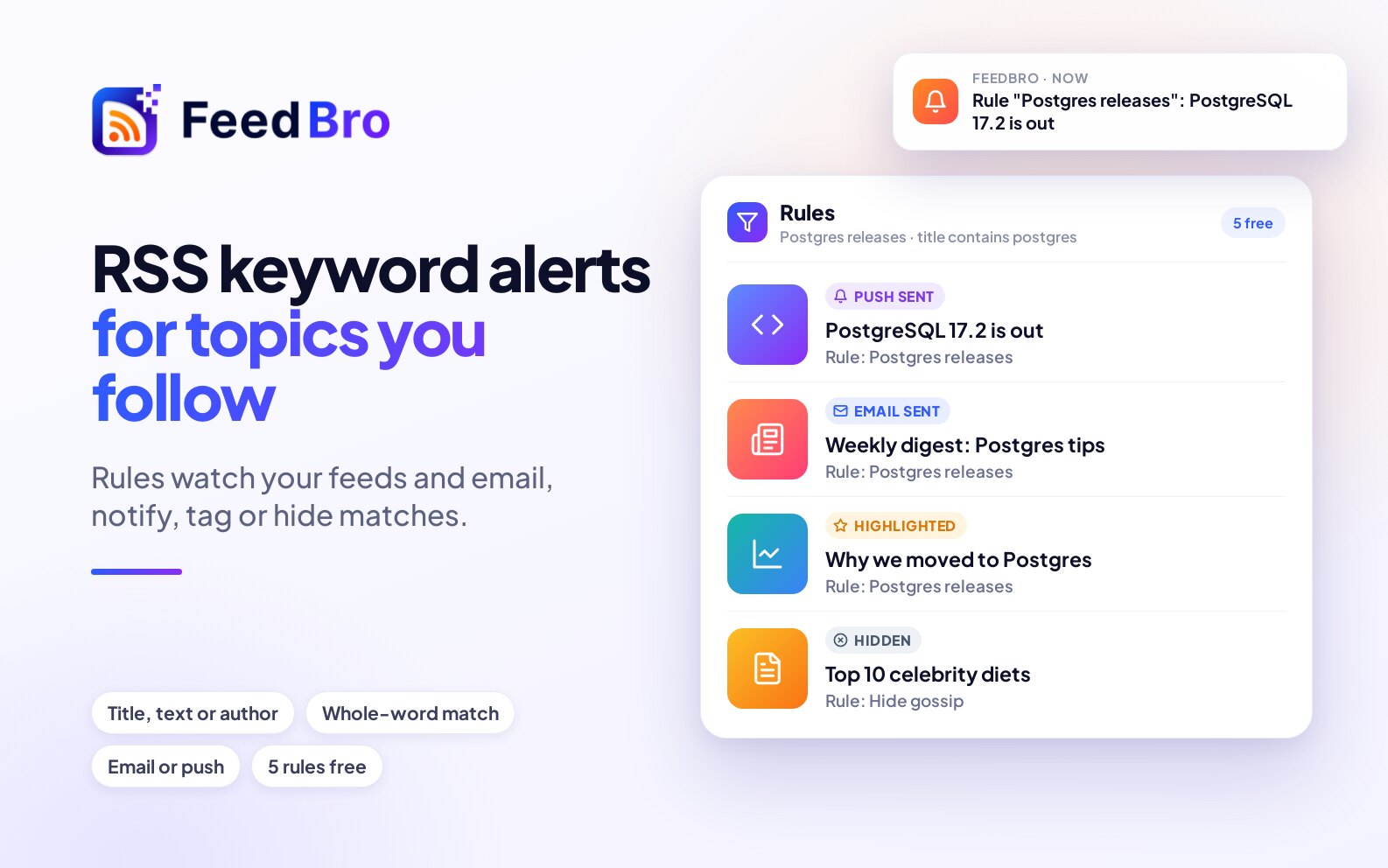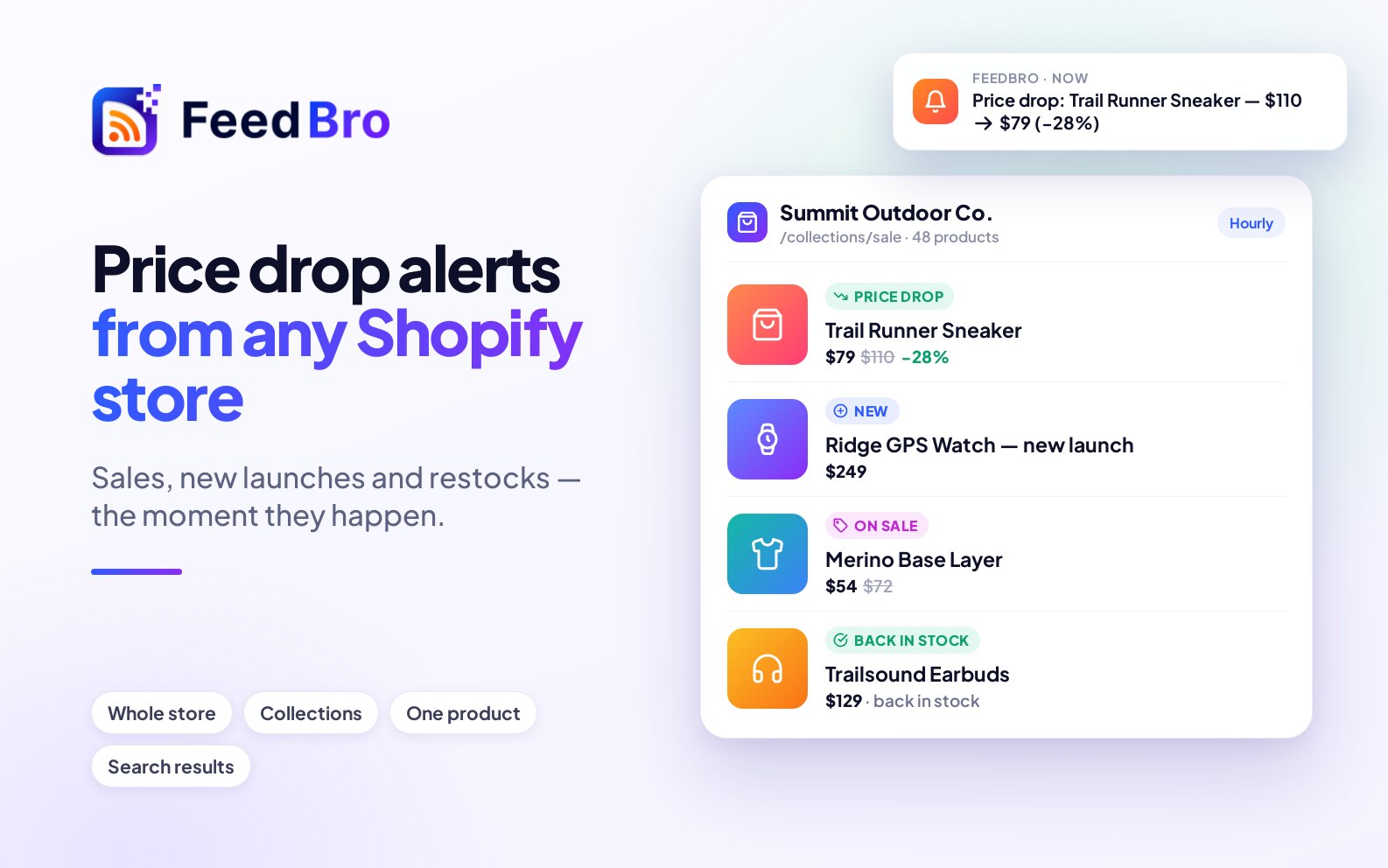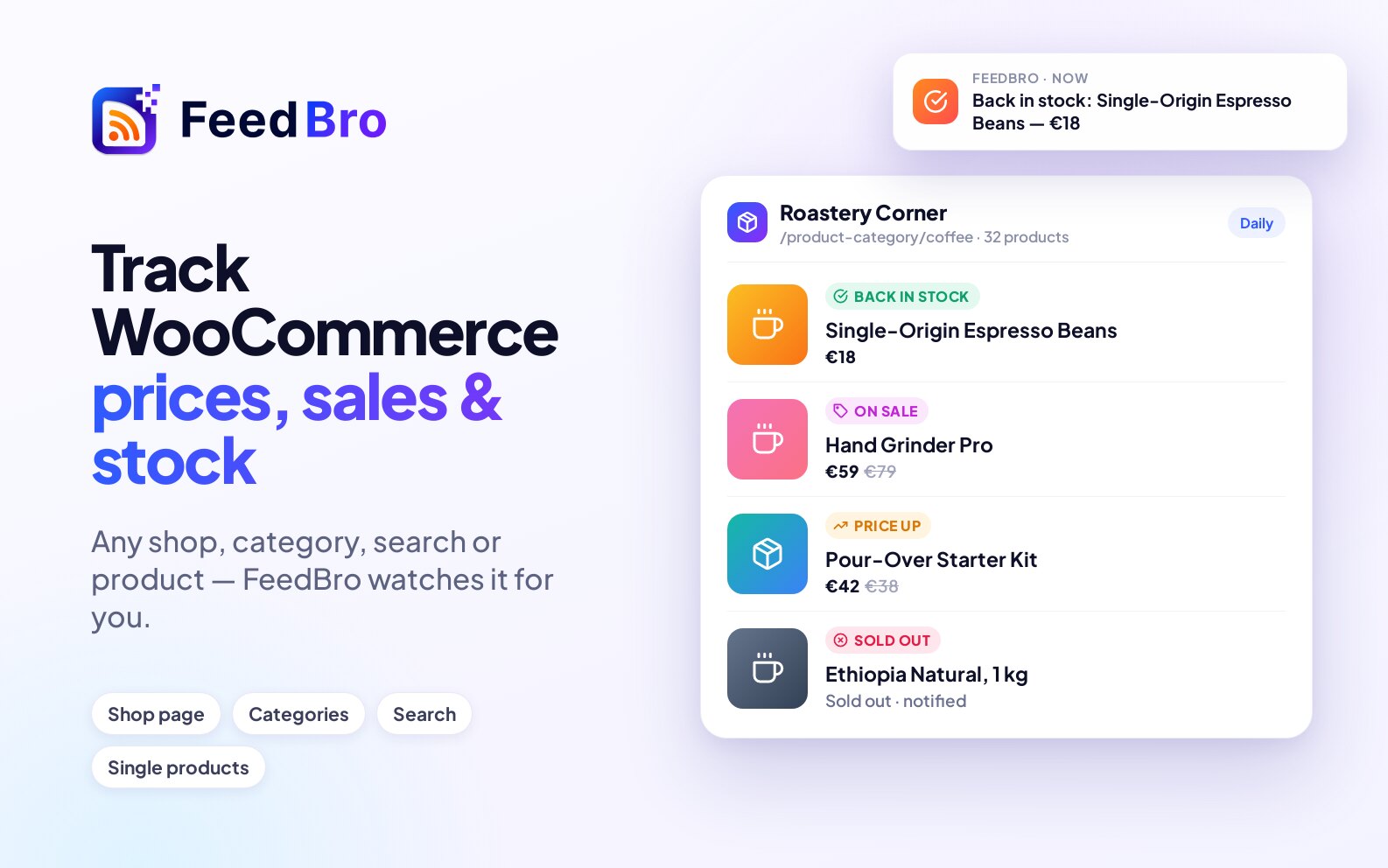
A rule tells FeedBro what to do with articles that match something you care about. For example, a rule can hide every YouTube Short, send a push notification when a title mentions your company, tag everything from one section of a site, or tell you when a product you watch gets cheaper. FeedBro checks your articles against your rules on its own, so you don't have to read every headline to catch the ones you want.
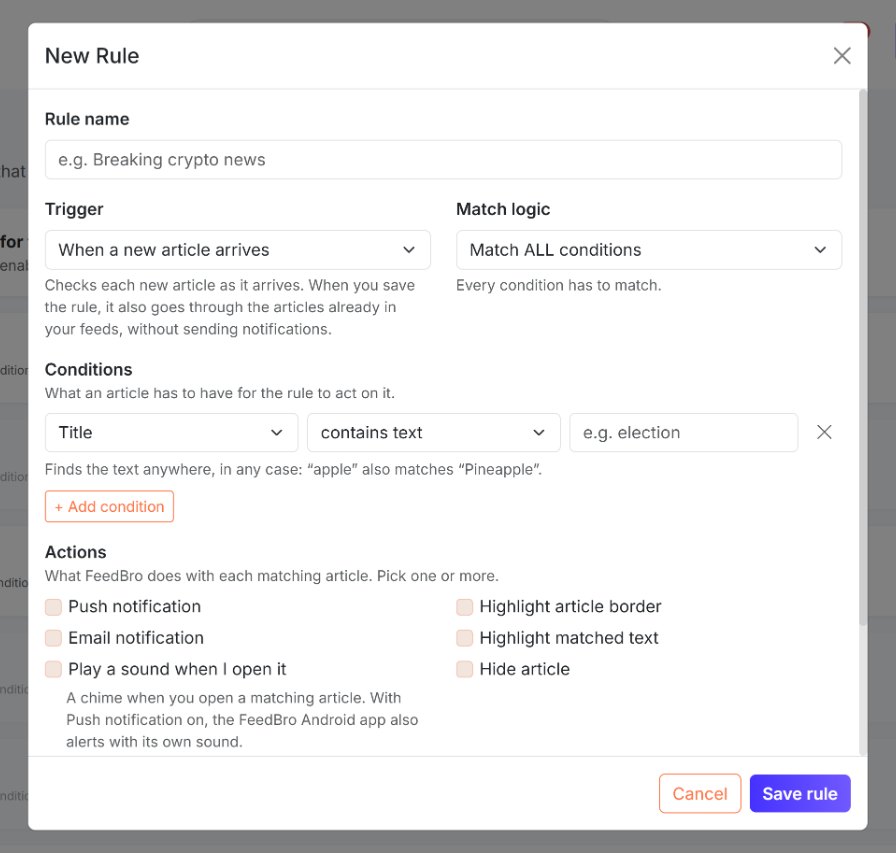
What a rule is made of
Every rule has a name, so you can recognise it later in your list of rules. It also has three working parts:
- A trigger, which says when the rule looks at an article: either when a new article arrives, or when you open one.
- Conditions, which say what an article has to have for the rule to act on it, for example "the title contains the word election".
- Actions, which say what FeedBro does with each matching article, for example send a push notification, hide it or tag it.
A rule looks at the articles from all the feeds you follow. (A feed is the list of newest articles a website publishes, and FeedBro reads it for you.) If you want a rule for one site only, add a condition on the article's link, as shown below.
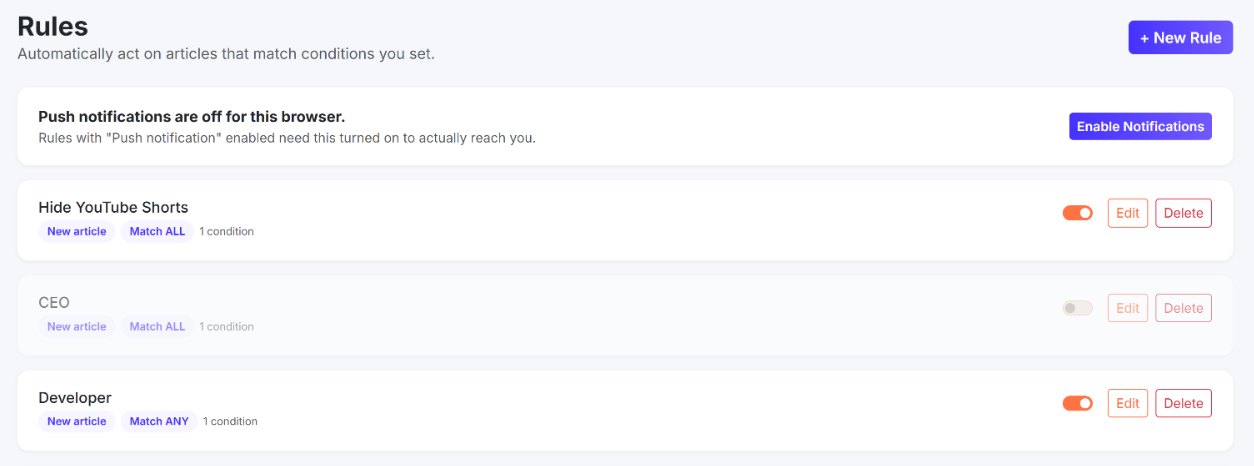
Where to find Rules
- On a computer, click your picture in the top right corner and choose Rules, or click Rules in the left sidebar of your reading list. The number next to it is how many rules you have.
- On a phone and in the Android app, open the menu and tap Rules.
Rules are part of your account, so a rule you make on the website also works in the Android app and the browser extension.
How to create a rule
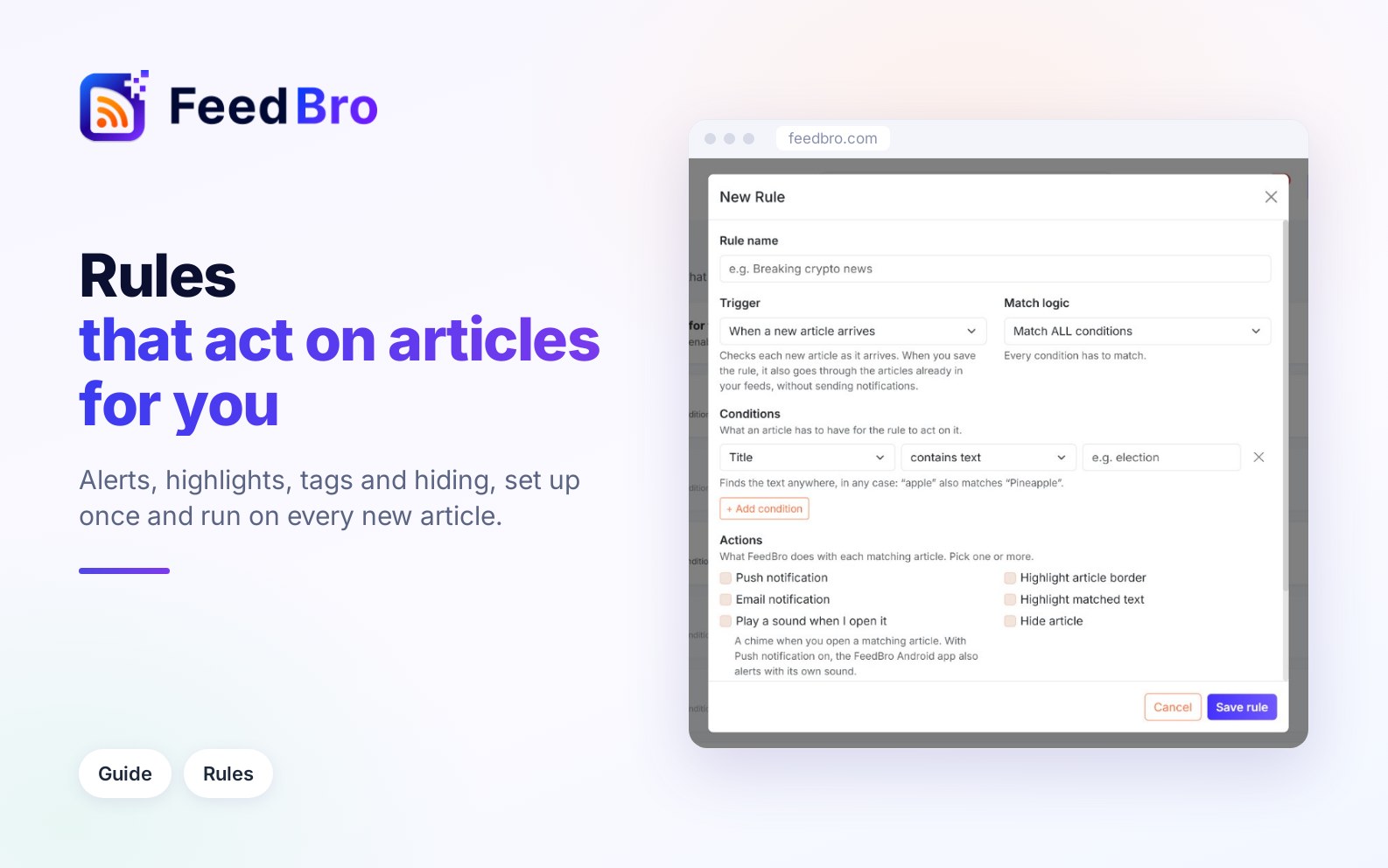
- Open Rules and click + New Rule.
- Under Rule name, type a name you will recognise, for example "Mentions of my company".
- Under Trigger, choose When a new article arrives or When an article is viewed. The line under the menu explains each choice.
- Under Match logic, choose Match ALL conditions, Match ANY condition or Match NONE of the conditions.
- Under Conditions, pick what to look at (for example Title) and how to match it (for example contains word), then type the word or text. Click + Add condition to add more.
- Under Actions, tick one or more boxes. To add a label, type it under Tag (optional).
- Click Save rule. You will see Rule saved. and the rule appears in your list.
Start from an example
Under your rules there is a section called Start from an example. Click Use this on any example and the rule window opens already filled in. You can change anything before you save. The examples are:
- Hide YouTube Shorts keeps Shorts out of your lists and unread counts.
- Alert me about a topic sends a push notification when a new title mentions a word you choose. You type the word.
- Hide sponsored posts leaves out articles with "Sponsored" in the title.
- Tag a section of a site labels articles whose link contains /opinion/.
- Follow a favourite writer highlights articles by one author and marks them as favorites. You type the author's name.
- Price drop alert sends a push notification when a product you watch drops 10% or more.
Triggers: when a rule runs
- With When a new article arrives (shown on the rule as New article), FeedBro checks each new article as it comes in. When you save the rule, it also goes through the articles already in your feeds, without sending notifications.
- With When an article is viewed (shown as On view), FeedBro checks an article the moment you open it. This suits rules that tag or favourite what you read about a topic. It does not go through older articles.
Match logic: all, any or none
- Match ALL conditions means every condition has to match. Use it to narrow things down, for example when the title contains "Apple" and the link contains "reviews".
- Match ANY condition means one matching condition is enough. Use it to catch a topic and its other spellings in one rule, for example "e-mail" or "email".
- Match NONE of the conditions makes the rule act on articles that match none of your conditions. Use it with care, because it can match almost everything.
Conditions you can use
Article text
First choose what to look at:
- Title is the article's headline.
- Author is the writer's name, as the feed gives it.
- Content is the text of the article.
- Link is the article's web address. Use it to limit a rule to one site or one section, for example "bbc.co.uk/sport" or "/shorts/".
Then choose how to match:
- contains text finds the text anywhere, in any case, so "apple" also matches "Pineapple".
- contains word matches whole words only. "AI" matches "AI news" but not "said". This is the best choice for short or common words.
- matches regex is for advanced use. A regular expression is a pattern language for text. Type the pattern between slashes: for example, /^Breaking/i finds titles that start with "Breaking" in any case.
Price: products from shops you watch
These conditions work for products from shops and Google Shopping searches you follow with Website Watch. Choose Price, then one of these:
- dropped means the price went down. You can type a number to mean "by at least this %", or leave it empty for any drop. A product going on sale also counts as a drop.
- is at or below needs an amount, for example 50.
- went on sale means the price fell below the product's usual price.
- is back in stock
- is a new product means it just appeared on the page you watch.
- went up means the price rose, optionally by at least the % you type.
- sold out
Video
Is a YouTube Short matches YouTube Shorts and needs no words. Pair it with Hide article to keep Shorts out of your lists.
Actions a rule can take
- Push notification sends a notification to your phone (Android app) or your browser, titled "Rule matched:" and the rule's name, with the article's title. It is also kept in the bell at the top of FeedBro.
- Email notification collects your matching articles and sends them together in one email (subject "FeedBro: 10 new rule matches"), so a busy feed can't fill your inbox. The email goes out once ten matches have built up across your rules.
- Play a sound when I open it plays a chime when you open a matching article. With Push notification on, the Android app also alerts with its own sound.
- Mark as favorite puts the article in your Saved list.
- Highlight article border marks the article in your list so it stands out.
- Highlight matched text highlights the words from your "contains text" and "contains word" conditions when you open the article.
- Hide article removes the article from your lists and unread counts.
- Tag (optional) adds a label of up to 50 characters to matching articles, so you can find them together.
What happens to articles you already have
When you save a New article rule, FeedBro goes through the articles already in your feeds in the background, and a message tells you this can take a few minutes. Hides, tags, highlights and favourites are applied to old matches, but no push notifications or emails are sent for them. Only articles that arrive from now on send notifications.
Finding what a rule matched
- In your reading list, use the rules menu next to the search box (it starts on All rules) and pick a rule to see only its articles.
- To see everything with a tag, open Search, type the tag and open the Tags tab. Click the tag to see its articles.
- When you open a tagged article, the tag shows above the title. Hover over it to see which rule added it.
Editing, pausing and deleting a rule
- To change a rule, click Edit on it, make your changes and click Save rule. FeedBro brings your existing articles in line with the new version. Articles that no longer match are un-hidden and lose the rule's tag and highlight, and new matches get the new treatment.
- To pause a rule, use the switch on it. When you turn it off, you see Rule disabled. and the rule is greyed out. Its hidden articles come back and its tags and highlights are removed. When you switch it on again (Rule enabled.), it applies to every current match again.
- To remove a rule, click Delete and confirm Delete this rule?. This also undoes what the rule did to your articles, the same way as pausing it.
Undoing a rule never takes articles out of Saved. Articles a rule put there stay saved, because you may have saved some of them yourself, so remove them by hand if you want. A tag you set by hand, or one another rule added, is also left alone. If another of your rules also matches an article, that rule's hide, tag or highlight stays in place.
Worked examples
Hide YouTube Shorts
- Open Rules and click Use this on Hide YouTube Shorts.
- Check that it says When a new article arrives, with the condition Is a YouTube Short and the action Hide article.
- Click Save rule.
FeedBro then goes through your videos. YouTube's feeds don't always mark a Short as one, so FeedBro checks videos with YouTube in the background. Give it a few minutes before you look.
Get an email when a site mentions your company
- Click + New Rule and give it a name, for example "Acme in the news".
- Keep When a new article arrives and Match ANY condition.
- Add a condition: Title, contains word, "Acme".
- Click + Add condition and add Content, contains word, "Acme". This catches articles that mention the company in the text but not the headline.
- Tick Email notification. Tick Push notification too if you want to hear about each one straight away.
- Click Save rule.
To watch only one site, switch the logic to Match ALL conditions and use one text condition plus Link, contains text and the site's address, for example "example-news.com".
Price drop alert
- First watch the shop or product page with Website Watch, so FeedBro knows its prices.
- In Rules, click Use this on Price drop alert.
- The condition is Price, dropped, 10. Change the number, or empty the box for any drop. If you would rather hear about a target price, choose is at or below and type the amount.
- Keep Push notification ticked and click Save rule.
Push notifications need your permission
A rule with Push notification can only reach a browser that has allowed notifications from FeedBro. The top of the Rules page shows whether they are on for the browser you are using. If you see Push notifications are off for this browser., click Enable Notifications and choose Allow when your browser asks. In the Android app you will see Notifications come through the FeedBro app. instead. There, you turn notifications for FeedBro on or off in your phone's settings.
Creating a rule from the browser extension
With the FeedBro extension, select some text on any page, right-click it and choose Create FeedBro Alert. The Rules page opens with a new rule ready, where the title contains the text you selected. You can also right-click on a page and choose Create Alert for this Website. That opens a new rule named after the site, and you add the conditions yourself.
On the Free plan and Coffee Club
The Free plan allows up to 5 rules, each with up to 5 conditions, and includes every condition type and every action. Coffee Club allows as many rules as you like, with as many conditions as you need.
On Free, a sixth rule shows "You've reached the Free plan's rule limit (5 rules)." and a sixth condition shows "Limit reached. You can have up to 5 conditions per rule on your current plan."
If something doesn't work
- If a new rule doesn't seem to do anything yet, give it time. It goes through your existing articles in the background, which can take a few minutes. Refresh your list after a short wait.
- If no push notifications arrive, check the top of the Rules page. If notifications are off, click Enable Notifications. If nothing appears, your browser may be blocking them or you may be in a private window. Allow notifications for feedbro.com in the browser's site settings (the icon left of the address) and try again. Each browser has to be allowed separately.
- If no email arrives, remember that rule emails are sent in batches of ten matches. A rule that matches rarely can take a while to send its first email. Use Push notification as well if you need to know straight away.
- "Condition 1 is incomplete." means a condition is missing its value. A text condition needs a word or text, and is at or below needs an amount.
- "Condition 1 isn't a valid regular expression." means the pattern needs slashes around it, for example /^Breaking/i.
- If a rule matches too much, switch contains text to contains word, look at the Title only, or add a second condition with Match ALL conditions.
- If a price rule never matches, check what it is watching. Price conditions only work for products from shops and Google Shopping searches you follow with Website Watch. They don't work on ordinary news feeds.
- If articles are still hidden after you changed your mind, switch the rule off or delete it, and its hidden articles come back. If they stay hidden, another of your rules probably hides them too.