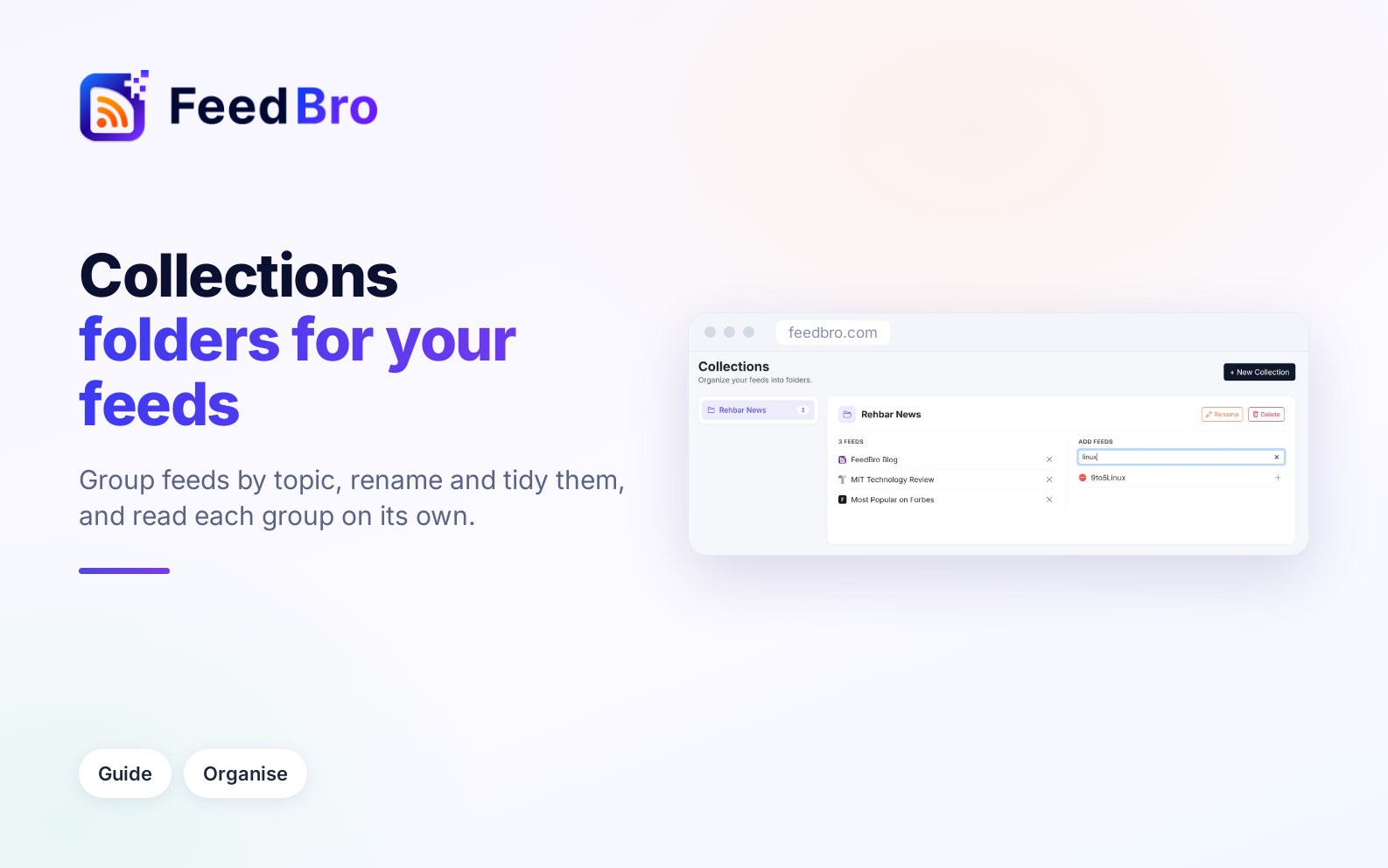
A collection is a folder for your feeds. You could put the feeds you read for work in one and your hobby sites in another, then read one group at a time. A feed can be in several collections, and a collection can hold as many feeds as you like.
Collections only change how your feeds are grouped. Following, unfollowing and reading work the same as before, and nobody else sees your collections.
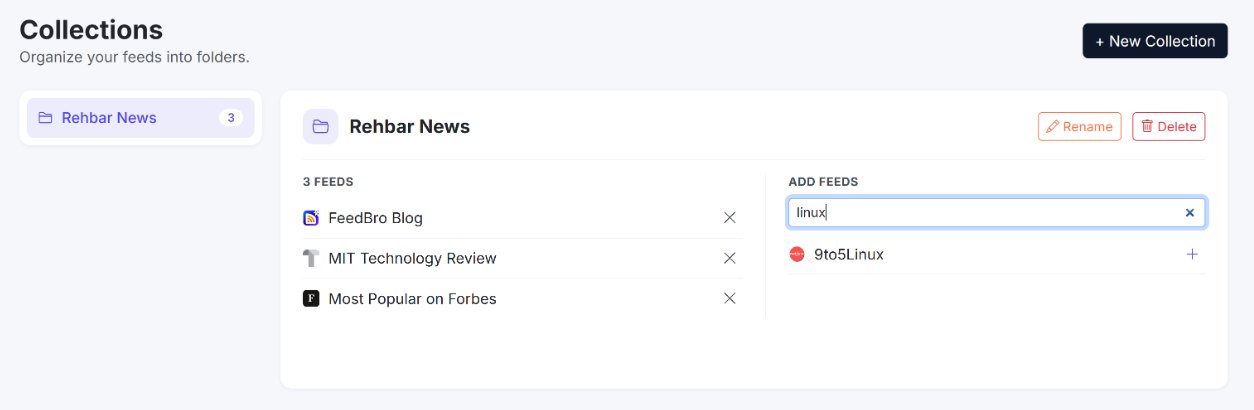
How to create a collection
From the dashboard
- In the left menu, find the Collections heading and press + New next to it. If you have no collections yet, you can also press + New collection under the heading.
- In the New collection window, type a name under Name, for example AI & Technology.
- Press Create. The page reloads and the collection appears under Collections.
From the Collections page
- To open the Collections page, press Manage collections under your collections in the left menu. On a phone, Collections is also in the menu at the top of the page.
- Press + New Collection at the top right.
- Type a name and press Create.
A new collection starts empty.
How to put feeds in a collection
- Open the Collections page (Manage collections in the left menu).
- Pick the collection in the list on the left. On a phone, the list is at the top.
- On the right, the collection's feeds are listed under its feed count, for example 4 feeds. Next to them, Add feeds lists every other feed you follow. Type in Search your feeds to find one quickly.
- Press + next to each feed you want in the collection.
Each change saves straight away, and the counts update at once. Pages you follow with Website Watch are in the list too, so you can group them with your feeds. If a change can't be saved, FeedBro undoes it on screen and tells you.
How to take a feed out, or move it
To take a feed out of a collection, pick the collection and press the × next to the feed. The feed stays followed and only leaves the folder.
To move a feed from one collection to another, pick the new collection and press + next to the feed, then pick the old one and press ×.
Other ways a feed gets into a collection
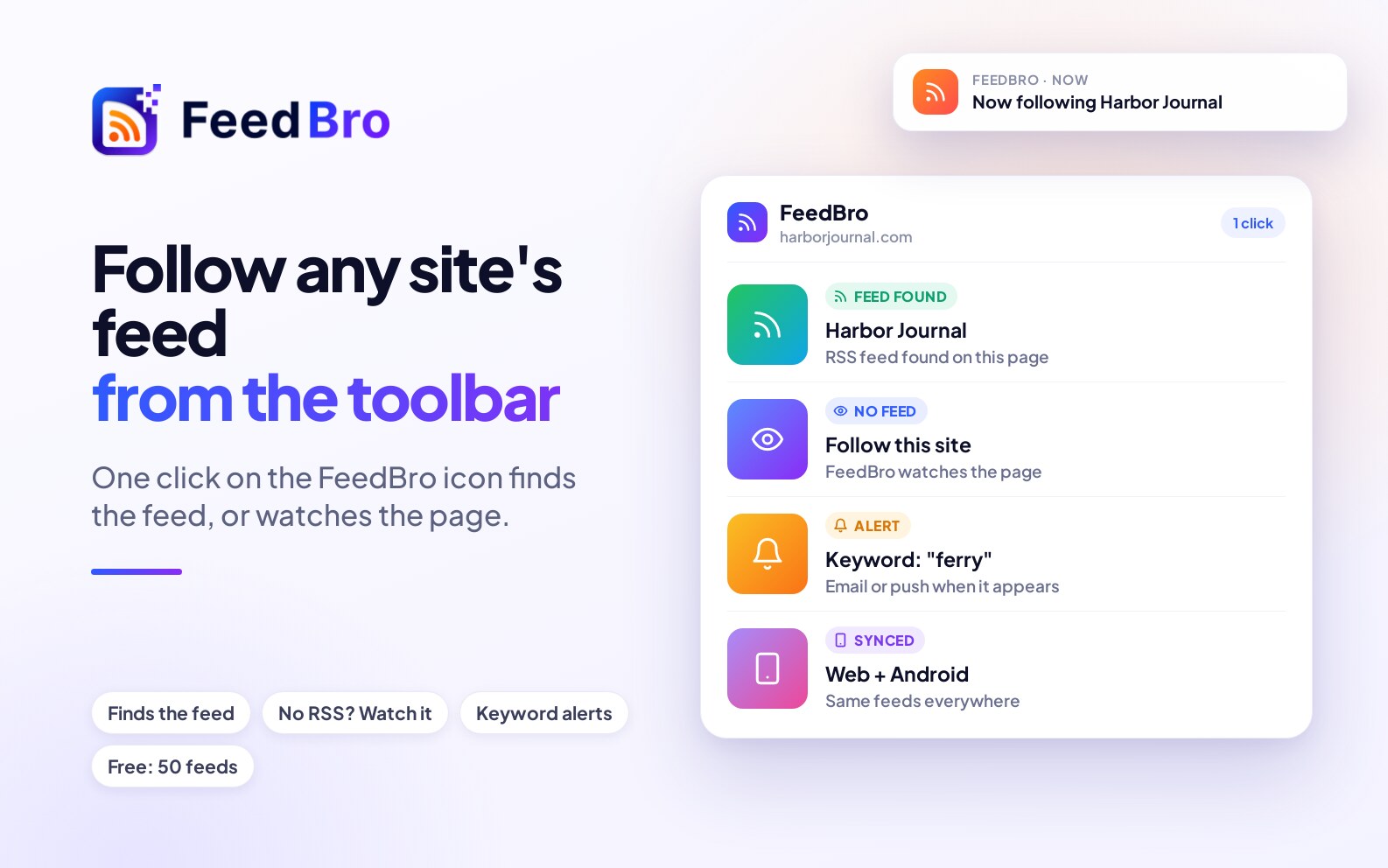
When you follow a site from the browser extension's popup and you already have collections, a menu above Follow Feed lets you pick one. It starts at No collection.
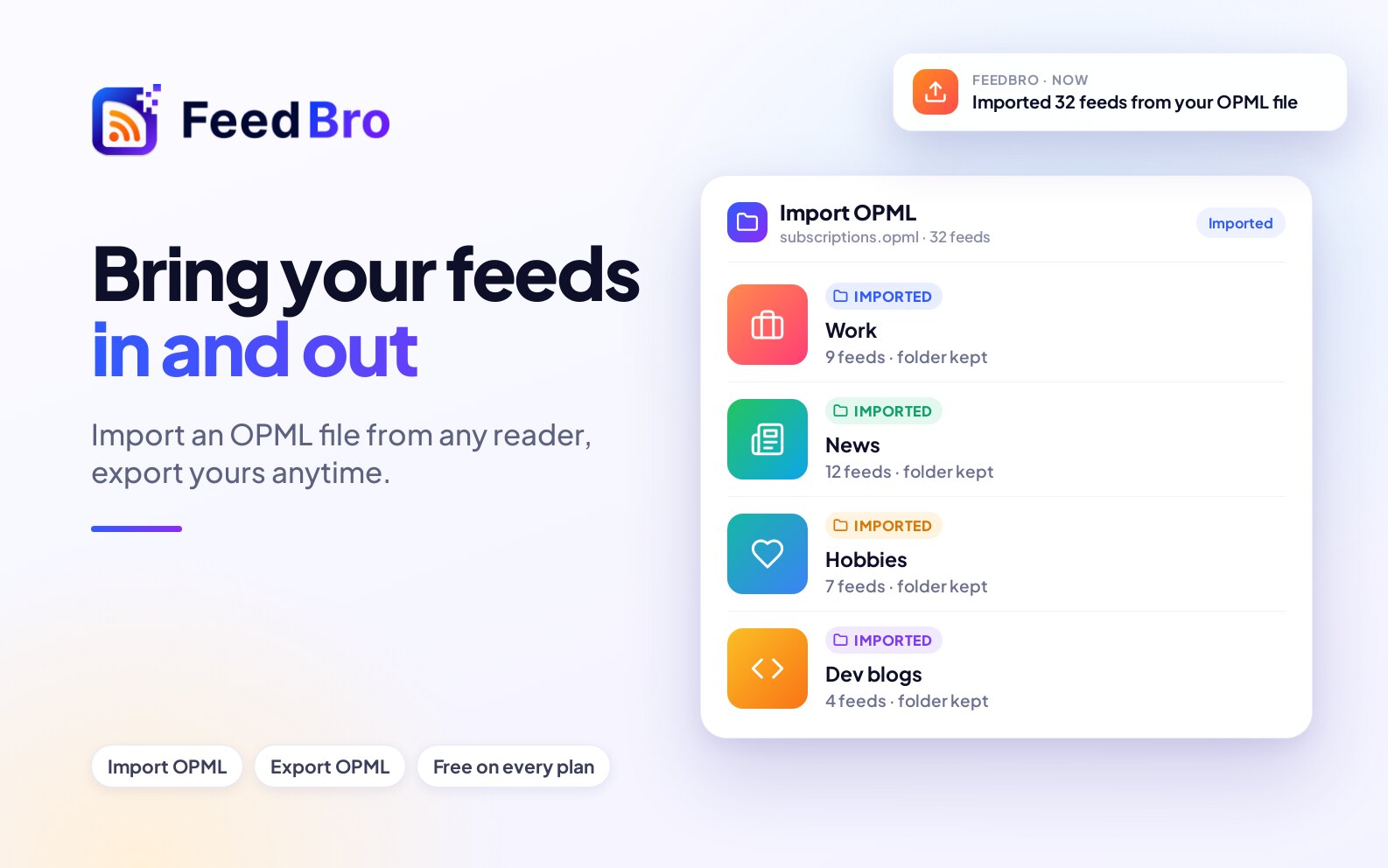
When you import a file from another reader (Settings › Feeds › Import OPML), each folder in the file becomes a collection with the same name, and its feeds go into it. If you already have a collection with that name, the feeds go into that one.
How to read a collection
- Click a collection under Collections in the left menu. The number next to its name is how many feeds it holds.
- The article list shows the articles from all of its feeds, newest first, under the collection's name.
On a phone, tap the Collections button in the row under the search box. A list of your collections slides up, and you tap one. The button then shows that collection's name. The same list has a Manage collections link at the bottom.
Inside a collection everything works as usual. Mark all as read (the double tick above the list) marks only that collection's articles as read, and you can undo it right after. On a phone, the line under the title shows how many articles the collection has and how many are unread.
Open FeedBro on a collection
If you read one collection more than the others, you can make it the list FeedBro opens with:
- Above the article list, press Reading preferences (the sliders icon).
- Under Default view, choose your collection. Collections are listed under Collections, after the other lists.
Find a collection with search
Type a name in the search box at the top of the page (on a phone, choose Search in the menu at the top). The results have a Collections tab that finds your collections by name. Click one to open it.
How to rename a collection
- Open the Collections page (Manage collections).
- Pick the collection and press Rename at the top right.
- Type the new name and press Save.
The new name shows everywhere at once: in the left menu, in the extension and in the Android app. Its feeds and articles stay as they are.
How to delete a collection
- Open the Collections page (Manage collections).
- Pick the collection and press Delete at the top right.
- Confirm with OK when your browser asks Delete this collection?.
Deleting removes only the folder. Every feed that was in it stays followed and keeps its articles, and your saved articles are untouched.
An RSS link for each collection (Coffee Club)
With Coffee Club, every collection has its own private RSS link. You can use it to read the collection in another app or in an automation tool.
- Open Settings › Feeds and scroll to Your reading as RSS.
- Each collection has its own link. Press Copy next to it.
- Paste the link into any RSS app.
The link lists the 50 newest articles from the collection's feeds. Each has its title, a link to the original article and the feed's own summary, without the full text. Changes show in the link within about five minutes.
Anyone who has a link can read that list, so keep your links to yourself. If one gets out, press Reset links. Every old link stops working and you get new ones.
On the Free plan this section shows the link for your Saved articles (your latest 20), and each collection is listed with Collection links are part of Coffee Club.
Collections in the extension and the Android app
The Android app shows the same pages as FeedBro on a phone, so collections work as described above, with the Collections button under the search box.
In the extension popup, the Collections section lists each collection with its number of feeds. To make one, press + New, type a Collection name and press Create. When you follow a feed from the popup, you can put it into a collection at the same time.
In the extension's full-page reader, your collections are listed in the left column. Click one to read only its feeds, and click it again to go back to everything. + New creates a collection there too.
Collections belong to your account. One you create in the extension shows on the website and in the app, and the other way round. To put feeds into an existing collection, use the Collections page on the website.
On the Free plan and Coffee Club
The Free plan allows up to 10 collections, with any number of feeds in each. Coffee Club has unlimited collections and an RSS link for each one.
When you reach the Free limit and try to create another collection, FeedBro says You've reached the Free plan's collection limit (10 collections). Delete one you don't use, or join the Coffee Club. During an OPML import, folders beyond the limit don't become collections, but FeedBro still follows their feeds.
Good to know
- A collection only holds feeds you follow. When you unfollow a feed, FeedBro takes it out of your collections too.
- When you export your feeds (Settings › Feeds › Export OPML), each feed is written inside a folder named after its collection. A feed in several collections goes under the first of them in alphabetical order.
- The left menu lists your collections in alphabetical order.
- Two collections can have the same name, so pick names you can tell apart.
If something doesn't work
- "No articles yet in this collection." The collection has no feeds yet, or its feeds have nothing new. Open Manage collections and pick the collection and check that it lists the feeds you expect. Also check Show in Reading preferences, because a short window such as Last 24 hours hides older articles.
- "You don't have any feeds to organize yet." under Add feeds means you need to follow a feed before you can put it in a collection.
- If there is no Manage collections link, you have no collections yet. The link appears once you have one, so create one with + New first.
- If a collection is missing from the extension, close the popup or reload the extension's reader to fetch the latest list.