Listen reads an article aloud to you. This is called text to speech: your phone or computer turns the written text into a spoken voice. You can use it while you walk, cook or drive, or when your eyes are tired. It is included on the Free plan and the Coffee Club.
The voice comes from your own device or browser. FeedBro doesn't turn anything into audio on its servers, and Listen costs nothing extra.
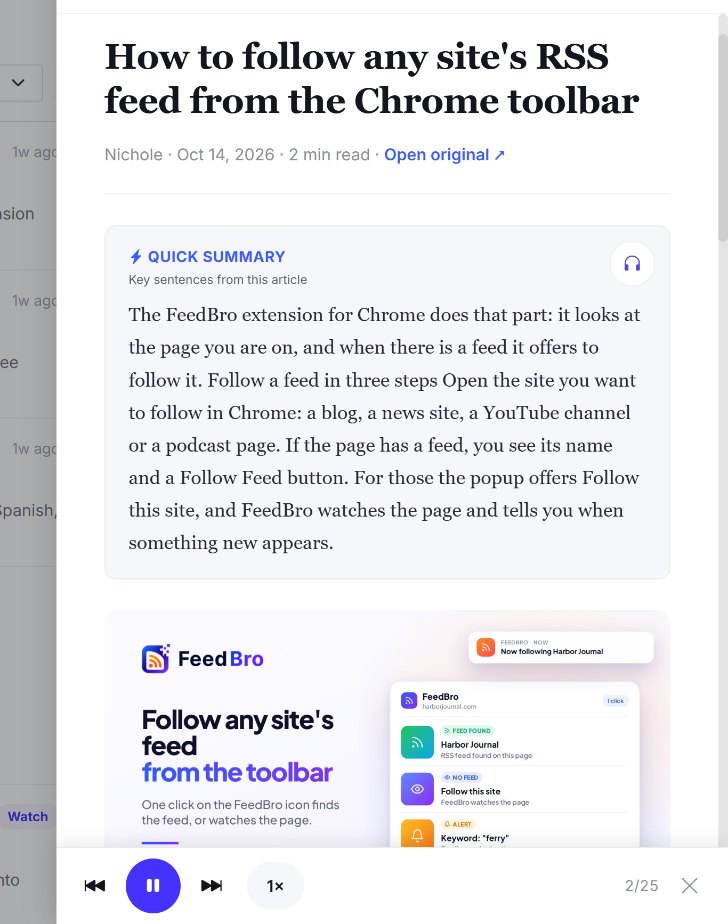
How to listen to an article
- Open an article in your FeedBro reader.
- At the top of the article, find the row of small buttons (mark as read, save, read later, share). The first one, with a headphones icon, is Listen.
- Press it. FeedBro starts reading at once with the headline, then reads the article text from the top.
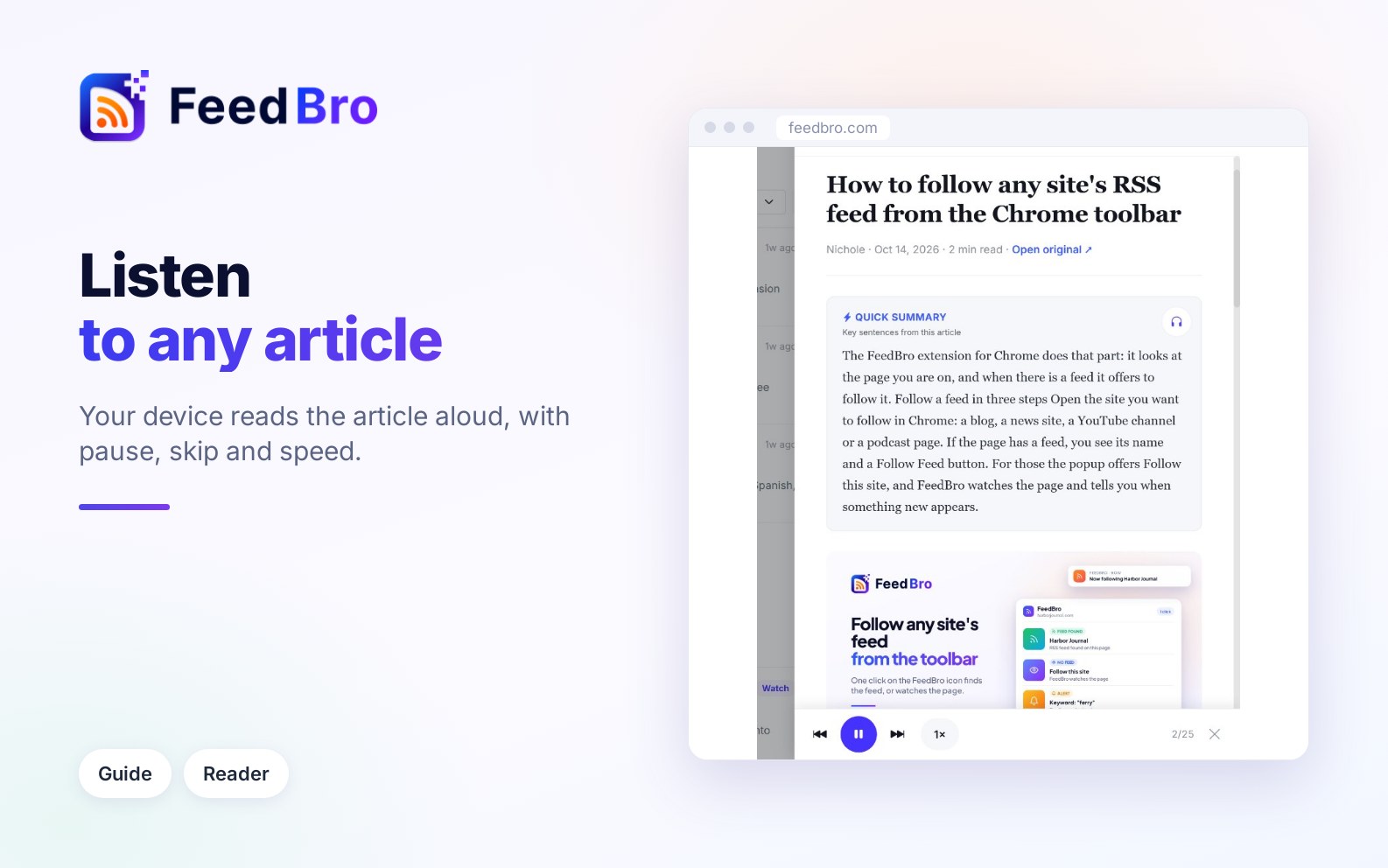
- A player bar appears at the bottom of the article, and the paragraph being read is highlighted. The article scrolls along with the voice, so you can follow it with your eyes if you want.
The headphones button changes colour while the article is being read. Press it again to stop.
The player controls
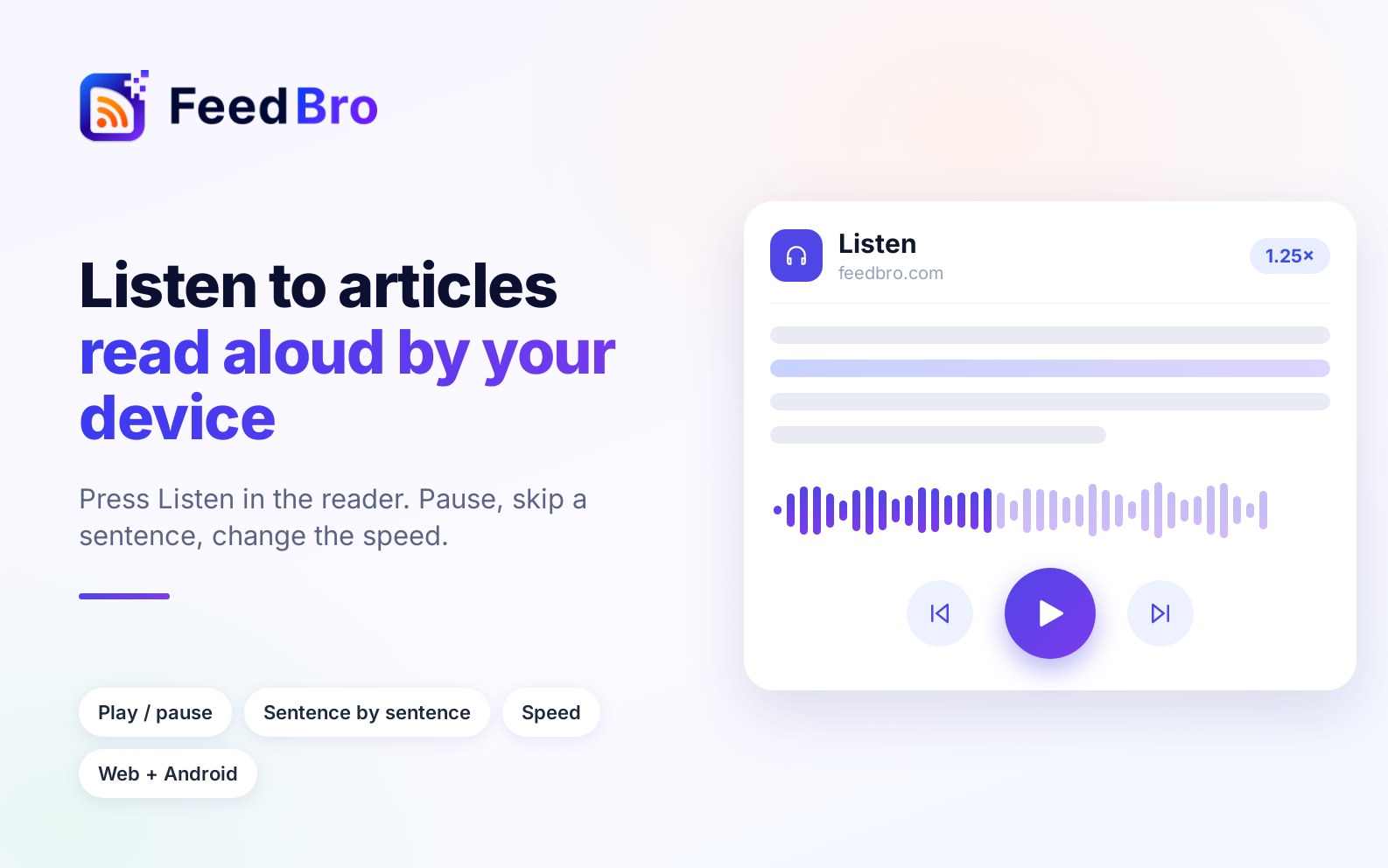
The player bar at the bottom of the article has these buttons, from left to right:
- Previous goes back one part. A part is a sentence, or a few short sentences together. The button is greyed out at the very start.
- Play and Pause share the big round button in the middle. After a pause, reading starts again from the beginning of the part it was on, so you don't miss the end of a sentence.
- Next skips ahead one part. If you press it on the last part, the reading ends.
- Speed shows the current speed, such as 1×. Each press moves to the next speed: 1×, 1.25×, 1.5×, 2×, then 0.75× (slower than normal), and back to 1×. FeedBro remembers your speed on that device and browser for next time.
- A counter such as 4/27 shows which part is being read, out of how many in the article.
- Close stops reading and removes the player bar.
Reading also stops by itself when you close the article, open another article, or leave the page.
What gets read
- FeedBro reads the headline first, then the article's paragraphs, list items, headings and quotes, in order.
- It skips pictures, picture captions and code boxes.
- It reads the article as it shows it to you. If the article is only a short teaser, open the full text first and then press Listen.
- When you open a link inside an article and FeedBro shows that page in the reader, that page has its own Listen button too.
Listen to the summary only
With the Coffee Club, articles can have a Quick Summary: a few of the article's main sentences, shown in a box above the text. Once the summary is open, its box has its own headphones button, Listen to the summary. It reads only the summary, which takes a few seconds instead of several minutes.
- Press Quick Summary above the article to make the summary.
- In the summary box, press the headphones button.
- Use the same player bar to pause, change speed or close.
The Listen button at the top of the article still reads the whole article. The Free plan has no Quick Summary, so there Listen always reads the whole article.
Voices and languages
FeedBro uses the voices already installed on your phone or computer.
- How good the voice sounds depends on your device. Many devices offer better, more natural voices you can download in their speech or text-to-speech settings.
- FeedBro works out which language the article is written in and picks a voice for that language. It recognises Arabic, Hebrew, Russian, Japanese, Chinese and Korean by their alphabet, and English, French, German and Spanish by their common words. For other languages it uses the language of the FeedBro site you are on.
- When your device has several voices for that language, FeedBro prefers one marked as natural, neural, enhanced or premium, or a Google voice. If there is none of those, it uses your device's default voice for the language.
- If your device has no voice for the article's language, you may hear it read with the wrong accent, or not at all. Add that language's voice in your device settings to fix this.
FeedBro doesn't send the article to its own servers to be spoken, and nothing you hear is recorded. It only notes that an article was listened to, so it can see how much Listen is used. Some browser voices are made online by the browser's maker. In Chrome, the voices named "Google" work this way, so with those voices the browser itself sends the text away to be spoken.
On the website and in the Android app
- On feedbro.com, in a computer or phone browser, Listen uses the browser's built-in speech. It works in current versions of the common browsers, such as Chrome, Edge and Safari.
- In the FeedBro Android app, Listen uses your phone's own text-to-speech engine. You need a recent version of the app. To change the voice or install more languages, open your phone's text-to-speech settings (often under Accessibility or Language settings).
- The browser extension's own reader has no Listen button. Open the article on feedbro.com or in the Android app to listen to it.
If the Listen button doesn't show
FeedBro hides the button when there is nothing it can read. Check these:
- The article may be very short. The button only appears when the article has at least a few sentences of text (about 200 characters). A video post, a short news item or a subscriber-only teaser has too little to read. Open the full article if FeedBro offers it.
- Your browser may have no speech. Some browsers, and some privacy setups, have no text to speech. Try Chrome, Edge or Safari.
- Your Android app may be out of date. Older versions of the app have no speech engine, so the button doesn't appear. Update FeedBro from Google Play.
- The article may still be loading. The button is added once the article's text is in, so wait a moment.
If it doesn't sound right
- If you hear no sound at all, check your device's volume and make sure it isn't on silent. On a computer, check that the browser tab isn't muted.
- If the voice sounds robotic or has the wrong accent, install a better voice for that language in your device's speech settings, then reload the page.
- If it stops by itself, remember that reading stops when you close the article, open another one or leave the page. Press Listen again to start from the top.
- If it is too fast or too slow, press the speed button until it suits you. Your choice is kept on that device.
Tips
- Use Next and Previous to skip a part you don't need, such as a long quote.
- Press Listen a second time, or Close, to stop at any point.