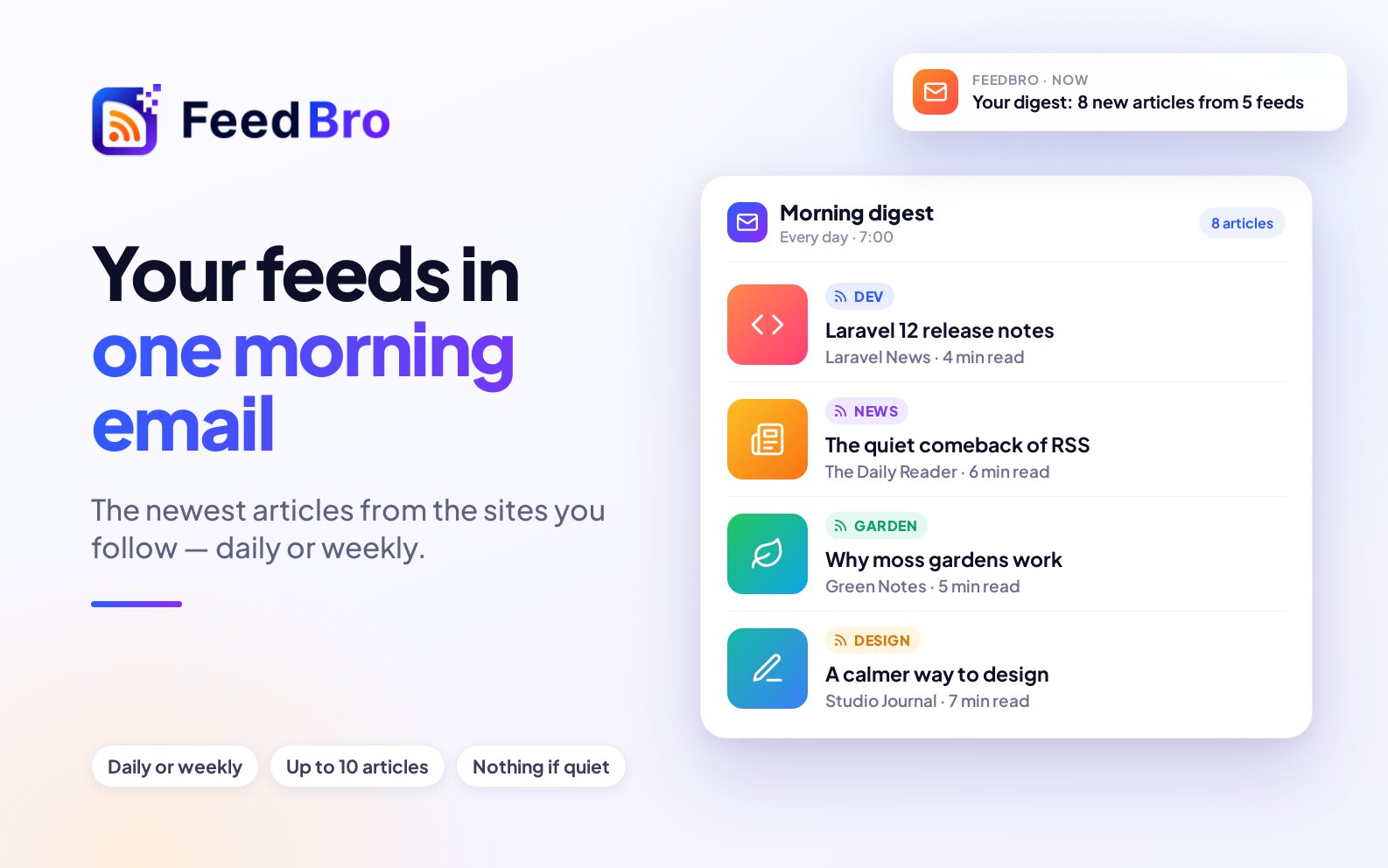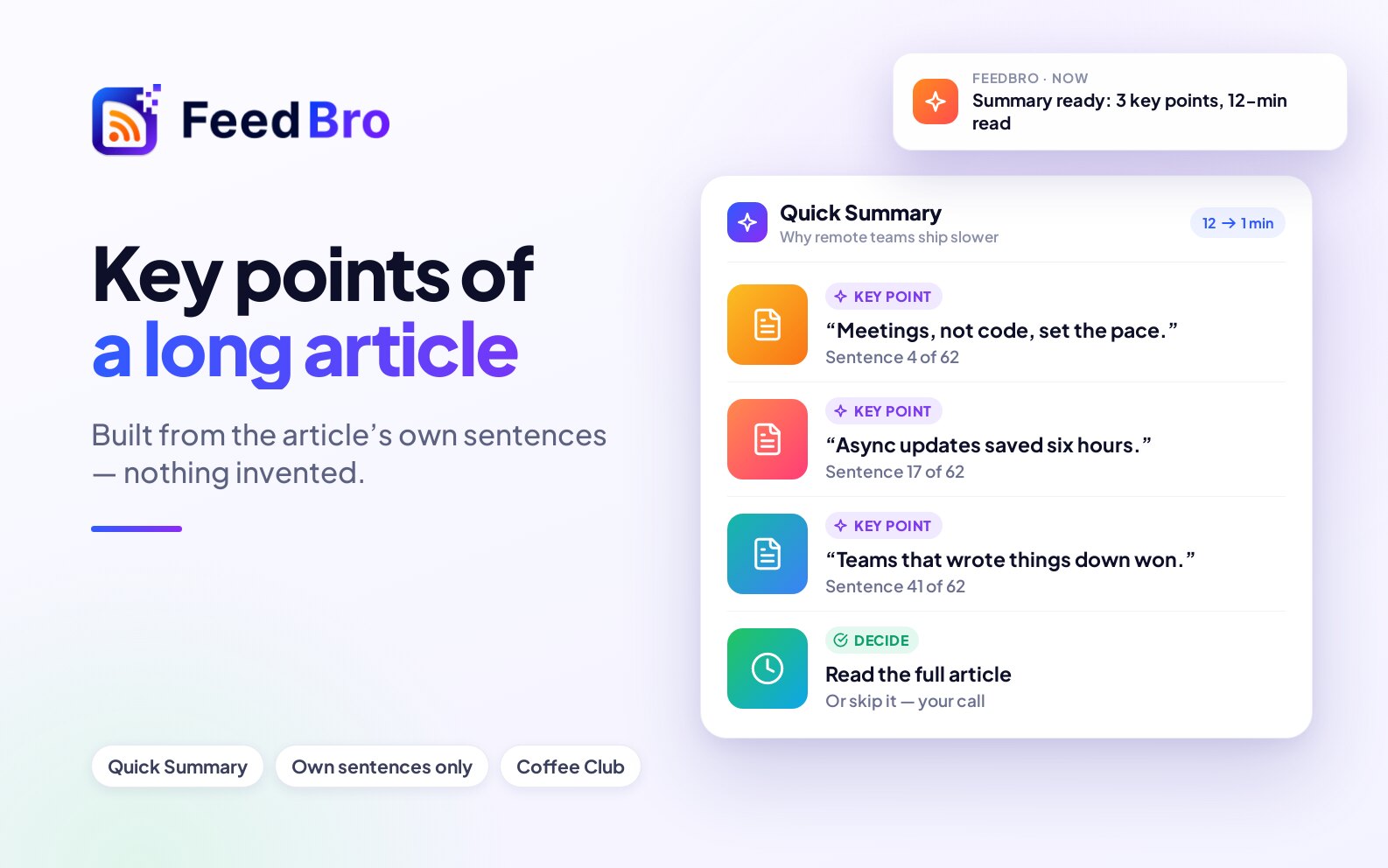
Two Coffee Club features help when you have more to read than time to read it. Quick Summary shows the key sentences of a long article, so you can decide in a few seconds whether to read the whole thing. The email digest sends you a roundup of new articles from your feeds once a day or once a week, at a time you choose.
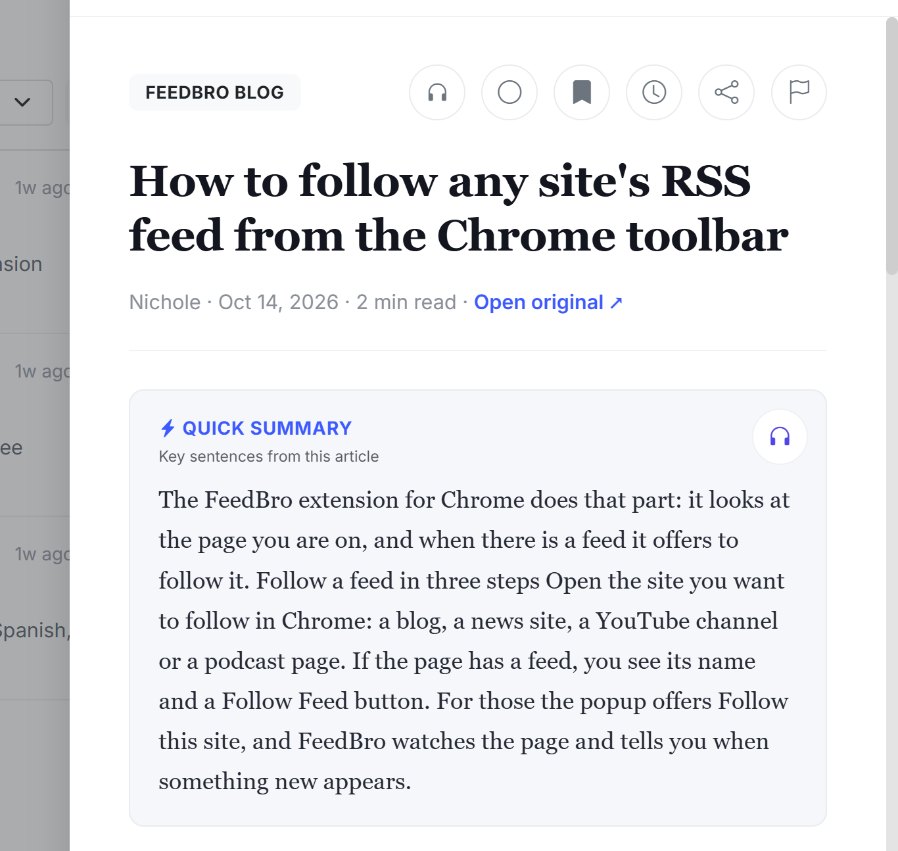
Smart summaries: Quick Summary
A Quick Summary is made from the article's own sentences. FeedBro works out which sentences carry the article and shows you up to four of them, in the order they appear. FeedBro writes no new text about the article, so nothing in a summary is invented, though the result reads like a set of highlights.
Where to find it
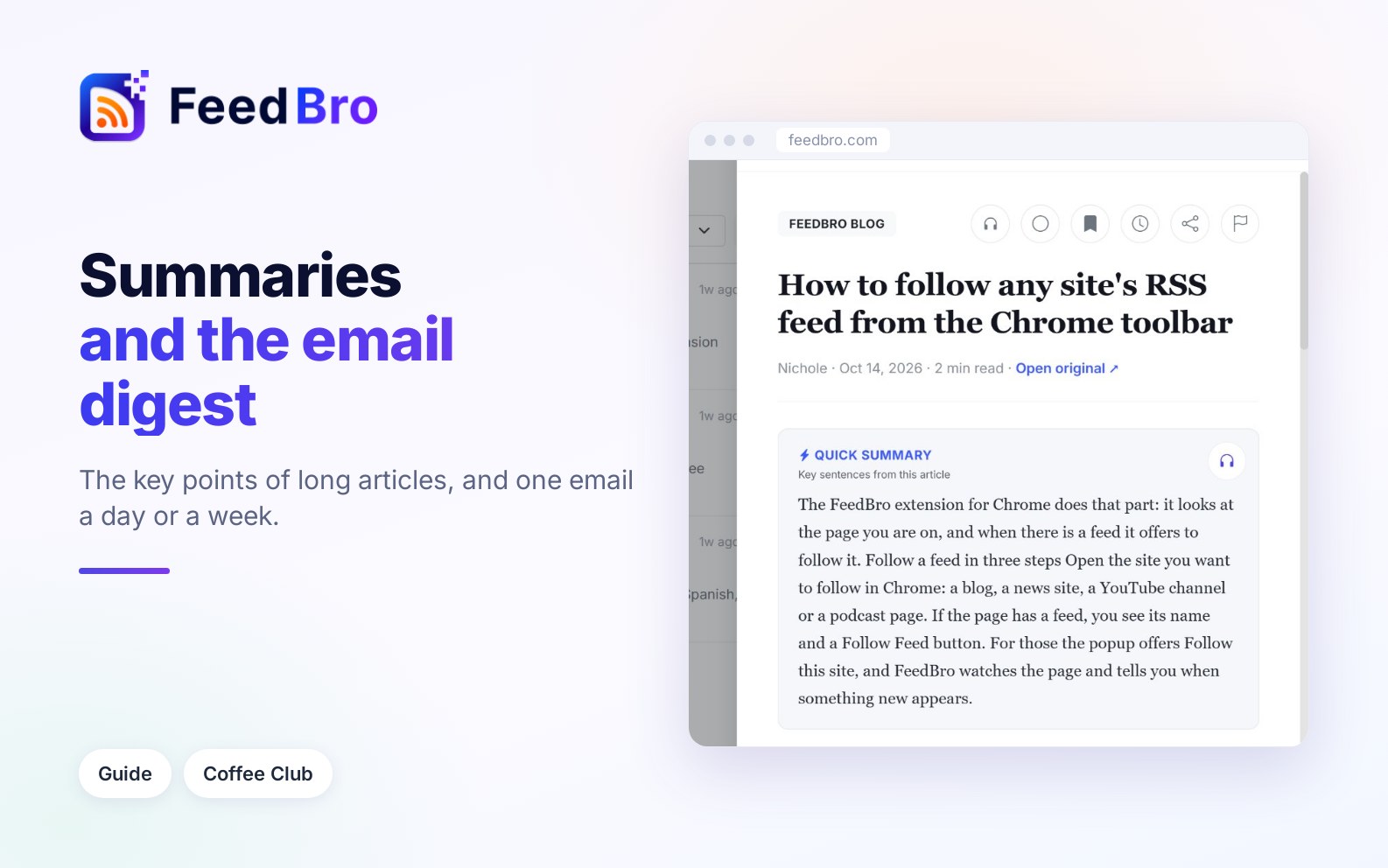
Quick Summary is in the FeedBro reader, on the website and in the Android app. When you open an article, the Quick Summary button is above the article text, under the title.
How to use it
- Open an article from your reading list.
- Click Quick Summary. The button shows Summarizing… for a moment.
- A box appears with the heading Quick Summary and the note Key sentences from this article, followed by the key sentences.
- Read them, then read the full article below or move on to the next one.
To have the summary read aloud, click the headphones button in the summary box (Listen to the summary). It reads only the summary.
Good to know
- Once you have made a summary for an article, it stays open for you each time you come back to that article.
- A summary is made once per article. If someone else already summarised it, yours appears straight away.
- The button only appears on articles long enough to need it. A short news item of a few sentences is already its own summary, so it has no button.
- There is no daily limit on how many articles you summarise.
Languages
Quick Summary works on articles in any language, including Arabic, Hebrew, Greek, Japanese and Chinese. Because the summary is made of the article's own sentences, it is in the same language as the article and is not translated.
On the Free plan
On the Free plan you will see Quick Summary with the note "Key sentences from every article, included in Coffee Club". Clicking it takes you to Plan & billing, where you can join.
The daily or weekly email digest
The digest is one email with the newest articles from the feeds you follow. It is handy on days when you want to scan headlines in your inbox without opening the reader. Every link in it opens the article in FeedBro.
How to turn it on
- Click your picture in the top right corner and choose Settings. On a phone, open the menu and tap Settings.
- Open the Email section.
- In the Email Digest card, set Send me a digest to Daily or Weekly.
- Under Time, pick the hour you want it, for example 8:00 AM.
- Under Articles, choose how many articles it lists: Top 5, Top 10 or Top 20.
- Under Include, tick what you want in it (see below).
You don't need to press a save button. Each change is saved as you make it, and you will see Digest preference saved.
Your time zone
The hour you pick is in your own time zone. FeedBro reads it from your browser and shows it under the menus, for example "Times are in Europe/Berlin." If you open Settings from another country, the note shows both the zone you are in now and the one that is saved. The saved one only changes when you change something in the digest settings.
Choosing what goes in it
- Article previews: the first couple of lines under each headline adds the opening of each article under its title.
- Key point summaries adds a short "Key points" box under an article when FeedBro has a summary for it.
- Group by feed lists the articles under a heading for each feed, with the number of articles from that feed. Without it, you get one list, newest first, with the feed's name under each title.
What the digest contains
- The subject line says how many articles are in it, for example "Your daily digest: 7 new articles".
- A daily digest lists articles published in the last 24 hours, and a weekly digest lists articles from the last 7 days.
- The articles are the newest ones from all the feeds you follow, up to the number you chose under Articles.
- Each article shows its title, a small picture when it has one, and the feed it comes from (or the feed heading if you grouped them). Clicking the title opens it in FeedBro.
- A button at the bottom opens FeedBro.
- If nothing new was published in that time, no email is sent.
Daily or weekly
- Daily comes once a day at the hour you chose.
- Weekly comes at the hour you chose, seven days after the last one. The first weekly digest goes out at your chosen hour on the first day after you turn it on, and that sets the weekday for the ones that follow. You can't pick the weekday yourself.
How to change or stop it
- To change how often it comes, the time or the content, go back to Settings > Email > Email Digest and change it.
- To stop it, set Send me a digest to Off. The other digest settings are greyed out while it is off, and they are kept for when you turn it on again.
- The unsubscribe link at the bottom of the digest stops all optional FeedBro emails, the digest included. Account and billing emails still come. To get the digest back after unsubscribing, go to Settings > Email and turn one of the Email Preferences switches back on.
On the Free plan and Coffee Club
The Free plan doesn't include Quick Summary or the digest. The Email Digest card in Settings says it is a Coffee Club feature, with a link to the plans.
Coffee Club includes Quick Summary on any article long enough to summarise, and the daily or weekly digest with all its options.
If your Coffee Club membership ends, the digest stops and the Quick Summary button changes back to the Free note. Your digest settings are kept, so it starts again if you rejoin.
If something doesn't work
- If an article has no Quick Summary button, it is too short to need one. This also happens when FeedBro only has the short teaser the feed sent and couldn't get the full text.
- "This article is too short to summarize." means FeedBro couldn't find enough sentences to pick from. Read the article itself, which is probably short.
- "Could not generate a summary right now." means something went wrong on the way. Click Quick Summary again in a moment.
- A summary can read a bit choppy, because its sentences come from different places in the article.
- If the digest didn't arrive, check that Send me a digest isn't set to Off, and look in your spam folder. If nothing new was published in your feeds in that time, no digest is sent. If you clicked unsubscribe in any FeedBro email, turn an Email Preferences switch back on.
- If the digest comes at the wrong hour, look at the time zone note under the digest menus. If it shows the wrong zone, open Settings on your usual device and change any digest setting, which saves your current zone.
- If Key point summaries is greyed out, it is not available on your current plan, or the digest is set to Off.