When you follow a source in FeedBro, its new articles arrive in your reader by themselves. Most sources are followed through their RSS feed, a list a website publishes of its newest articles, which FeedBro checks for you. You rarely need the feed's own address. Paste the website, a YouTube channel, a subreddit or a Pinterest board, and FeedBro works out the rest.
How to add a feed by pasting an address
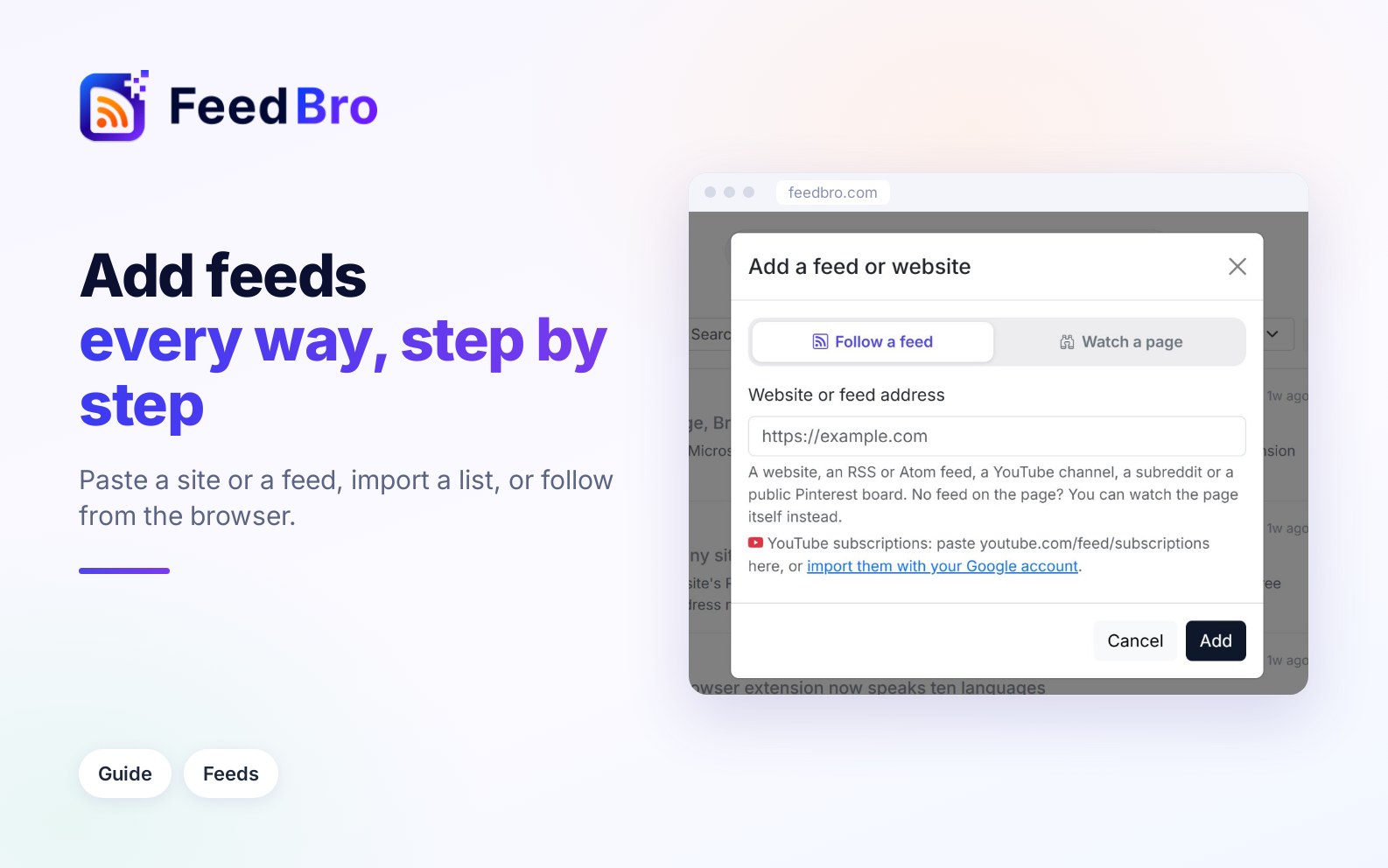
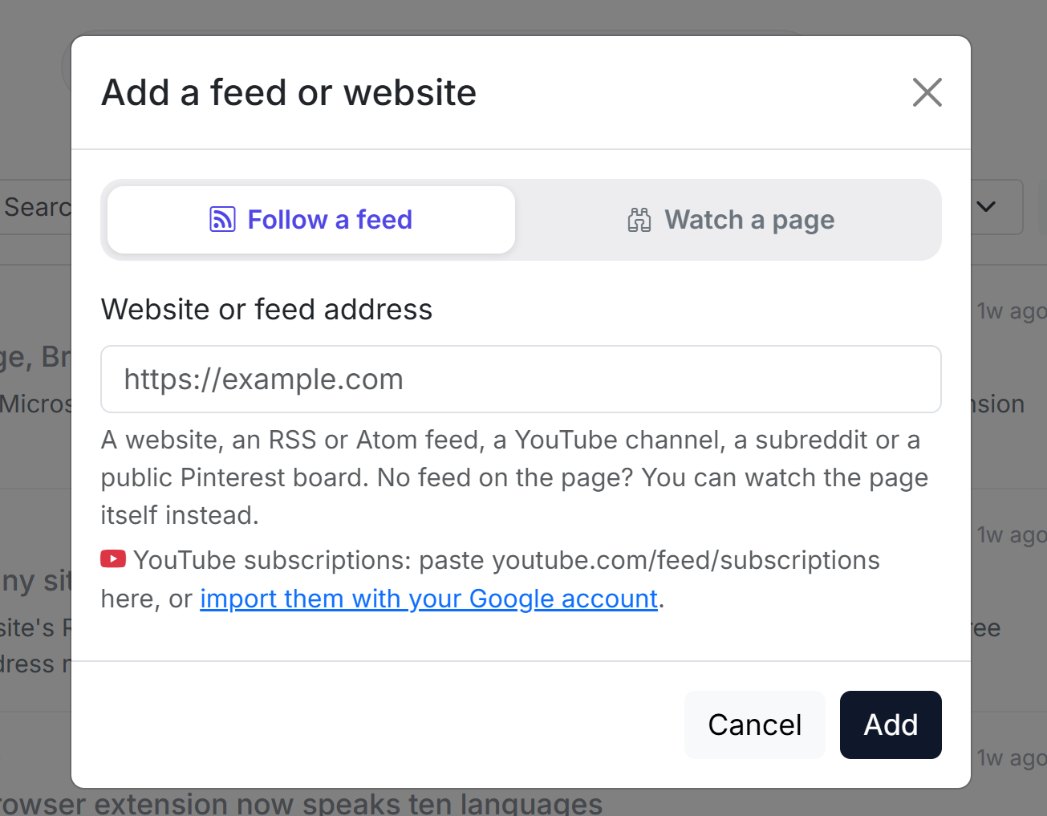
- On the dashboard, press Add a feed or website at the top of the left menu. On a phone, tap Add (the round + in the bottom bar).
- Leave Follow a feed selected at the top of the window.
- In Website or feed address, paste the address. You can leave out the https://, so bbc.com works.
- Press Add. While FeedBro works, the window says what it is doing, for example Looking for a feed…. A slow site can take up to a minute.
- When it's done you see Added "…" (12 articles). with two buttons. Read it now opens the new feed, and Read later closes the window. Either way, the feed is now in your left menu under My Feeds.
How FeedBro finds the feed
When you paste an ordinary web page, FeedBro looks for the feed the site publishes. It checks the link in the page's header, feed links on the page, the usual feed addresses such as /feed or /rss.xml, and the site's sitemap. If you paste a feed address that doesn't exist on the site, FeedBro starts looking from the home page instead.
Some pages list many feeds, like a newspaper with one per section. FeedBro then says This page lists several feeds. Choose which to follow:. Tick the ones you want, up to 15 at a time, and press Follow selected.
If the page has no feed at all, FeedBro says There's no RSS feed on this page. and describes what it found, such as a list of posts or products. Press Watch this page instead and FeedBro checks the page itself for new posts. This uses Website Watch, which has its own limit.
If you followed the comments of one post by mistake, Explore › My Feeds shows This is the comments on one post, not the blog. with a Follow the blog instead button.
FeedBro also tidies what you paste. It removes tracking tags such as utm_source and follows Google and Facebook redirect links to the real page. It also recognises a feed you already follow under a slightly different spelling, so you don't get it twice.
How to add from Explore and the recommendations
- Open Explore from the left menu, or from the bottom bar on a phone.
- Choose a tab. Popular lists the sources FeedBro readers follow most, each with its latest headline. Categories sorts sources by topic. Trending shows the articles read most this week.
- Press + Follow on any source. The button changes to Following.
The search box at the top, Search sources by name..., searches FeedBro's directory. If you type a web address there, FeedBro shows That looks like a website address. Add it to FeedBro: with a button that opens the add window with the address filled in. A source doesn't need to be in the directory. Add your own RSS feed at the bottom of each tab opens the same add window.
The Start following screen you saw after signing up works the same way, with up to five suggestions picked from your topics.
How to import feeds from another reader (OPML)
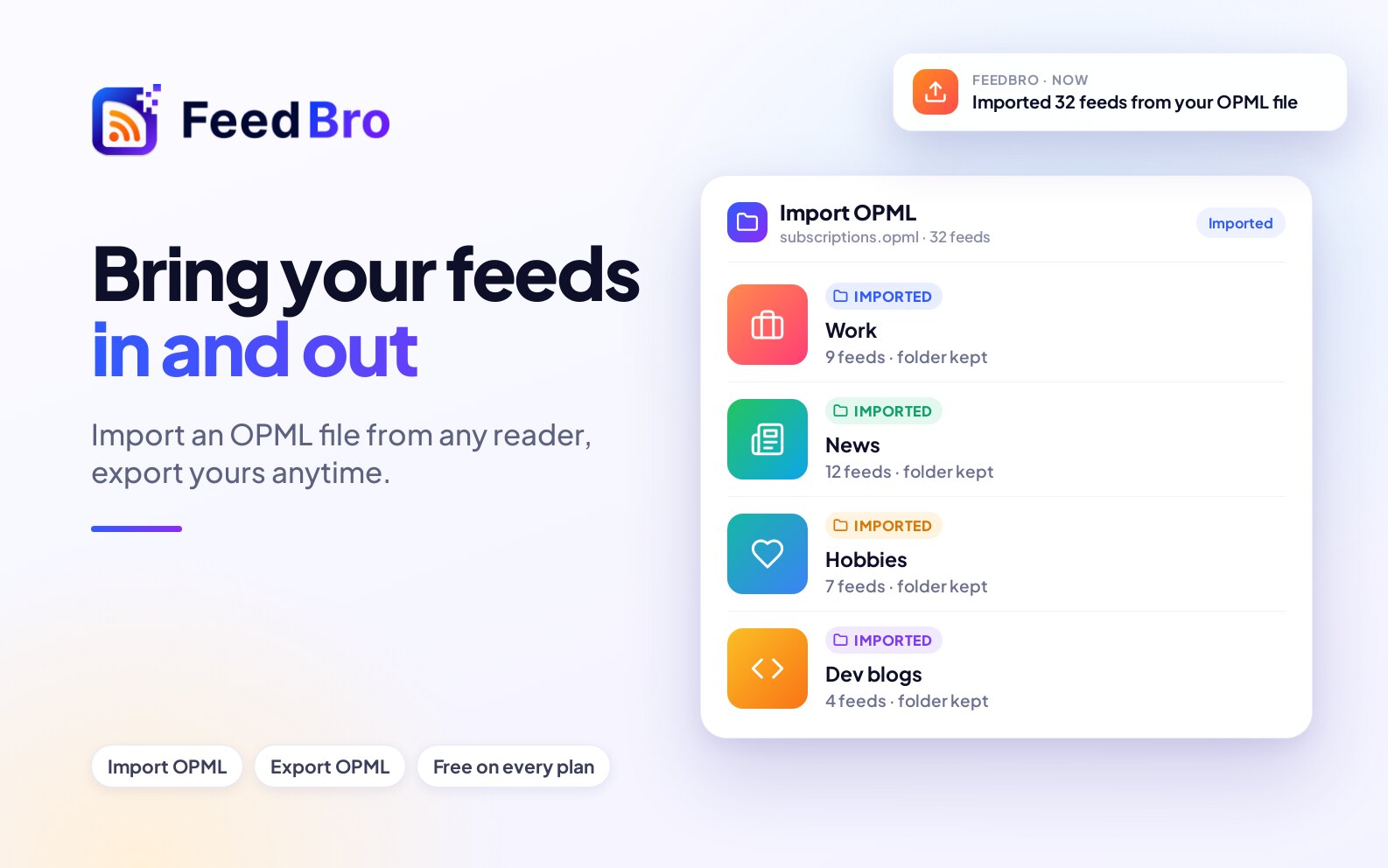
An OPML file is a plain list of the feeds you follow, and nearly every RSS reader can export one. It also keeps your folders.
- In your old reader, export your subscriptions as OPML. The option is usually in its settings, sometimes called "Export subscriptions".
- In FeedBro, open Settings › Feeds. Under Import & Export, press Import OPML.
- Choose the file (it ends in .opml or .xml).
FeedBro follows each feed in the file. Each folder in the file becomes a collection with the same name, as far as your plan's collection limit allows. Feeds beyond that limit are still followed, without a folder. A big file takes a while. FeedBro follows as many feeds as it can in about 25 seconds, adds the rest in the background, and sends you a notification, Your feeds are imported, when it's done. Feeds you already follow aren't added twice, so you can safely import the same file again.
One file can hold up to 2 MB and up to 200 feeds, and you can import 5 files in 10 minutes. If the file goes over your plan's feed limit, the import stops at the limit and tells you.
How to export your feeds
In Settings › Feeds, press Export OPML. FeedBro downloads feedbro-feeds.opml with everything you follow. A feed that is in a collection is written inside a folder with the collection's name, so the file imports back the same way. Export works on every plan.
How to import your YouTube subscriptions
- In the add window, press import them with your Google account in the YouTube line under the address box. Pasting youtube.com/feed/subscriptions does the same: FeedBro explains that the page is private and shows a Connect YouTube button.
- Sign in with Google and allow read-only access to your YouTube subscriptions.
- FeedBro lists the channels you follow (it leaves out channels already in FeedBro). Tick the ones you want, or Select all, and press Add selected channels.
FeedBro uses the access once to read the list and then gives it up. It can't change anything on your YouTube account. Each channel becomes a feed, and its videos play inside the article.
To add a single channel, paste its page, for example youtube.com/@channelname. Its Videos tab and older channel addresses work too.
How to follow a site with the browser extension
With the FeedBro extension for Chrome, Firefox, Edge and Brave, you can follow the site you are on. Get it from feedbro.com/get-extension and connect it to your account.
- On the site you want to follow, click the FeedBro icon in your browser's toolbar.
- If the page has a feed, the popup shows it with a Follow Feed button. If you have collections, a menu above the button lets you put the feed straight into one (it starts at No collection).
- If the page names no feed, press Follow this site. FeedBro looks for the site's feed the same way the website does. When the site has several, you pick one. When it has none, the popup offers to watch the page instead.
The extension's full-page reader also has + Add next to Feeds in its left column. Paste an address there and press Follow.
Social sites and other special sources
- For YouTube, paste a channel page, as described above.
- For Reddit, paste a subreddit, for example reddit.com/r/science. Posts arrive like articles. Reddit doesn't let FeedBro's servers read comment threads, so in an open post, Load the whole thread reads the comments from your own device.
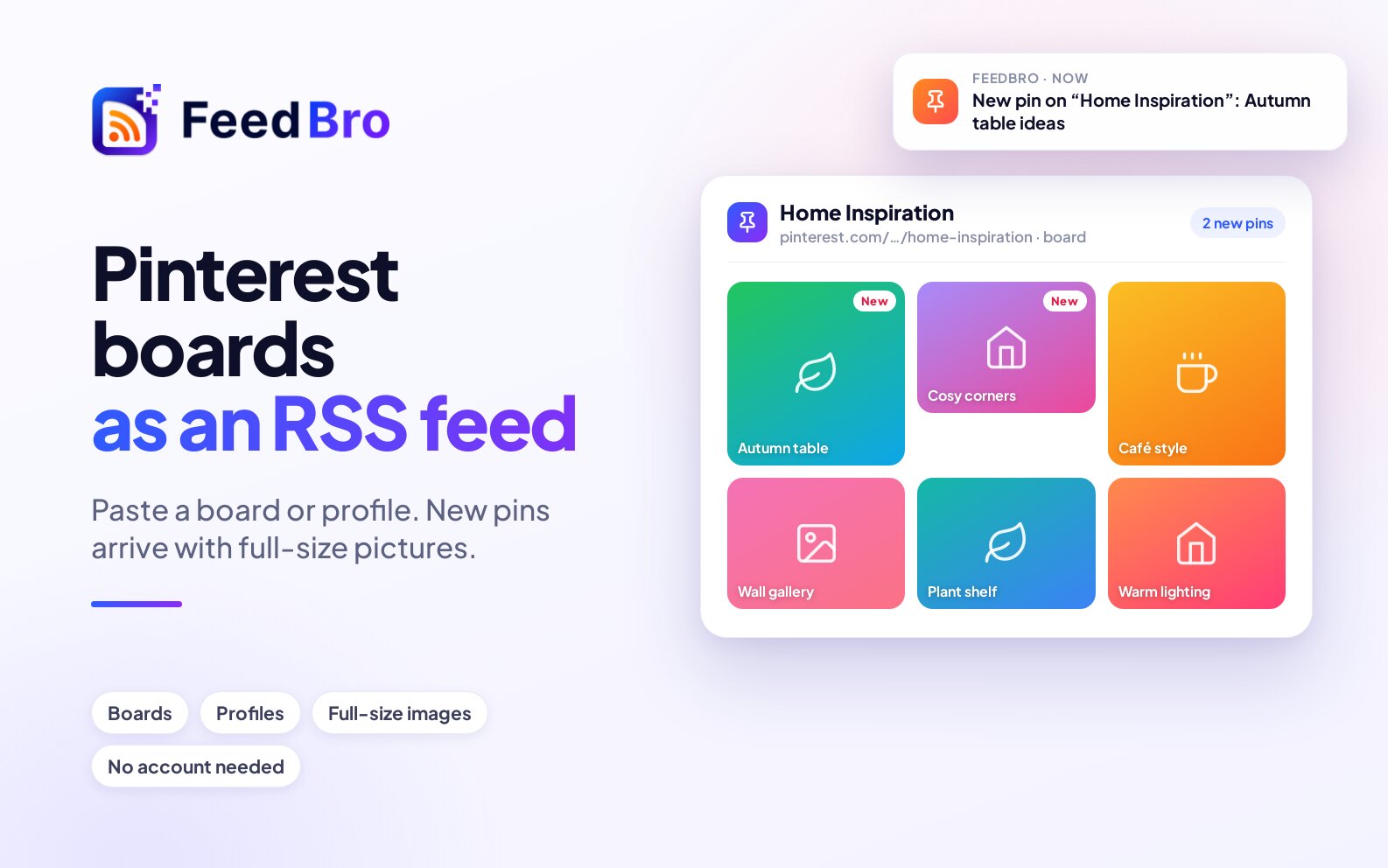
- For Pinterest, paste a public board or a profile. A single pin works if it is public, and FeedBro follows the board it is saved on. Secret boards and Pinterest searches have no feed.
- For Telegram, paste a public channel's address, t.me/channelname or t.me/s/channelname. The address of a single post doesn't count as a channel.
- For Google News, paste a news.google.com page, such as the home page, a topic or a search. FeedBro follows that page's feed in the same language and country edition. Google News links to the publisher through its own redirect, so now and then FeedBro can't show the full text of an item and points you to the original.
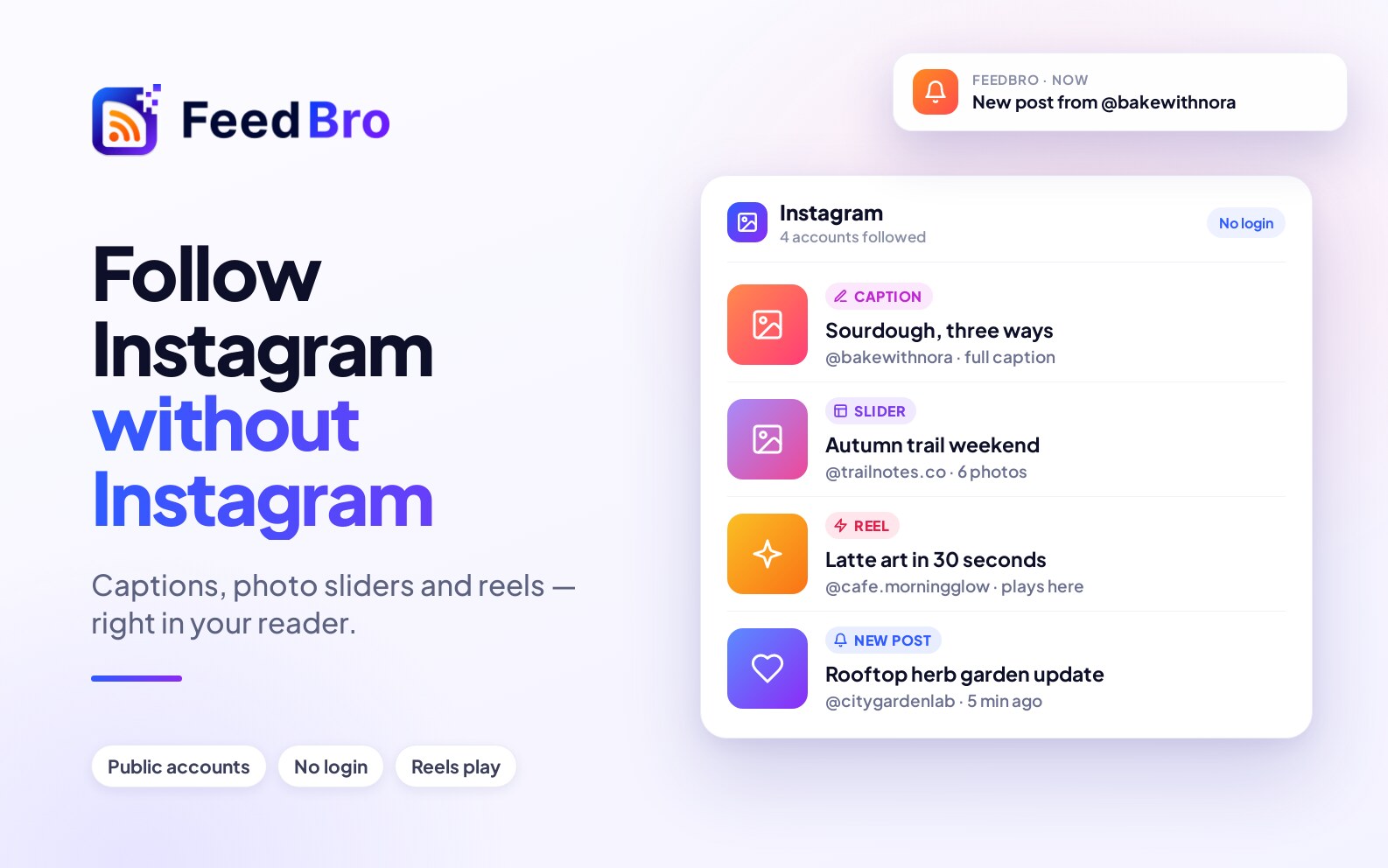
- A public Instagram account has no feed, so you follow it with Website Watch. In the add window choose Watch a page instead of Follow a feed, paste instagram.com/accountname and press Watch. Each account counts as one watched page. Private accounts can't be followed.
- LinkedIn, Facebook, X (Twitter), TikTok and Threads pages have no feeds, and FeedBro tells you so straight away.
Feeds on a private network
Some feeds live where no public server can reach them, such as a company intranet, a home server, or a device on your own network or VPN. FeedBro's servers can't fetch those, so your own device does it.
- Open the extension's full-page reader (Open Reader in the popup). At the bottom of its left column, tick Refresh unreachable feeds from this browser.
- Press + Add next to Feeds, paste the address and press Follow.
- When FeedBro's server can't reach the address, the extension fetches it from your browser and says Following … This browser will keep it up to date.
That feed then updates whenever the extension's reader is open in that browser. In your left menu on the website, it shows a browser icon instead of the usual clock. The website's own add window refuses an address that ends in .local or .internal with "…" looks like a local/internal address, not a public feed URL.
Renaming, adjusting and removing a feed
The feed settings gear
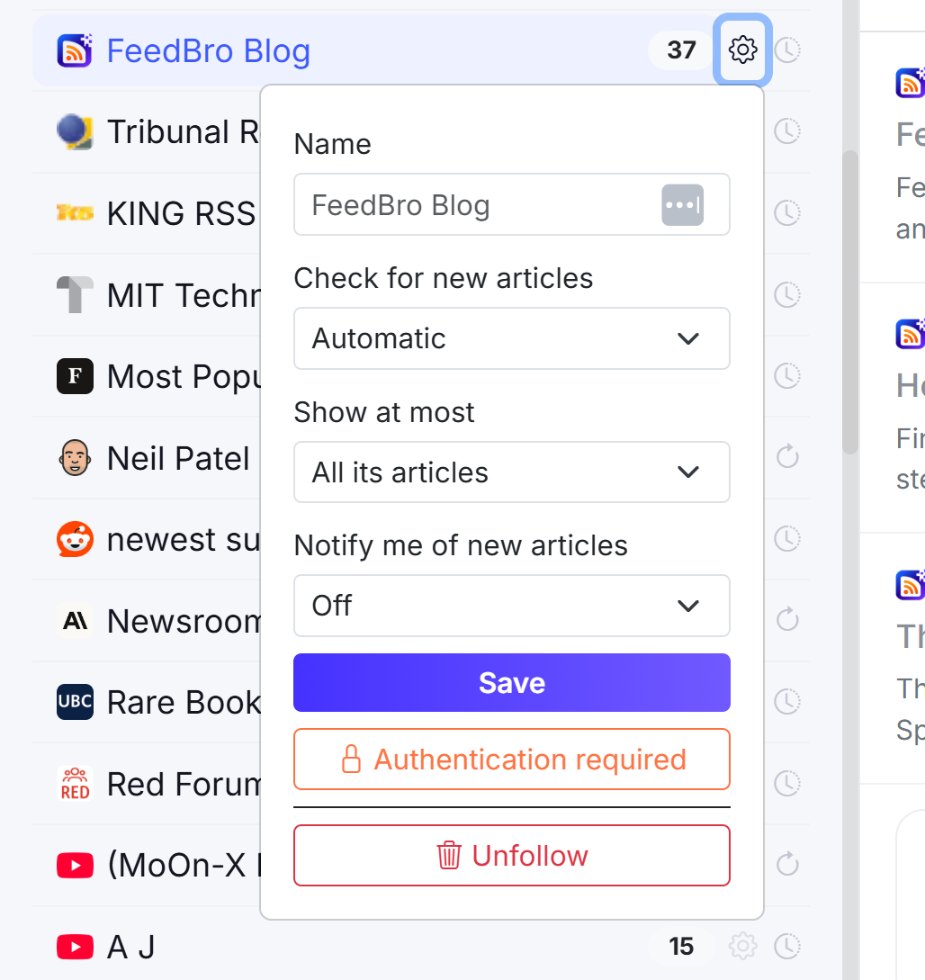
Every feed in the left menu has a gear icon, and the same gear is on each row of Explore › My Feeds. It opens Settings for this feed:
- Name is the name you see. Only you see it, and other readers keep the original. Clear the box to go back to the feed's own name.
- Check for new: Automatic lets FeedBro decide, or you can pick from Every 15 minutes to Once a day. On the Free plan the fastest choice is Hourly. Every 15 and 30 minutes are for Coffee Club. A faster choice makes FeedBro check more often. A slower one won't slow the feed down if FeedBro already checks it more often.
- Show at most: All its articles, or only the 10, 20, 50 or 100 newest, which helps with very busy feeds.
- Notify me of new articles: On: a push when it posts sends a notification for each new article. The Free plan allows this for 3 feeds, and Coffee Club has no limit.
- Authentication required is for a feed that only works while you are signed in to its site (Coffee Club).
Press Save after a change. In the left menu, the gear also has Unfollow at the bottom.
How to rename a feed
Type the new name in the gear's Name box and press Save. You can also open Explore › My Feeds, press the pencil (Rename) next to the feed, type the name and press Enter. A renamed feed shows a Custom label there.
How to remove a feed
- In the left menu, open the feed's gear, press Unfollow and confirm.
- In Explore › My Feeds, press the bin icon and confirm.
- In Settings › Feeds, press Unfollow next to the feed.
The feed's articles leave your lists and the feed leaves your collections. Articles you saved or kept for later stay.
On the Free plan and Coffee Club
On the Free plan you can follow up to 50 feeds and watch up to 3 pages, and watched pages count toward the 50 too. You get new-article alerts for 3 feeds. FeedBro uses its own fetching, plus a few premium fetch attempts a day for each feed. Premium fetching is the extra effort FeedBro makes for sites that turn ordinary readers away.
Coffee Club has unlimited feeds, up to 10 watched pages and alerts for any number of feeds. Feeds can be checked as often as every 15 minutes, premium fetching is used whenever it's needed, and you can follow feeds behind a sign-in.
When you reach the feed limit, the add window says You've reached the Free plan's feed limit (50 feeds). with a link to join the Coffee Club.
Good to know
- Everyone who follows a feed shares it. Your name for it, your settings and what you have read stay yours.
- How often a feed is checked follows its most active reader. It is checked hourly for people who read regularly (every 15 minutes with Coffee Club), and less often for readers who haven't been back for a while. Feeds whose readers have all been away for over a month are paused until someone comes back.
- A new site that doesn't answer right away is still followed. FeedBro says Added …, but it isn't answering us right now., keeps trying in the background and notifies you when it works. Until then, My Feeds shows Waiting for first posts for it.
- YouTube pauses its channel feeds for a few hours most days. A channel added during that time shows Waiting for YouTube, and its videos appear by themselves once YouTube is back.
- If a site moves its feed to a new address, FeedBro can switch you over, and it tells you in a notification.
If something doesn't work
The add window may show one of these messages:
- That doesn't look like a valid URL. or "…" doesn't look like a real domain. Check the address for a typo, such as a missing .com.
- That address doesn't exist. Check the spelling of the site's name. The site's name can't be found on the internet. Check the spelling.
- That page doesn't exist on the site (error 404). The link is broken. Paste the site's home page instead.
- The site didn't answer. or We couldn't reach that address. The site may be down, so try again later. If FeedBro adds We'll keep trying in the background and send you a notification when it works., you don't need to do anything.
- That site is blocking automated access to this URL right now. or That site is limiting requests right now. The site is turning FeedBro's servers away for now. Try again in a few minutes. The browser extension can often reach such sites from your own browser.
- We couldn't find an RSS or Atom feed at that address or anywhere on its site. The site publishes no feed. Use Watch a page instead.
- Instagram pages aren't RSS feeds, so this can't be followed as one. (or the same message for LinkedIn, Facebook and the others). For Instagram, choose Watch a page. The others can't be followed.
- That Pinterest board or profile isn't public or That pin isn't public on Pinterest. Only public boards and profiles have feeds. Open the board the pin is saved on and paste that.
- That is your personal YouTube page. Your subscriptions page is private. Press Connect YouTube to import your channels, or paste each channel's own page.
- The service that publishes this feed has stopped serving it until its owner pays. The feed comes from a feed-making service whose plan ran out. Whoever made the feed has to renew it there.
- That file does not look like a valid OPML export. The file you chose isn't an OPML file. Export it again from your old reader.
- You've reached your plan's feed limit. Remove a feed you don't read, or join the Coffee Club.
On the Free plan, a feed you already follow that stops updating shows a warning triangle (Not updating) in the left menu. Click it to see what you can do. You can also open Explore › My Feeds, press Report a problem, choose what is wrong and send it to the FeedBro team.