FeedBro has two places to keep articles, Read Later and Saved. Both keep an article for as long as you want, on every plan, even after you unfollow the feed it came from. You can also take your Saved articles into other apps or read them offline.
Read Later or Saved: which one to use
The two lists work the same way, so the choice depends on what you want to do with the article.
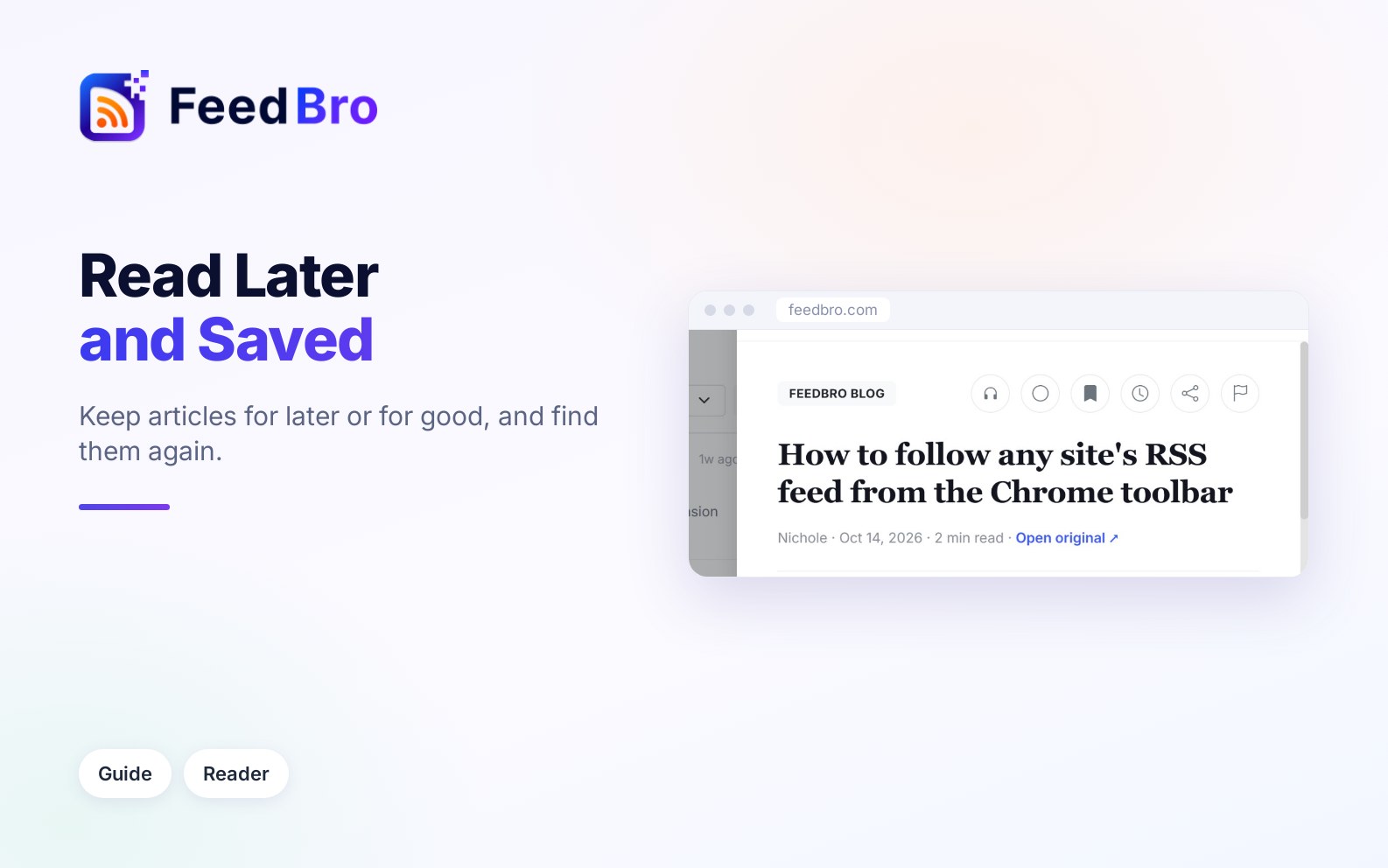
- Read Later (the clock icon) is your to-read pile. Use it for an article you want to get back to when you have time, and remove it once you have read it.
- Saved (the bookmark icon) is for articles you want to find again in a month or a year. Saved has two extras. Pages you save from the FeedBro browser extension land here, and you can get your Saved list as an RSS link for other apps.
An article can be in both lists at once. It stays in a list until you remove it, even after you read it.
How to add an article
From the reader
- Open the article.
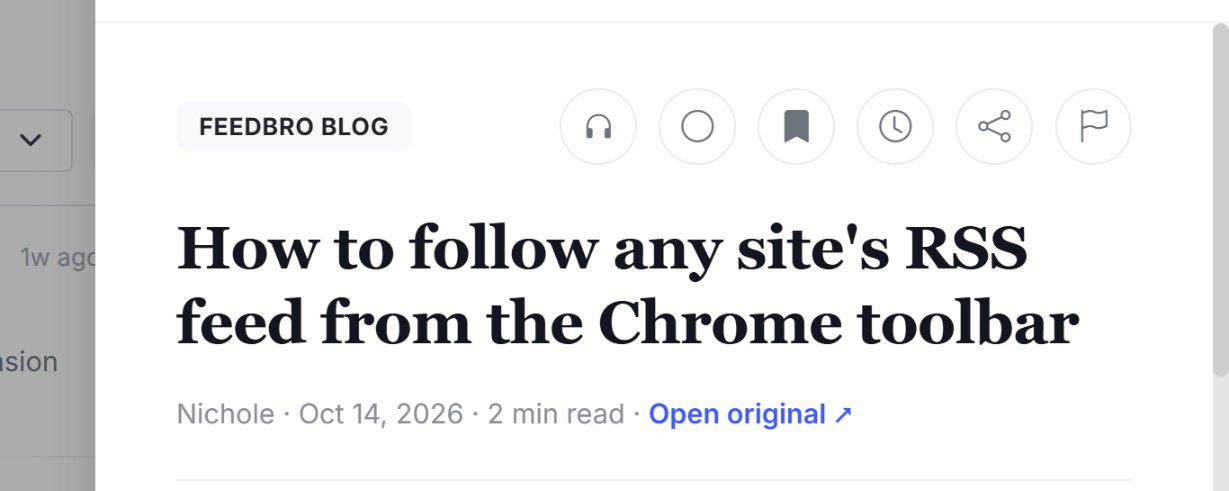
- In the row of buttons at the top, tap the bookmark for Save, or the clock for Read Later.
- The button lights up to show it worked. Tap it again to undo.
From the list, without opening the article
- Tap the three dots on the article's row.
- Choose Save or Read later.
With the keyboard
On a computer, move through the list with j and k, then press s to save the selected article or l to keep it for later. Press the same key again to take it back out.
Any web page, from the browser extension
With the FeedBro extension for Chrome, Firefox, Edge or Brave, you can save any page you are on, even one from a site you don't follow:
- On the page, click the FeedBro icon in your browser's toolbar and choose Save to FeedBro. You can also right-click the page and choose Save to FeedBro.
- The page appears at the top of your Saved list, under Saved Pages.
Where to find them
- On a computer, Read Later and Saved are in the menu on the left of the dashboard, each with a count.
- On a phone, tap Saved or Read Later in the row of buttons under the search box, or open Menu at the bottom of the screen.
- To have FeedBro open straight onto one of them, open Reading preferences (the sliders button above the list) and set Default view to Saved or Read Later.
In Saved, pages you saved from the extension come first under Saved Pages, followed by your articles under Saved Articles. A saved page opens on its original website in a new tab. Saved articles open in FeedBro's reader like any other article.
How to remove an article
- In the Saved or Read Later list, tap the small X on the article's row (Remove from Saved or Remove from Read Later).
- You can also open the article and tap the lit bookmark or clock button again.
- Or use the three dots on the row and choose Remove from saved or Remove from read later.
Removing an article from these lists leaves it in its feed.
How long they are kept
FeedBro keeps them for as long as you like, on every plan. To keep things fast, FeedBro moves old articles nobody has touched into an archive, but it never moves anything you saved or put in Read Later. If you unfollow a feed, its articles leave your lists, and the ones you saved or kept for later stay.
Tags
A tag is a short label on an article, such as "Opinion" or "Important". In FeedBro, your Rules add the tags. When you create a rule you can give it a tag, and every article the rule matches gets that label. You can't type a tag onto a single article by hand.
A tag shows next to the feed name on the article's row and at the top of the article. To see every article with a tag:
- Open the Search page (the search box in the top bar on a computer, or Search in the phone menu).
- Type part of the tag's name.
- Open the Tags tab and tap the tag.
FeedBro never moves tagged articles to the archive either, on any plan.
Your Saved articles as an RSS link
FeedBro can give you a private RSS link to your Saved articles. Paste it into another RSS app or an automation tool, and your saved articles show up there.
- Go to Settings and open Feeds.
- Find Your reading as RSS.
- Next to Saved, tap Copy.
- Paste the link wherever you need it.
Anyone who has the link can read that list, so keep it to yourself. If a link gets out, tap Reset links. The old links stop working straight away and you get new ones.
On the Free plan, the Saved link shows your latest 20 saved articles. On Coffee Club it shows 50, and you also get a link for each of your collections.
Reading offline
FeedBro keeps up to 50 articles on your device so you can read without a connection. Your Saved and Read Later articles go first, then your newest unread ones. This works in the FeedBro Android app and in most modern browsers.
- FeedBro refreshes this copy in the background while you use it online, at most every 10 minutes. It skips the refresh when your phone's data saver is on.
- When you lose your connection, a bar at the bottom says You're offline. Showing articles saved on this device. Tap All saved articles in that bar to see everything kept on the device.
- If you want an article for a flight or a commute, put it in Read Later or Saved while you are still online, then open FeedBro once so the copy is updated.
Signing out removes the offline copy from that device.
On the Free plan and Coffee Club
- Read Later and Saved work the same on both plans, with no limit on how many articles you keep or for how long.
- The Saved RSS link shows 20 articles on Free and 50 on Coffee Club. RSS links for collections are part of Coffee Club.
- Tags come from rules. You can have up to 5 rules on Free and as many as you like on Coffee Club.
If something doesn't work
- If the count says 5 but the list is empty, your Show setting in Reading preferences may be hiding older articles. Tap Show everything in the empty list, or set Show to Everything.
- If a page saved from the extension isn't in Saved, check that the extension is signed in to your FeedBro account, then try Save to FeedBro again. Saved pages are listed at the top of Saved (they don't go to Read Later).
- If the RSS link stopped working, someone may have pressed Reset links. Copy the new link from Settings › Feeds.
- If an article you kept shows only a short summary offline, that is because FeedBro stores what it has when it makes the copy. Open the article once while online so FeedBro fetches its full text, then let the offline copy update.
- If no tags show up in search, remember that tags come only from rules. Create a rule with a tag under Rules first.