Every feed you follow keeps adding articles. Some publish a few a week, some publish hundreds a day. How many of them you see in your lists depends on your plan, and the Count as unread for setting decides which ones count as unread.
FeedBro never throws away an article you have done something with. The unread setting only changes what counts as unread and doesn't delete anything.
What you always keep, on every plan
- Articles you saved (Saved).
- Articles you put in Read Later.
- Articles you tagged.
- Articles you opened. You find these again under Recently read, newest first.
These stay in your lists and in their feeds for good, whatever plan you are on and however old they get.
How much of each feed you see
On the Free plan
Each feed shows at least:
- its newest 500 articles, and
- everything it published in the last 30 days, even if that is more than 500.
You also see everything from the list above that you saved, put in Read Later, tagged or opened. For most feeds this means you see everything, because few feeds publish more than 500 articles in a month. You will only notice the limit on very busy feeds, such as big news sites, or on feeds you have followed for a long time.
Older articles beyond that are not deleted. FeedBro moves them to a long-term archive each night, and they are still there if you join Coffee Club later.
With Coffee Club
Coffee Club shows a feed's full history, back to the first article FeedBro ever stored for it. The older articles appear in the same lists as the recent ones.
- When you open one feed and scroll down past its newest articles, older ones keep loading below, in date order. They are marked as already read, so they do not add to your unread count.
- The Search page also finds older articles by their title.
- An older article opens like any other. You can read it, save it, put it in Read Later, tag it or listen to it. Once you open it, it counts as an article you opened, so it stays with you from then on.
How to scroll into a feed's older articles (Coffee Club)
- In the reader, click a feed in your list of feeds, so the page shows just that feed.
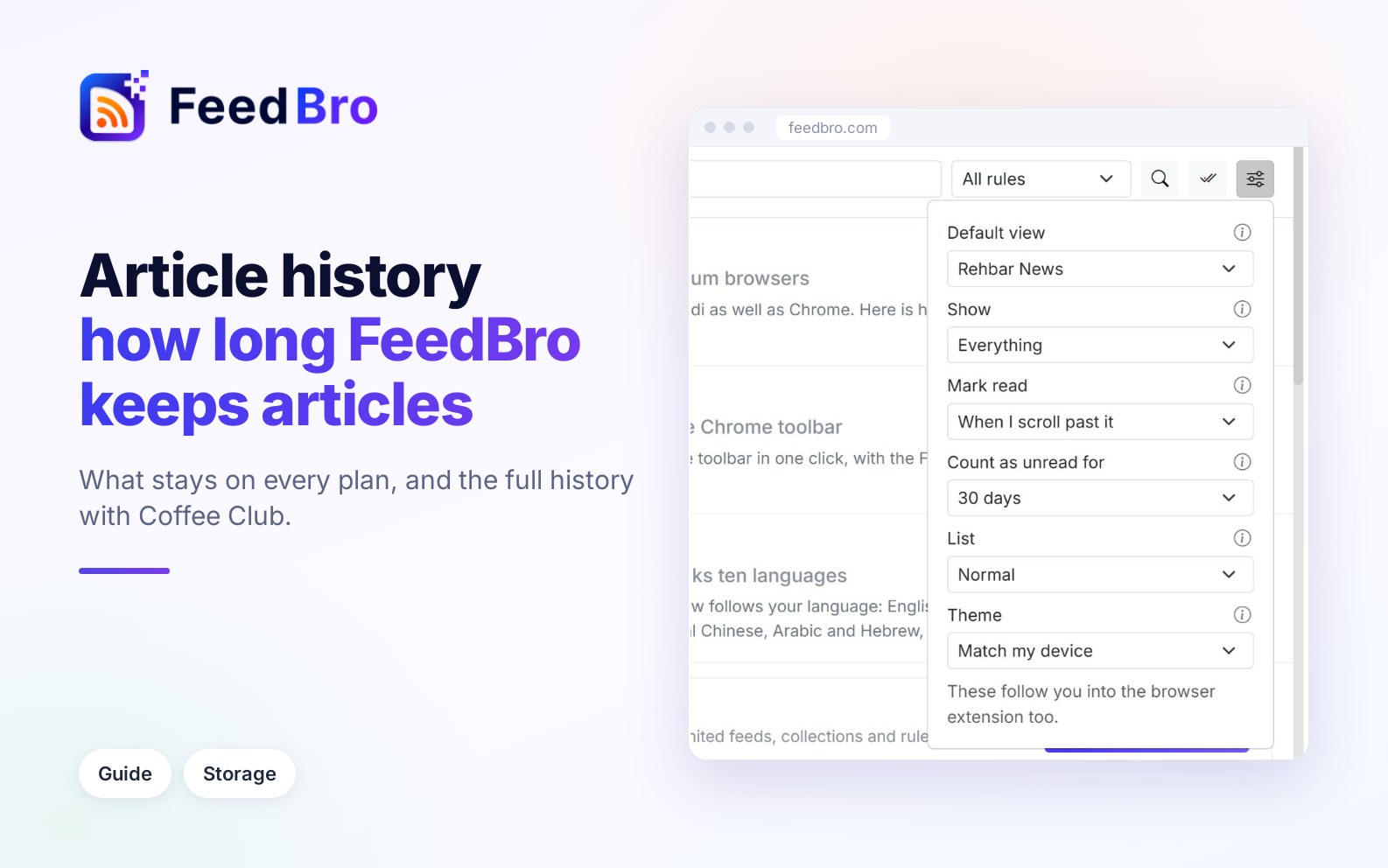
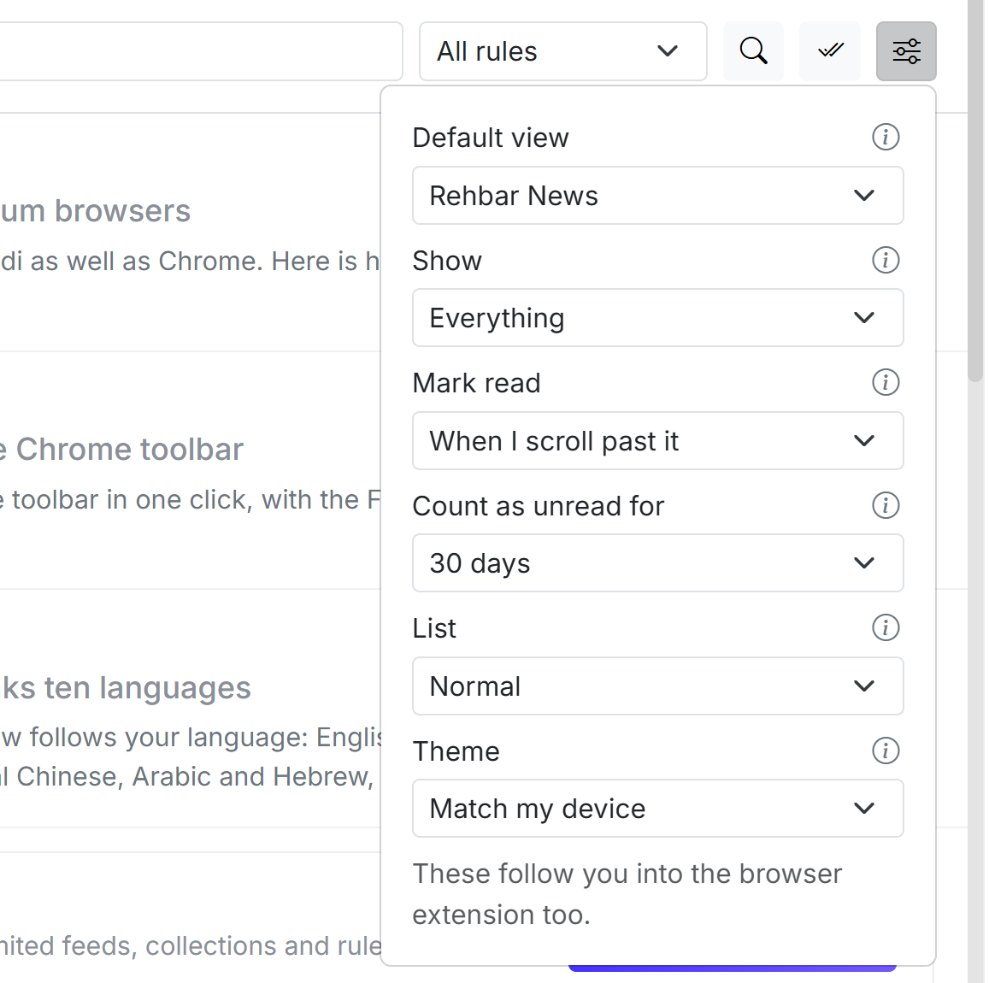
- Check that Reading preferences (the sliders icon at the top of the article list) has Show set to Everything. If Show is set to the last 24 hours, 7 days or 30 days, older articles are left out on purpose.
- Scroll down past the newest articles. Older ones continue to load as you go.
Older articles continue only when you are looking at one feed. Lists that mix many feeds, such as Today, Unread, All Feeds or a collection, stay with the recent articles.
How to search older articles (Coffee Club)
- Open the Search page. On a computer, type in the search box at the top of FeedBro ("Search articles, feeds, or topics") and press Enter. On a phone, open the menu and choose Search.
- Type a word or phrase from the title of the article you are looking for.
- Results show recent articles first. When there are only a few recent matches, older articles from your feeds are added below.
The search box inside the reader's article list searches recent articles only. Use the Search page when you are looking for something older.
The "Count as unread for" setting
If you follow many feeds, unread articles pile up fast. A feed you add with years of history could arrive as thousands of unread articles. Count as unread for keeps your unread list and the unread numbers about recent news.
An article you have not read counts as unread only while it is newer than the time you choose. Once it is older, FeedBro counts it as read. "Newer" means both when the article was published and when FeedBro first got it, so an old article that a feed only lists today does not arrive as new.
The choices are:
- 7 days
- 14 days
- 30 days (the standard setting)
- 90 days
- Always (Coffee Club): an article stays unread until you read it, however old it is.
Articles older than your choice stay in their feeds and you can still open them. They only stop counting as unread. Saved articles are kept for good whatever you choose.
The setting is worked out each time you look, so you can change your mind. If you pick 7 days and later switch to 90 days, articles from the last 90 days that you never read count as unread again. Articles you marked as read yourself stay read.
How to change it
- Open the reader.
- Click Reading preferences, the sliders icon at the top of the article list.
- Find Count as unread for. The small info icon next to it shows a one-line explanation.
- Choose how long. The page reloads with the new counts.
The same setting applies on the website, in the Android app, and to the unread number on the browser extension's toolbar icon.
What it means for your unread counts
- A shorter time gives smaller unread numbers and an Unread list of only fresh articles.
- A longer time keeps more articles waiting for you, which suits feeds you want to read in full, like a favourite blog.
- With Always, articles in the recent part of a feed stay unread until you read them or mark them as read. Articles from the older history that continues when you scroll down (see above) are shown as read.
On the Free plan and Coffee Club
On the Free plan, each feed shows its newest 500 articles plus the last 30 days, and search covers those. Count as unread for can be 7, 14, 30 or 90 days. Always is shown with "Coffee Club" next to it and cannot be picked.
Coffee Club gives you the full history of every feed, in the feed's list and on the Search page, and Always for unread.
On both plans, everything you saved, put in Read Later, tagged or opened is kept for good.
If a Coffee Club membership ends while Count as unread for is set to Always, it goes back to 30 days. Older history stops showing in the lists, but nothing is deleted, so it comes back if you rejoin.
If something doesn't work
- If a feed ends and no older articles load (Coffee Club), make sure you opened that one feed, not All Feeds or a collection, and that Show in Reading preferences is set to Everything. If it still ends, FeedBro may not have older articles for that feed. History starts from when FeedBro first fetched it, and many sites only list their latest articles in their feed.
- If the list says "Your Show setting is hiding older articles.", click Show everything, or change Show in Reading preferences.
- If your unread count dropped all at once, check Count as unread for. A shorter time makes older unread articles count as read. Choose a longer time to bring them back.
- If you can't find an old article in search, use the Search page and search for words from its title. On the Free plan, articles beyond the newest 500 and the last 30 days are not searched.
- If an article you saved is missing, look under Saved and check that you are signed in to the same account. Saved articles are never moved away.