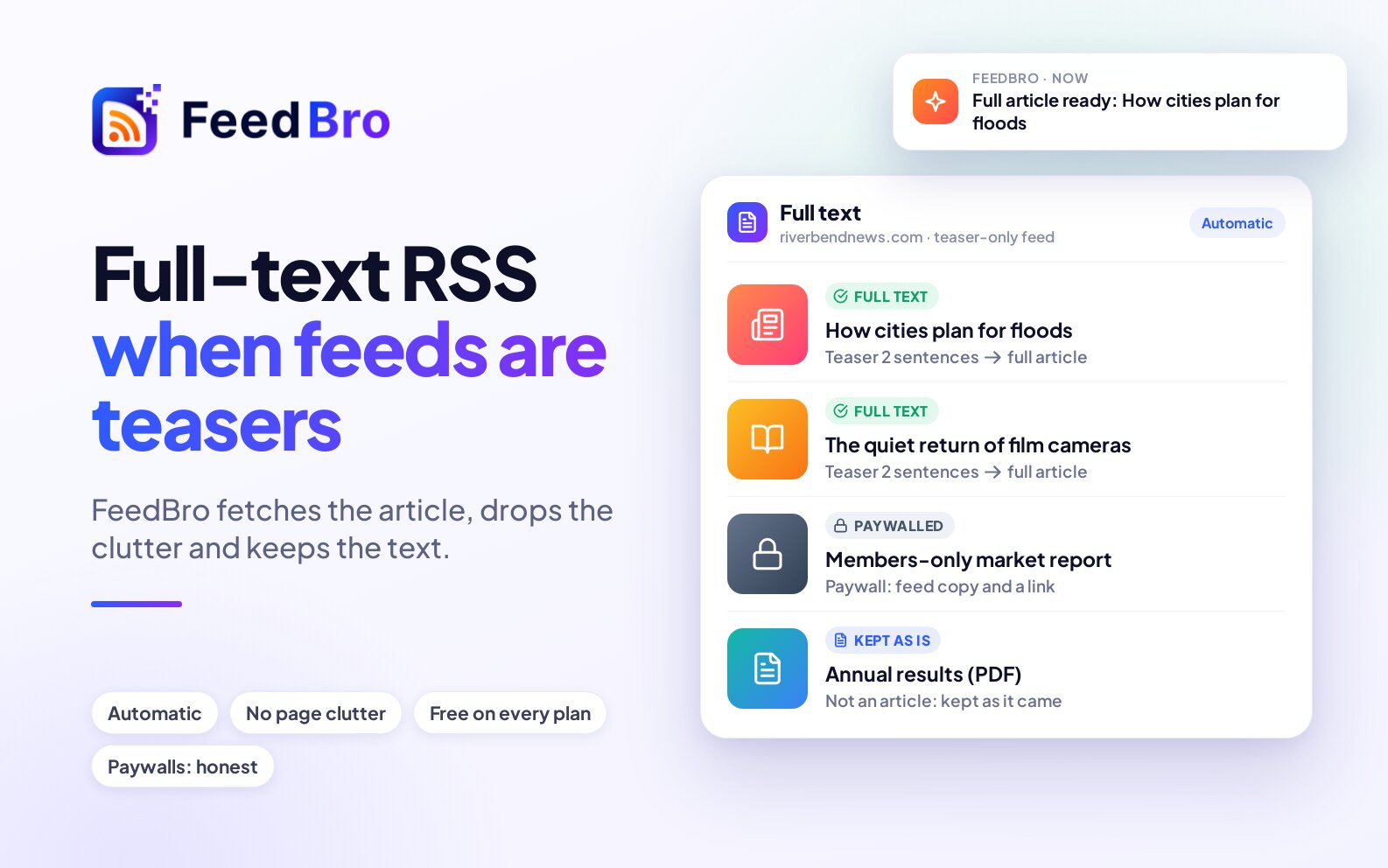
Many feeds only send the first sentence or two of each article and a "Continue reading" link. FeedBro goes to the article's page, takes out the article itself (the text and pictures) and shows it in the reader, so you can read the whole thing without leaving FeedBro.
Why some feeds only give a summary
A feed is a list a website publishes of its newest articles. The publisher decides how much of each article goes into it. Many send only a teaser, because they want you to visit the page with their ads and sign-up boxes, and some blogging tools do it by default. When a feed includes the whole article, there is nothing more to fetch.
How FeedBro gets the full article
You don't need to switch anything on, and it works on every plan.
- When an article's text from the feed is too short to read, FeedBro fetches the page from the publisher's site and picks out the article. Menus, cookie notices, newsletter boxes and "related posts" are left out.
- For the newest articles of feeds people are reading, FeedBro often does this ahead of time, so they open at once.
- Otherwise it happens the first time someone opens the article. The result is stored, so the next time it opens straight away, for you and for everyone else who follows that feed.
"FeedBro's own fetching" is how FeedBro reads pages itself. Some sites block that, so FeedBro also has premium fetching: extra ways to reach hard sites, which cost FeedBro money for every page. How often premium fetching is used depends on your plan (see below).
What you see while it loads
When an article needs fetching, the reader opens at once with the title, the feed's name and a grey outline of the page. A line below changes as FeedBro works:
- Opening the article…
- Fetching the full text…
- The site is slow. Trying another route…
- Getting past the site’s bot check…
- Cleaning up the text for reading…
- Almost there…
Most articles take a few seconds, and a slow or protected site can take longer. You can close the reader and open something else in the meantime.
When FeedBro can't get the article
If every way fails, you still see what the feed sent. When the feed sent nothing useful, the reader says We couldn't pull the full article from the feed and explains that some publishers block automated readers. A Read it on button opens the article on the site.
On the Free plan you also see a box saying the site is being stubborn with this article, with your options:
- Use the FeedBro browser extension: open the article on the site, right-click the page and choose Fix this page on FeedBro. Your browser loads it, and the full text is saved in FeedBro.
- Want FeedBro to keep trying for you? Coffee Club uses premium fetching on every try.
Every plan has a Tell me when it's ready button. If you tap it, FeedBro keeps trying in the background and sends you a notification once the article is in. The button then says We'll let you know as soon as it's ready.
Subscriber-only articles
Some articles are for paying subscribers of that publication. The page shows a teaser and a subscribe box, and no reader app can get the rest. In place of the subscribe box, FeedBro shows a note that starts This article needs a subscription to the publisher, the summary the feed publishes, and a Read it on button.
If you are a subscriber, you can bring the article into FeedBro yourself:
- In a browser with the extension, open the article while you are signed in to the site, right-click the page and choose Fix this page on FeedBro.
- In the Android app, tap Fix article, sign in to the site in the window that opens, then tap Save.
Let your own browser or phone fetch it
Some sites block servers but let ordinary visitors in. Your own browser or phone counts as an ordinary visitor, so it can often get pages that FeedBro's servers can't.
With the browser extension
- For one article, open it on the publisher's site, right-click the page and choose Fix this page on FeedBro. FeedBro saves the full text your browser loaded, for everyone who follows the feed. This works for an article FeedBro couldn't load, or a subscriber-only one. If FeedBro already has text for the article, it keeps that text.
- The extension's own reader has a setting, Load full articles in this browser, that fetches short articles from the site in your browser, using your own sign-in there. The first time, the reader shows a Load full article button so your browser can ask your permission.
- If FeedBro can't reach a whole feed, open the feed in FeedBro. When it says We can't reach this feed yet or This feed is behind a sign-in, tap Fix in my browser. A small window opens. When it says the feed was saved, reload the page.
You can get the extension for Chrome or Firefox at feedbro.com/get-extension. It also works in Edge, Brave and other Chromium browsers. Fix in my browser needs the latest version of the extension.
With the Android app
- When an article couldn't be fetched, the app shows Open & fix on my phone. Tap it and the page opens in a window in the app. FeedBro saves the full article once it has loaded, for everyone who follows the feed. If the site shows a check first, get past it and tap Save.
- The app also shows Fix article on any article, next to Open original under the title. Use it when an article came out short or wrong. The same window opens, and tapping Save there replaces the text FeedBro had.
- For feeds, there is a switch under Settings › Feeds › Blocked feeds called Refresh unreachable feeds from this phone (Android app). While the app is open, it lets the app download feeds that block FeedBro's servers. It is on by default, and you can turn it off there at any time.
Report a problem with an article
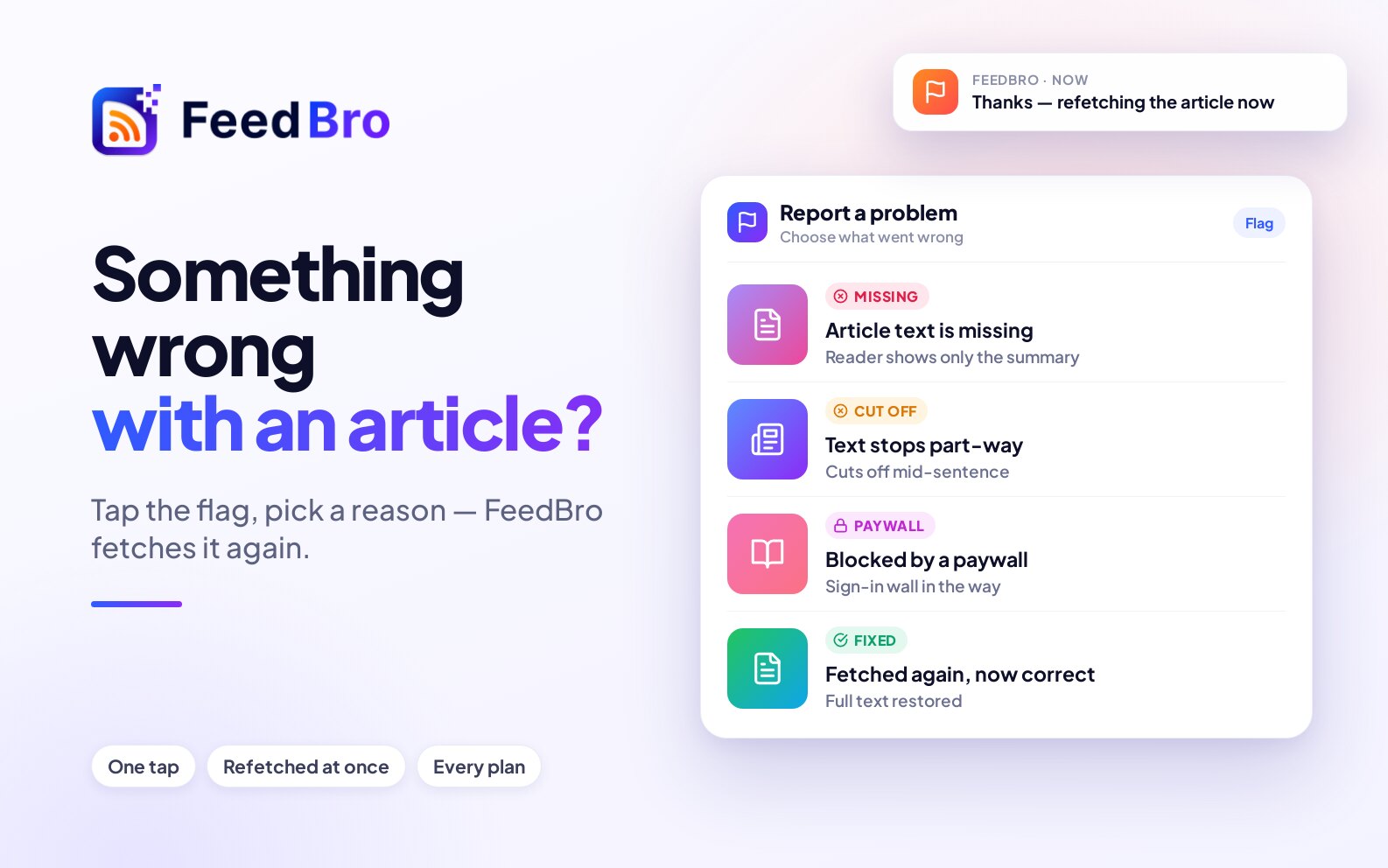
If an article looks wrong, you can tell FeedBro in a few seconds. Reports work on every plan.
- Open the article.
- Tap the flag at the top (Report a problem with this article).
- Under What's wrong with this article?, pick one:
- The article text is missing
- The wrong text is shown
- The text stops part-way
- Blocked by a paywall or sign-in wall
- Images are missing or broken
- Something else
- Add a note if you like, then tap Send report.
For missing text, wrong text, text that stops part-way and broken images, FeedBro throws away what it had and fetches the article again straight away. You see Thanks, we're fetching this article again. Reopen it in a minute to see if it looks better. For the other two reasons, the report goes to the FeedBro team and you see Thanks, your report has been sent to the FeedBro team.
You can send one report per article. If you report the same article again, your earlier report is updated.
On the Free plan and Coffee Club
Full articles work on both plans. The plans differ in how hard FeedBro tries on sites that block it.
- On the Free plan, FeedBro uses its own fetching on every article, plus up to 3 premium fetching attempts a day for each article (and the same for each feed).
- A Free account also gets 10 trial articles, once. When you open an article that couldn't be loaded, FeedBro may try it again with premium fetching from your trial. An article counts only if it then loads. You see a note such as As part of your free trial, FeedBro loaded this article with its advanced tools. with how many trial articles are left.
- Coffee Club uses premium fetching whenever it is needed, with no daily limit. A feed is fetched once for everyone who follows it, so when a Coffee Club member follows a feed, its articles get premium fetching for every follower.
Feeds work the same way. If a feed stops updating on the Free plan, a warning triangle appears next to it in your feed list. Tap it to see Not updating and what you can do, including Tell me when it works again.
Items that aren't articles
- A PDF file has no page text to fetch. Open PDF opens the file, and Coffee Club shows its pages in the reader.
- Videos from YouTube, Reddit and many other sites play inside the article. Others show This is a video. It plays on the site, with Watch video.
- For a file to download, you see This item is a file to download, not an article. and a Download file button.
- Google sends Google News links through its own redirect page, so FeedBro can't pull their full text. If you can, open the article from the publisher's own feed instead.
- A Reddit feed already carries the post's text, so FeedBro shows that. Tap Load the whole thread to read the comments.
If the text looks wrong
- Report it with the flag and the reason that fits best, then reopen the article a minute later.
- If it is still wrong, tap Fix article in the Android app and then Save. That replaces the text FeedBro has. If the article didn't load at all, Fix this page on FeedBro in the browser extension works too.
- If the site needs a subscription, sign in to the site in your browser or the app's window first, then fix it the same way.
- You can always read it on the site itself with Open original under the title.
If a whole site keeps coming through badly, report two or three of its articles. When the FeedBro team sees several reports from one site, it can fix that site for everyone.
If something doesn't work
- If the reader keeps showing Almost there…, the site is very slow or protected. Close the reader and open the article again later, or tap Tell me when it's ready if you see it.
- If Fix this page on FeedBro does nothing, check that the extension is signed in to your FeedBro account and that you follow the article's feed. You also need to right-click on the article's own page; another page of the site won't work. If FeedBro already has text for the article, report it with the flag instead.
- If you see The browser extension could not start., update the extension to the latest version and try Fix in my browser again.
- The Fix in my browser button only appears in a browser. In the Android app, use Open & fix on my phone or Fix article.
- If a subscriber-only article still shows the summary after you signed in, make sure you are signed in to the publisher's site in the same browser or in the app's window, then fix the page again.