On the Settings page you choose how lists and articles appear, which emails you get, which language FeedBro uses, which browsers are connected and what happens to your account. Most settings are saved the moment you change them. They belong to your account, so they follow you to the browser extension and the Android app.
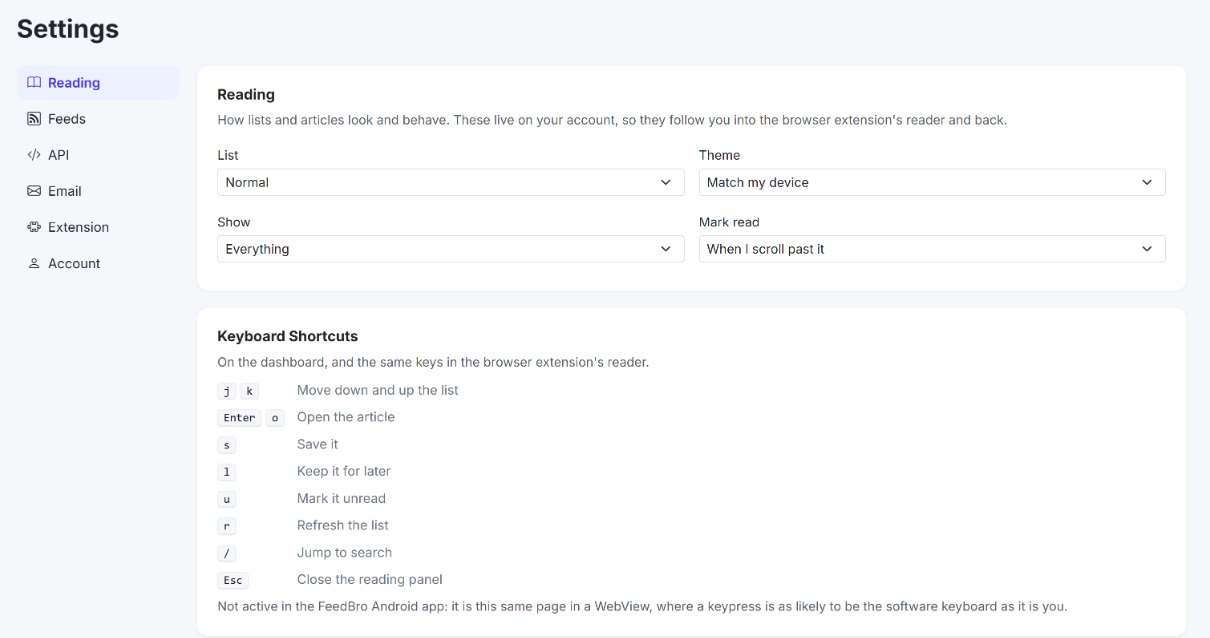
How to open Settings
- Sign in at feedbro.com.
- Click your picture or initial at the top right, then Settings. You can also click Settings in the dashboard's left menu (on a phone, tap Menu at the bottom first).
The page has six sections: Reading, Feeds, API, Email, Extension and Account. On a computer they are listed on the left. On a phone they form a row at the top that you can swipe sideways. FeedBro remembers the section you used last.
Reading
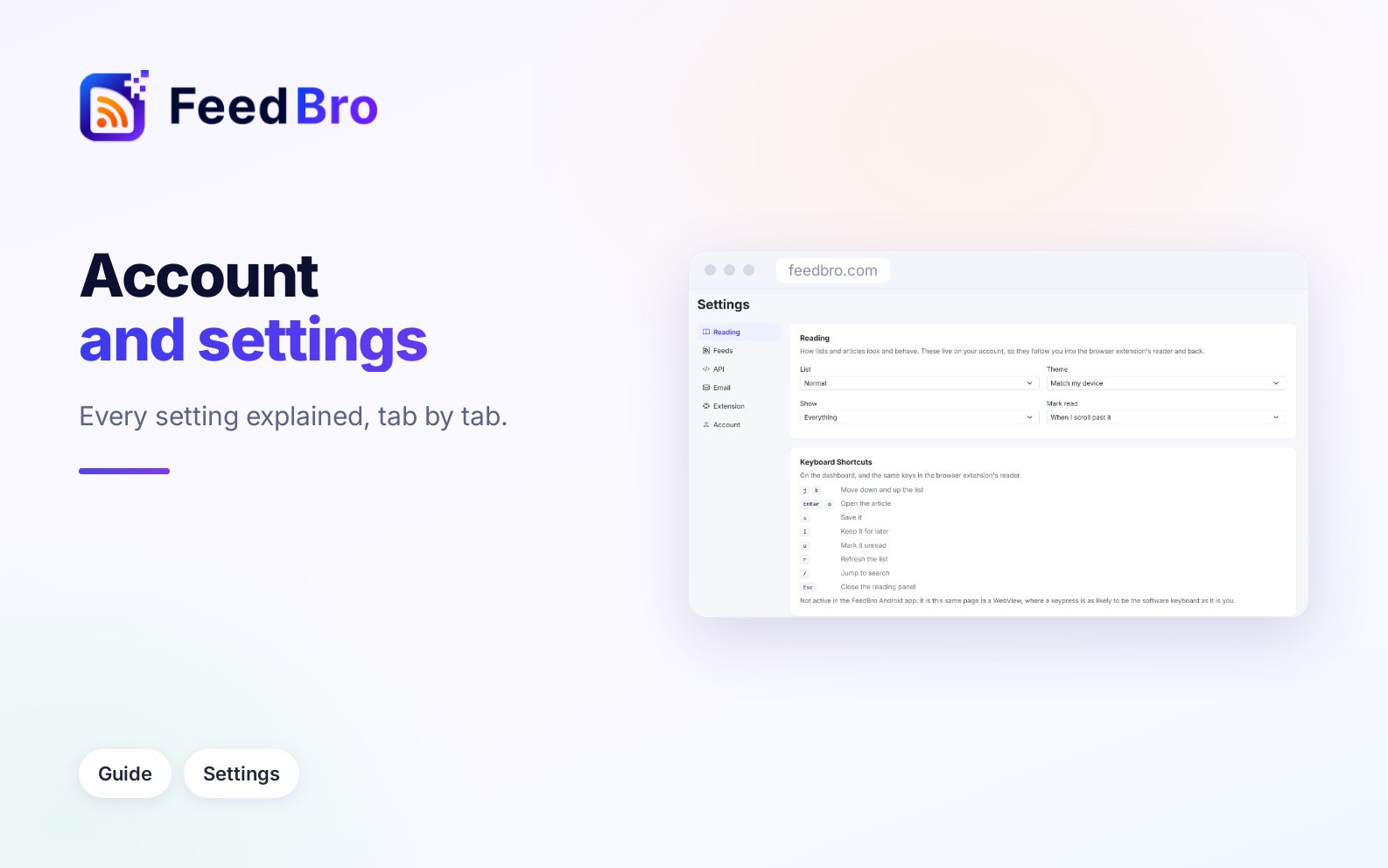
Pick an option and FeedBro saves it straight away (you see Saved. under the choices).
- List: Normal, Compact (headlines only) or Cards (with pictures).
- Theme: Match my device, Light, Dark or Sepia. The page changes as soon as you choose.
- Show: Everything, Last 24 hours, Last 7 days or Last 30 days. Older articles are left out of every list. Nothing is deleted, and you can change it back any time.
- Mark read: When I open it, When I scroll past it or Only when I say so.
Below that, Keyboard Shortcuts lists the keys you can use on the dashboard: j and k to move down and up the list, Enter or o to open the article, s to save it, l to keep it for later, u to mark it unread, r to refresh the list, / to jump to search and Esc to close the reading panel. Shortcuts don't work in the Android app.
More reading options on the dashboard
Two more reading settings are in the Reading preferences menu on the dashboard, the sliders icon at the right of the search box. Each option there has an (i) that explains it in one line.
- Default view is the list FeedBro opens with. It can be All articles, Unread only, Saved, Read Later or one of your collections.
- Count as unread for: 7 days, 14 days, 30 days (the starting setting), 90 days or Always. Articles older than this count as read, so your unread list and counts stay about recent news. Nothing is deleted, and saved articles are kept forever. Always is a Coffee Club choice.
The same menu also has Show, Mark read, List and Theme. They are the same settings as on the Settings page, so a change in one place shows in the other.
You can also switch the theme from the account menu (your picture or initial at the top right), under Theme: Auto, Light, Dark or Sepia. Auto is the same as Match my device.
Feeds
Your feeds
The first card lists every feed you follow, with the number in the title. Each row shows the site and how many articles FeedBro has from it. Paused means FeedBro has stopped checking that feed for now. To stop following one, click Unfollow on its row and confirm. Articles you saved or kept for later stay.
Import & Export
An OPML file is a small file that lists feed addresses. Almost every RSS reader can make one and read one, so you use it to move your feeds between apps.
- Export OPML downloads a file called feedbro-feeds.opml with all your feeds. Feeds in a collection are grouped in a folder with the collection's name.
- Import OPML lets you choose an .opml or .xml file (up to 2 MB) from another reader. FeedBro follows the feeds in it and turns its folders into collections. It stops when you reach your plan's feed limit. If something goes wrong, the reason shows under the buttons.
Your reading as RSS
This card gives you private RSS links to use in another RSS app or an automation tool. Anyone who has a link can read that list, so keep them to yourself.
- Saved: your saved articles. Click Copy to copy the link.
- With Coffee Club, each collection gets its own link too.
- Reset links switches off your old links and gives you new ones. Use it if a link got into the wrong hands.
On the Free plan, the Saved link shows your latest 20 saved articles. Coffee Club adds a link for each collection and shows 50.
Blocked feeds
Some sites block the countries FeedBro's servers run from. With Refresh unreachable feeds from this phone (Android app) on, the FeedBro Android app downloads those feeds on your phone while the app is open (a few feeds at most, every 30 minutes at most), so they keep updating. Nothing else on your phone is read or sent. If you don't have the app, the card has a Get the app on Google Play link.
API
Use this section if you want to read your FeedBro feeds from other apps or your own scripts. An API key is a private password for a program, so it can reach your account without your real password.
- Usage shows how many requests you have used in this period, how many are left, when the count resets, and a chart of the last 30 days.
- API access is where you make keys. Type a name, click Create key and copy the key straight away, because it is shown only once. Revoke switches a key off. The link in the card opens the API documentation.
- Recent background jobs lists the longer tasks your keys asked for, with their status and id.
On the Free plan you get 1 key and 500 requests a month, read only. Coffee Club gives you up to 5 keys and 100 requests a day, and your keys can also mark articles read, saved or for later.
Email Digest (Coffee Club)
The digest is a roundup of new articles from your feeds, sent to your inbox.
- Under Send me a digest, choose Daily or Weekly (Off stops it).
- Pick the Time you want it.
- Under Articles, choose Top 5, Top 10 or Top 20.
- Under Include, tick what you want in it: Article previews (the first couple of lines under each headline), Key point summaries and Group by feed.
Every change is saved at once. The time is in your computer's time zone, which the card names under the choices. On the Free plan this card explains the digest and links to Coffee Club instead.
Email Preferences
Account and billing emails are always sent. These switches control the optional ones:
- Onboarding tips (getting started with feeds and rules)
- Re-engagement emails (if you've been away for a while)
- Product updates and announcements
Unsubscribe from all optional emails turns them all off in one go after you confirm. Turning a switch back on later re-enables that kind of email. Emails are written in your account's language (see Language below).
Extension
Here you connect the FeedBro browser extension to your account. You never type your password into the extension.
- Install the extension first. The card has a Get the FeedBro extension link.
- Click Connect Extension. If the extension is installed in this browser, it connects by itself and the card says Connected. Check the extension.
- If the card shows a code instead, open the extension from the toolbar and type the code there. It expires after 2 minutes; click Connect Extension again for a new one.
Connected devices lists every browser connected to your account, with when it was last used. Disconnect signs that browser's extension out, and you will need to connect it again to use it.
Account
Your name, photo and plan
The top card shows your name, email address and plan. Edit profile opens your profile page, where you can change your photo, Full name, Date of birth and Gender, then click Save changes. Your email address is shown there but can't be changed. Manage plan opens the billing page, where you upgrade, cancel or update your payment method.
How to change your password
- Go to Settings, Account and click Edit profile (or choose Profile in the account menu).
- Under Change Password, type your Current password and a New password of at least 8 characters, different from the old one.
- Click Save changes.
If you signed up with Google (or another sign-in button), you have no FeedBro password yet. To make one, sign out, click Forgot password? on the sign-in page and follow the emailed code. You can keep signing in with Google as well.
Language
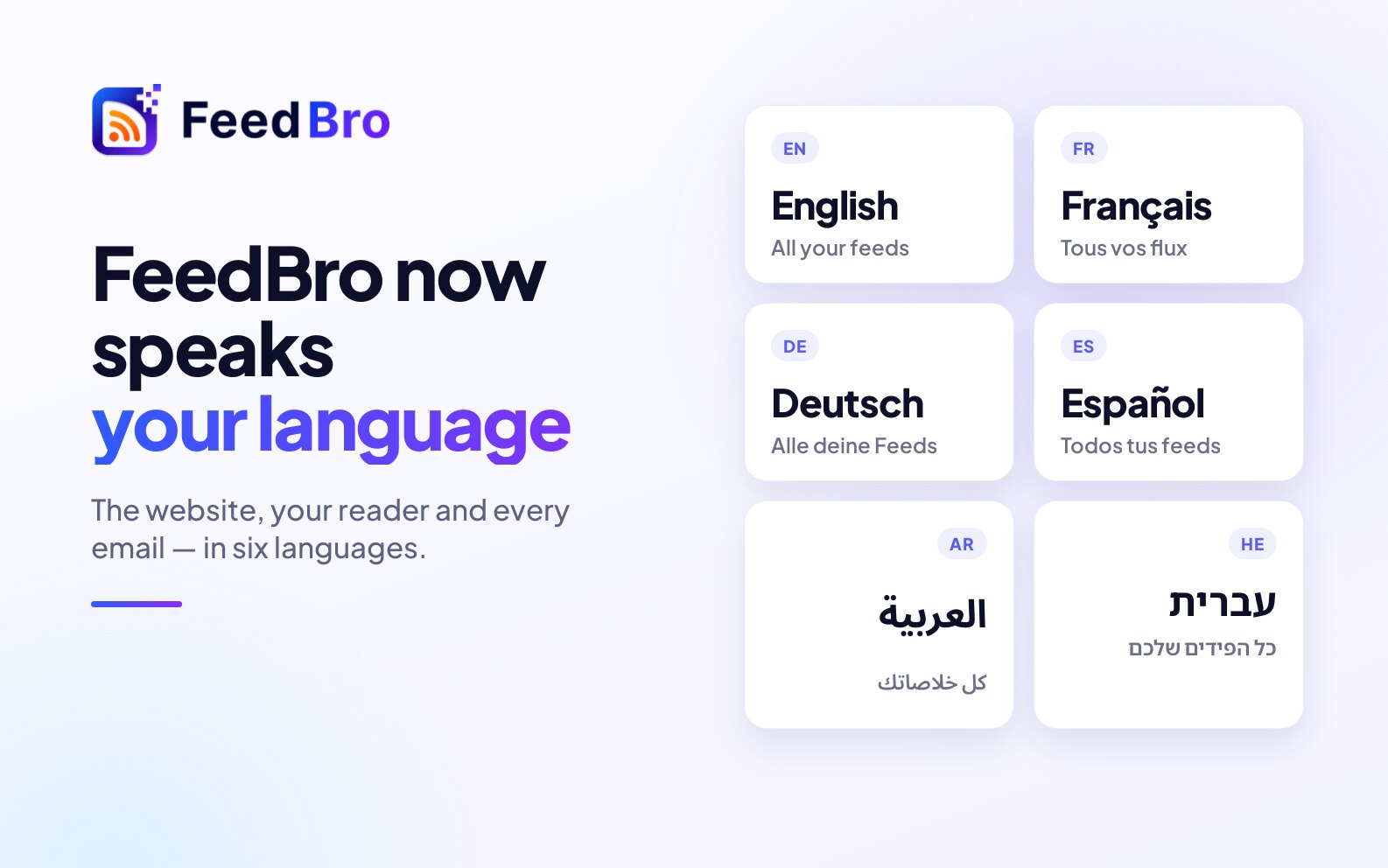
Under Preferences, Language sets the language of FeedBro and of the emails it sends you. There are ten: English, Français, Deutsch, Español, Italiano, Português, 日本語 (Japanese), 繁體中文 (Traditional Chinese), العربية (Arabic) and עברית (Hebrew). Arabic and Hebrew are written right to left, and the whole page is mirrored to match.
- Open Settings, then Account.
- Choose your language in the Language menu.
- The page reloads in the new language.
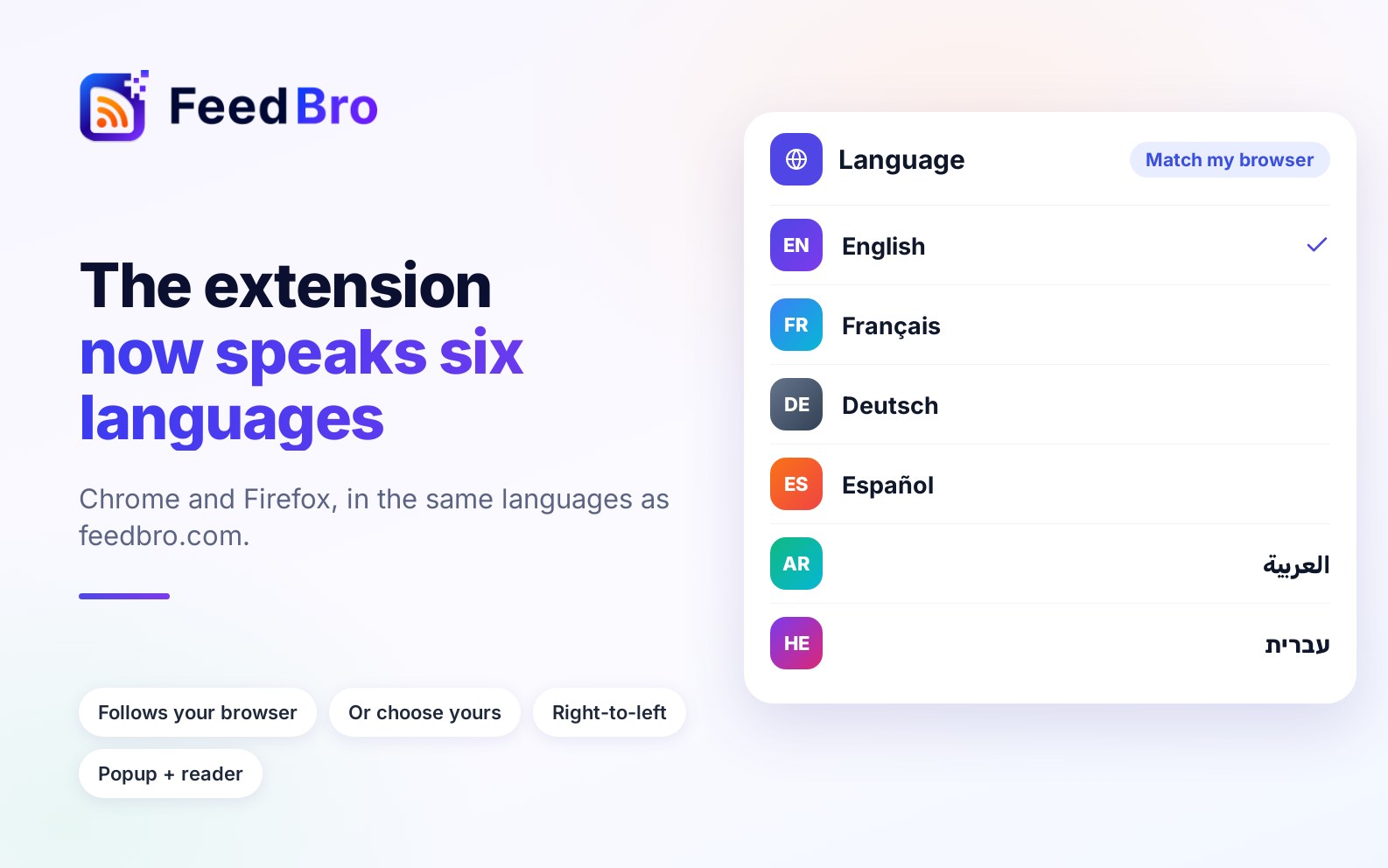
The Android app uses this language too. The browser extension has its own language menu (at the bottom of its popup), which follows your browser unless you change it. Articles are never translated, so you read each one in the language it was written in.
Email me about important updates
This switch sits under Language. Leave it on to hear from FeedBro when something needs your attention, for example when one of your feeds keeps failing or has been paused.
How to delete your account
Deleting removes your account, feeds, articles, collections and subscription for good. It can't be undone.
- Go to Settings, Account, and under Danger Zone click Delete my account.
- In the window, type your password (accounts made with Google, Apple or GitHub skip this) and click Send confirmation email.
- Open the email and click its link. Nothing is deleted before you do.
- The page lists what will be deleted. Choose a reason under Before you go, what made you leave?, add anything you want to tell us, and tick I understand my account and everything in it will be deleted for good.
- Click Yes, permanently delete my account and confirm.
If you change your mind, click Cancel, keep my account or just close the page. If you only want fewer emails, the Email section is enough. A paid subscription is cancelled with the payment provider as part of the deletion.
Good to know
- Reading settings, the theme, your feeds and collections are stored on your account, so they are the same on every computer, in the extension's reader and in the Android app.
- The extension's language and its two "in this browser" switches belong to that one browser.
- Settings for one feed (your own name for it, how often it is checked, how many articles to show, new-article alerts, a sign-in for it) are in the gear next to the feed on the dashboard. They are not on the Settings page.
- Rules and Website Watch have their own pages, in the account menu and the dashboard's left menu.
On the Free plan and Coffee Club
- Email Digest, and the Key point summaries in it, are Coffee Club features.
- Count as unread for: Always is Coffee Club. On Free, the longest is 90 days.
- In Your reading as RSS, Free gets the Saved link with the latest 20 articles. Coffee Club adds collection links and shows 50.
- In API, Free gets 1 key and 500 read-only requests a month. Coffee Club gets up to 5 keys and 100 requests a day.
- Everything else in Settings works the same on both plans.
If something doesn't work
A setting didn't stick
If you see Could not save that., check your connection and choose the option again. A setting that is part of Coffee Club can't be saved on the Free plan.
The language changed on the website but not in the extension
The extension keeps its own language setting. Change it in the extension's popup or reader, or set it to Match my browser.
The digest options are greyed out
They are greyed out while Send me a digest is set to Off. Choose Daily or Weekly first. On the Free plan the digest isn't available.
The OPML import failed
Check that the file is an OPML export (.opml or .xml) under 2 MB. If you reached your plan's feed limit, the feeds before the limit are followed and the rest are skipped.
My current password is refused
If you signed up with Google, Apple or GitHub, there is no password to type. Use Forgot password? on the sign-in page to set one.
I didn't get the deletion email
Look in your spam folder, then click Delete my account again to send a new one.
For anything else, contact us. We read every message.