FeedBro can tell you when a feed you picked publishes a new article, when one of your rules matches, and when a feed stops working or starts working again. The bell at the top of FeedBro keeps a list of your notices, push notifications pop up on your phone or computer, and some things come by email. You can turn each of these on and off.
The bell
When you are signed in, the bell icon is at the top of every FeedBro page, on a computer, on a phone and in the Android app. A small number on it shows how many notices you haven't read yet (above 99 it shows 99+).
How to use the bell
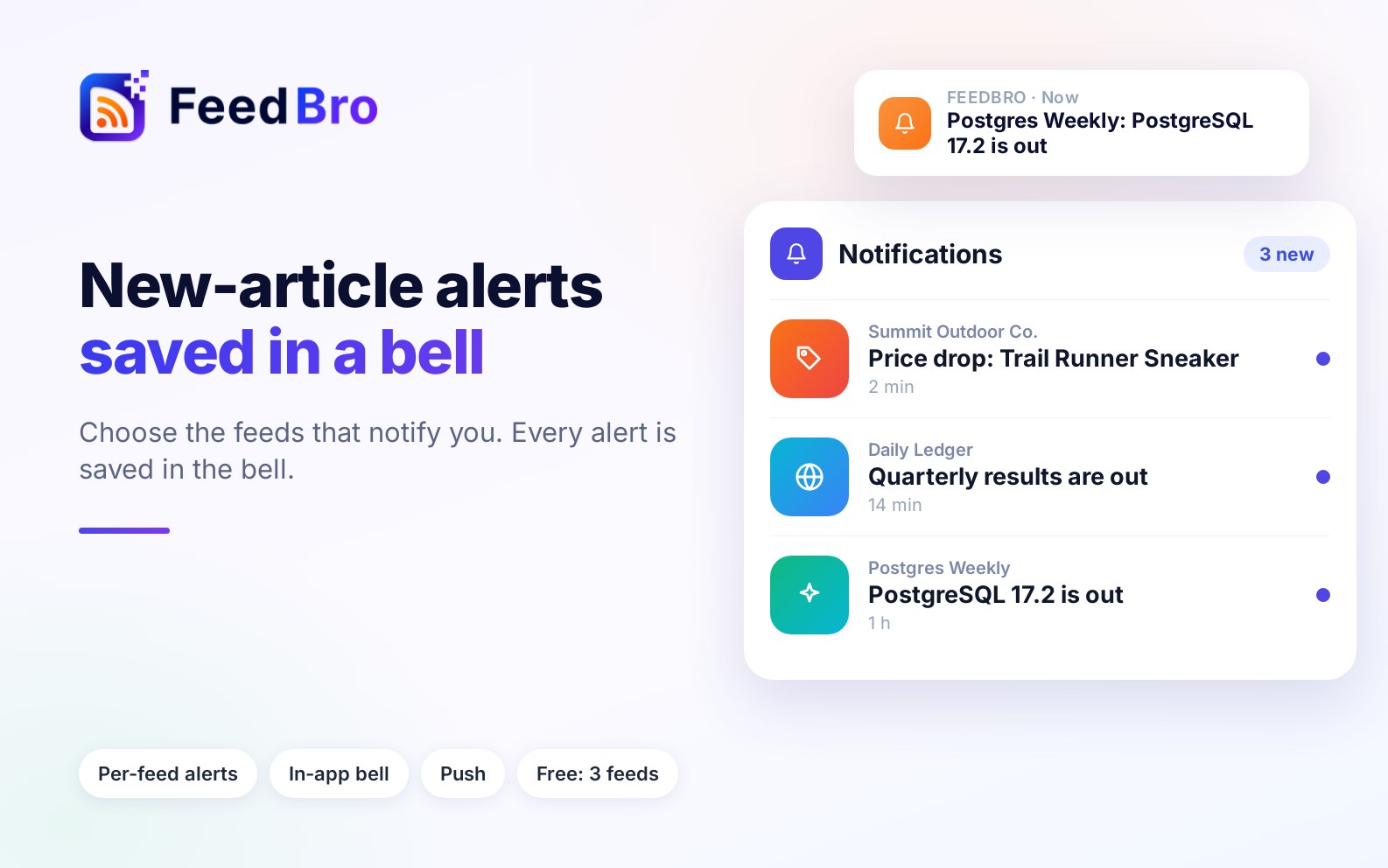
- Click or tap the bell. The Notifications panel opens. On a phone it fills the screen.
- Your newest notices are at the top, and unread ones are marked with a dot.
- Click a notice to open what it is about, for example the article in its feed. That notice is then marked as read.
- To clear the count in one go, click Mark all as read at the top of the panel.
- Close the panel with the X, by clicking anywhere outside it, with the Esc key, or with your phone's back gesture.
Good to know
- Every push notification FeedBro sends you is also saved in the bell. If you swiped one away on your phone, you can still find it here.
- The panel shows your 20 most recent notices from the last 45 days. Older ones are no longer listed or counted.
- Notices are shown in the language you chose under Settings > Account > Language.
- When there is nothing to show, the panel says Nothing new yet.
Push notifications in your browser
A push notification is a small message that your browser or phone shows even when FeedBro isn't open. Browsers only show them for sites you have allowed, so you need to allow FeedBro once in each browser you use.
How to allow them
- Open Rules (in the menu under your picture, or in the left sidebar).
- The top of the page shows whether notifications are on for this browser. If it says Push notifications are off for this browser., click Enable Notifications.
- Your browser asks whether feedbro.com may show notifications. Choose Allow.
- The message changes to Push notifications are on for this browser.
If your browser hasn't given permission yet, turning on new-article alerts for a feed (see below) also asks for it.
Good to know
- Permission belongs to the browser, so a second computer or a different browser needs to be allowed too.
- Notifications go to the account that is signed in. When you sign out, that browser stops getting your notifications.
- Private or incognito windows usually can't receive notifications.
- To stop push notifications in a browser, block notifications for feedbro.com in that browser's site settings.
Push notifications in the Android app
The FeedBro app for Android delivers notifications itself, so you don't need to press a button in FeedBro. When the app asks whether it may send you notifications, tap Allow. Your phone is then linked to the account you are signed in with, and alerts reach you even when the app is closed.
On the Rules page in the app you will see Notifications come through the FeedBro app. To turn them on or off later, use your phone's notification settings for FeedBro (on most phones: Settings, Apps, FeedBro, Notifications).
New-article alerts for chosen feeds
For the few feeds you don't want to miss, FeedBro can send a push notification each time they publish.
How to turn on alerts for a feed
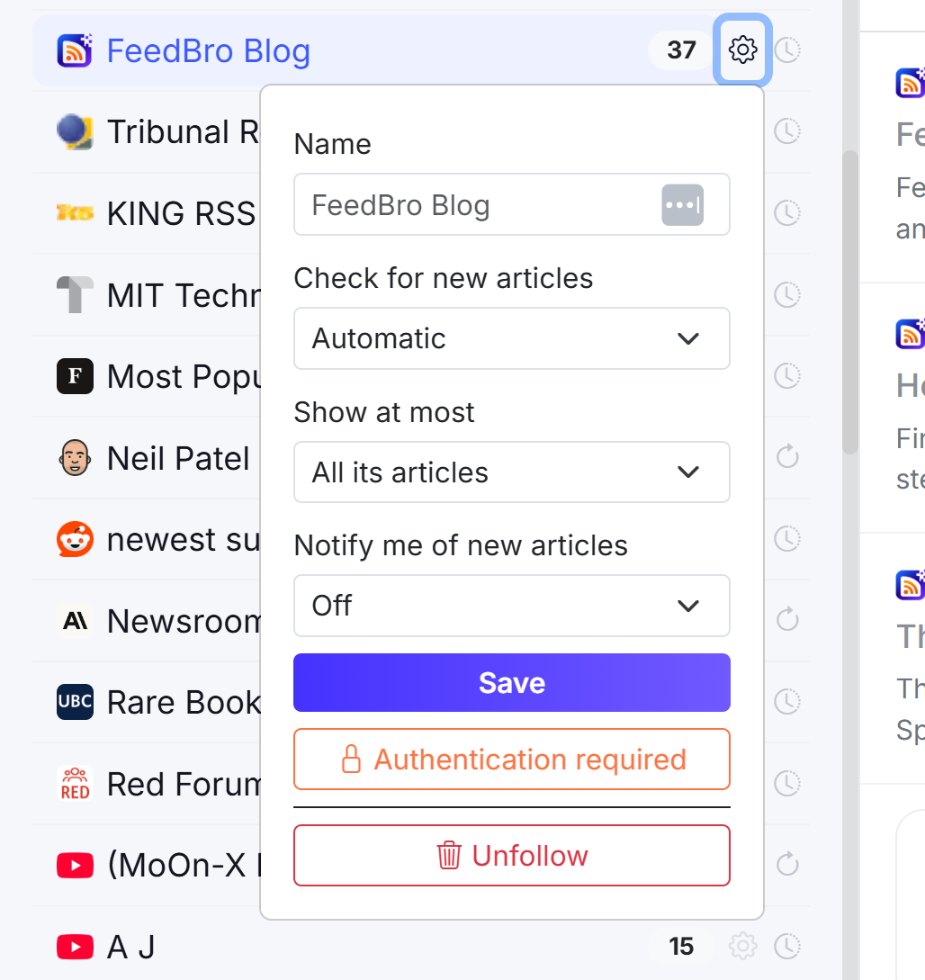
- Find the feed in the left sidebar of your reading list, under Explore > My Feeds, or in Website Watch for a watched page.
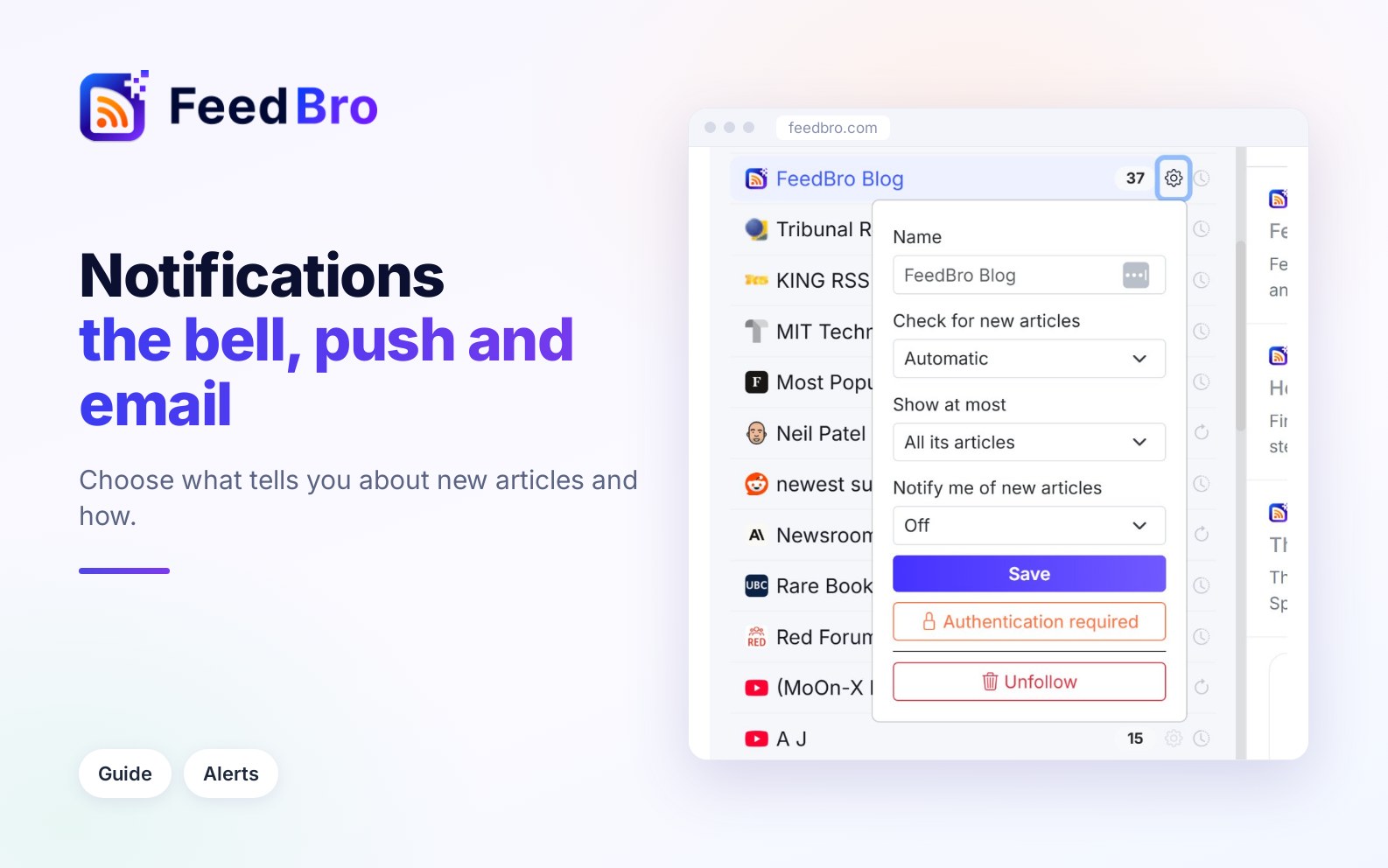
- Click the gear icon next to it (Settings for this feed).
- Under Notify me of new articles, choose On: a push when it posts.
- Click Save. You will see Saved. If your browser hasn't allowed notifications yet, it asks now.
To stop alerts for that feed, open the same gear, choose Off and click Save.
What the alerts look like
- The first new article sends a notification right away, with the feed's name and the article's title. Tap it and the article opens inside its feed.
- If the feed posts more within the next 15 minutes, FeedBro waits and sends one notification for all of them, such as "3 new articles".
- Articles that were already more than two days old when FeedBro first saw them don't send alerts.
- Alerts come shortly after FeedBro finds the new article, so how quickly you get one depends on how often the feed is checked.
If you want alerts for only some articles from a feed, for example ones that mention a certain word, use a rule with Push notification instead. The guide to rules explains how.
Notices FeedBro sends about your feeds
FeedBro also tells you when something happens to a feed you follow or are adding. Unless noted otherwise, these arrive as a push notification and in the bell.
When you ask to be told
When a feed is failing or still loading, or an article's full text couldn't be fetched, you will see a button: Tell me when it works again for a feed, or Tell me when it's ready for an article. If you click it, FeedBro keeps trying in the background and later sends you one of these notices, once:
- Your feed is working means the feed is updating in FeedBro now.
- Ready to read means the article's full text is in FeedBro now.
- We couldn't reach your feed means the feed didn't answer for a week, so FeedBro stopped trying. You can try its address again any time.
If you add many feeds at once, for example from an import, you get at most one of these every 15 minutes.
Feeds with a problem
- A feed of yours has a problem is sent when the site has answered with an error for three days. Open the feed to see what to check.
- A feed of yours needs your browser means the feed is behind a sign-in that FeedBro's servers can't pass. Use Fix in my browser with the FeedBro extension to read it from your own signed-in browser.
- A feed of yours is refused by its site means the site turns FeedBro's servers away. If the feed opens in your own browser, Fix in my browser with the extension can read it from there.
- A feed is working again follows one of the notices above once the feed answers normally. It appears in the bell only, without a push.
Each of these is sent at most once per feed every 30 days. If a feed stops working for good and FeedBro pauses it, you also get an email about it.
Other feed notices
- A feed moved, and we followed it (for Coffee Club members, Coffee Club fixed a feed for you) means the site now publishes its feed at a new address and FeedBro switched your feed there, so new posts keep coming.
- YouTube is pausing its feeds: YouTube's channel feeds go missing for a few hours most days. If you add channels while that happens, FeedBro tells you once. Your channels are followed, and their videos show up by themselves.
- YouTube is back is sent once, when all the channels you added during the pause have loaded.
- Your sign-in for (site) expired is for a Coffee Club feed read with your own login. It means FeedBro is getting the site's sign-in page instead of your feed. Paste a new cookie in the feed's settings to keep it updating. You get this notice once, until the feed works again.
- When FeedBro couldn't add a site straight away and keeps trying in the background, you get Now following (title), (site) has several feeds (tap to pick the ones you want), (site) has no feed (tap to watch the page instead) or We still can't reach (site).
- Your feeds are imported is sent when a large import of feeds has finished.
- Rule matched: (rule name) comes from a rule with the Push notification action.
Emails and how to turn them off
Email settings are under Settings > Email, in the card called Email Preferences. Account and billing emails (such as password resets and receipts) are always sent. The switches control the optional ones:
- Onboarding tips (getting started with feeds and rules)
- Re-engagement emails (if you've been away for a while)
- Product updates and announcements
Each switch saves as soon as you change it (Email preferences saved.).
Stop all optional emails
- Go to Settings > Email.
- Click Unsubscribe from all optional emails and confirm.
The unsubscribe link at the bottom of any FeedBro email does the same thing: it stops every optional email at once, including the daily or weekly digest. To get some of them back, turn the matching switch on again. Turning any switch back on also lifts the "unsubscribed from everything" setting, so if you had the digest on, it starts again too.
Important updates about your feeds
Under Settings > Account there is a switch called Email me about important updates. It covers the emails FeedBro sends when it pauses one of your feeds or when a paused feed comes back. When it is off, FeedBro also stops sending you the "A feed of yours has a problem" type of notices described above.
Emails from rules and the digest
- Emails from a rule stop when you untick Email notification in that rule, or switch the rule off.
- To turn off the digest, go to Settings > Email > Email Digest and set Send me a digest to Off.
On the Free plan and Coffee Club
The Free plan includes the bell, push notifications, rule alerts and feed notices. New-article alerts can be on for up to 3 feeds. If you turn on a fourth, you see "Free accounts can turn this on for 3 feeds. The Coffee Club has no limit." and the alert stays off.
Coffee Club adds new-article alerts for as many feeds as you like, plus the daily or weekly email digest.
If something doesn't work
- If clicking Enable Notifications does nothing, your browser has probably blocked notifications from FeedBro before, or you are in a private window. Allow notifications for feedbro.com in the browser's site settings (the icon left of the address bar), then try again.
- If no prompt appeared, look for a small icon in the address bar, because some browsers show the question there. You can also check the browser's site settings for feedbro.com.
- If notifications work on one computer but not another, remember that each browser needs its own permission. Open Rules on the other computer and click Enable Notifications.
- If your Android phone gets no notifications, check your phone's notification settings for FeedBro. Also check that you are signed in to the app with the same account as on the website.
- If you missed a notification, open the bell. Every push is saved there for 45 days.
- A feed alert can arrive later than the article itself. Alerts are sent when FeedBro finds the article, and that depends on how often the feed is checked.
- If you unsubscribed and now get no digest, it is because the unsubscribe link stops all optional emails, digest included. Turn one of the switches under Email Preferences back on.