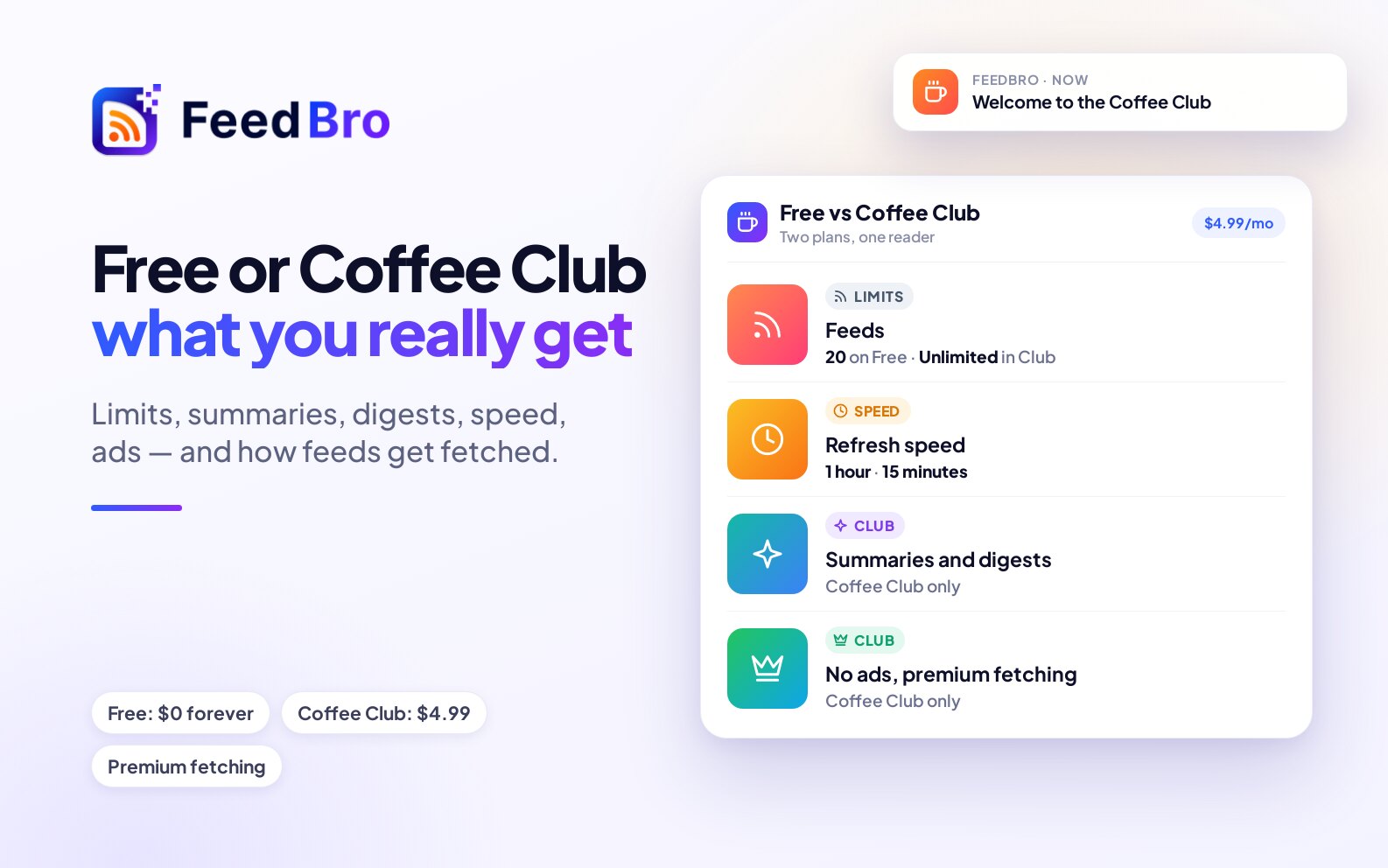
FeedBro has two plans. Free costs nothing and has no time limit. Coffee Club costs $4.99 a month, removes the limits and the ads, and adds features for people who read a lot. You can cancel it any time, and your feeds and articles stay when you do.
What each plan includes
Your billing page shows these same lists.
Free ($0, no time limit)
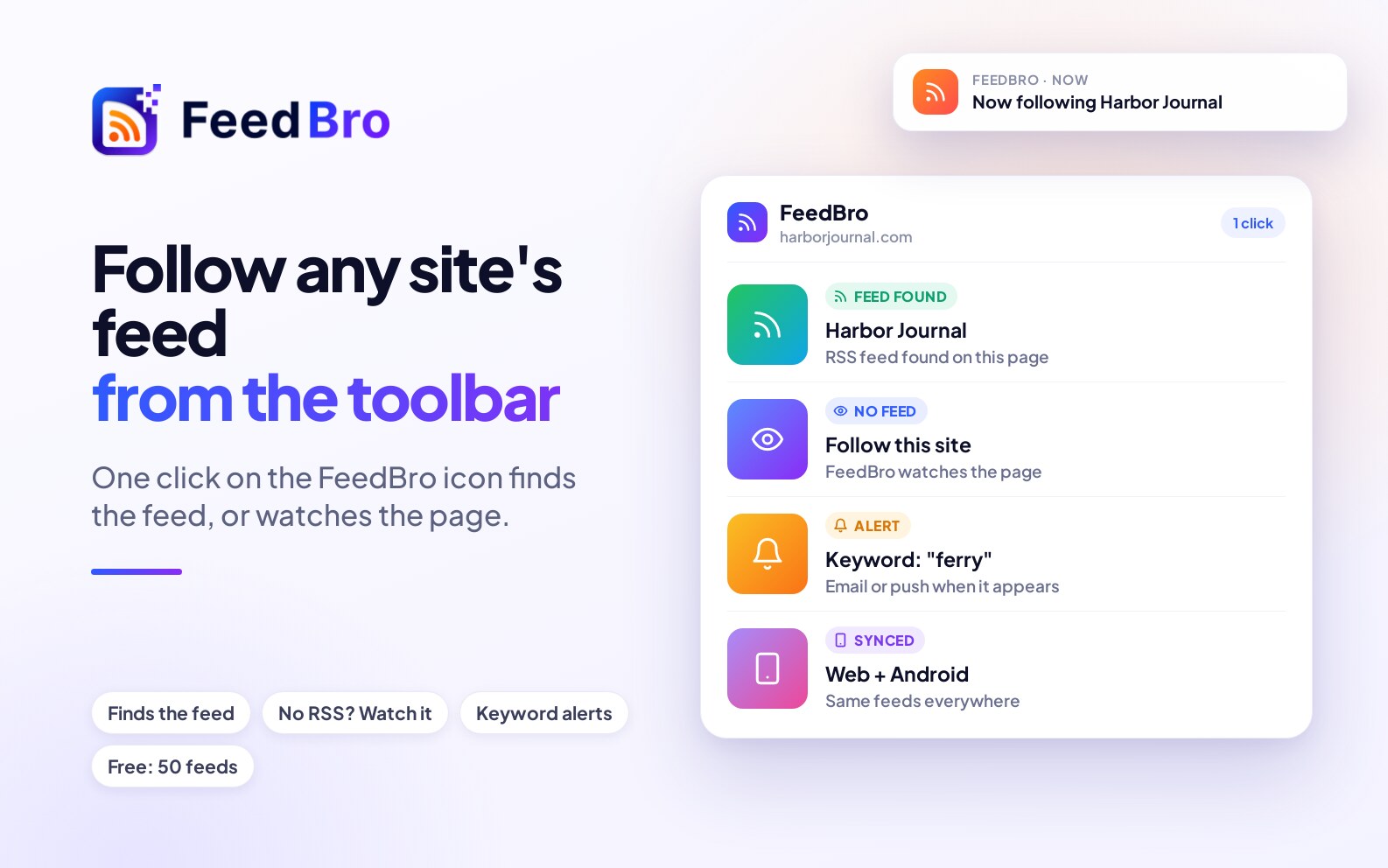
- Up to 50 feeds (a feed is the list of newest articles a website publishes, which FeedBro reads for you)
- Up to 10 collections (folders that group your feeds)
- Up to 5 rules, with up to 5 conditions per rule
- New-article alerts for 3 feeds
- Watch 3 websites and stores, checked daily
- Clean reading view
- Read Later and Saved
- Listen to articles read aloud
- Basic search
- Full article text in the reader
- The browser extension for Chrome and Firefox, and the Android app
- An API trial (500 requests a month) and an RSS link for your Saved articles
Coffee Club ($4.99 a month, cancel any time)
Everything in Free, plus:
- Unlimited feeds, collections and rules, with as many conditions per rule as you need
- New-article alerts for any number of feeds
- Watch 10 websites and stores, checked hourly
- Smart summaries and key points of articles
- A daily or weekly email digest
- Premium fetching for hard-to-reach sites
- Feeds behind a sign-in, read with your own login
- Your full article history, in your feeds and in search
- Keep articles unread for as long as you like
- Faster refreshes for your feeds (as often as every 15 minutes)
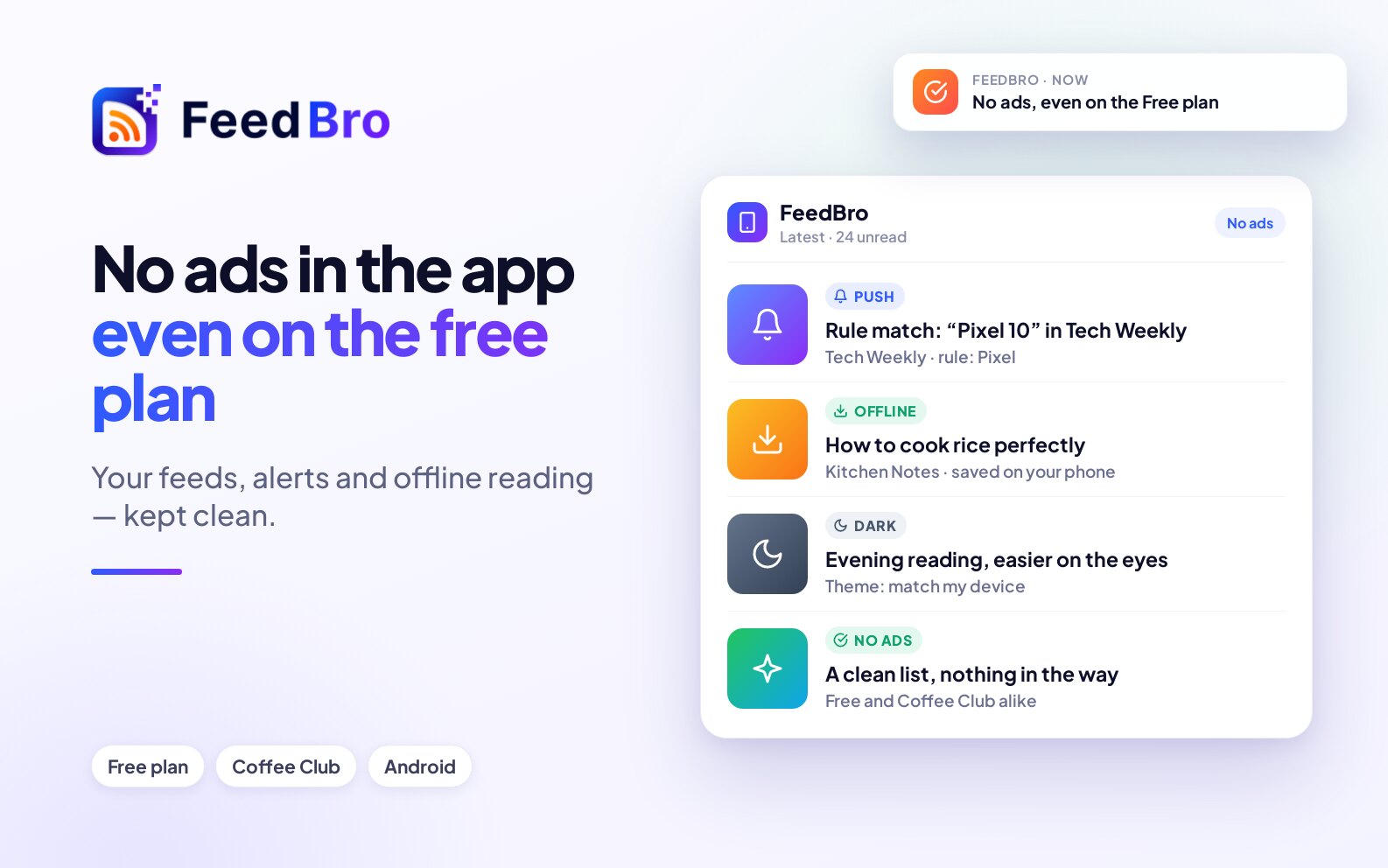
- No ads
- PDF preview in the reader
- API access (100 requests a day) and an RSS link for every collection
How fetching differs
FeedBro's servers download every feed you follow, so new articles appear without you doing anything. Most sites allow this, and some block automated visitors. On Free, FeedBro uses its own fetching, plus premium fetching (paid services that get through to many more sites) up to 3 times a day for each feed and each article. With Coffee Club, premium fetching is used whenever it is needed. A feed is fetched once for everyone who follows it, so when a Coffee Club member follows a feed, every follower of that feed benefits.
How to see your plan
- Sign in on feedbro.com.
- Click your profile picture (or your initial) in the top right corner.
- Choose Plan & billing. On a phone, open the menu and tap Plan & billing.
The page is called Billing. At the top, under Current Plan, you see your plan's name, its price and its status (Active or Cancelling). Below that, Included in your plan lists what you get.
You can also get there from Settings, Account (the Plan line, then Manage plan) or from your Profile page (Manage billing).
How to upgrade to Coffee Club
- Open Plan & billing from the menu under your profile picture.
- Click ☕ Upgrade to Coffee Club. The button shows the price, $4.99 / month. The same button is at the bottom of the Coffee Club adds card further down.
- A checkout window opens on top of the page. Paddle, the company that handles FeedBro's payments, runs it. Your FeedBro email address is already filled in.
- Enter your payment details in the Paddle window and confirm.
- When the payment goes through, you are brought back to the Billing page. Your plan now shows Coffee Club with the status Active.
You can also upgrade from the pricing section on the FeedBro home page. When you are signed in, the Coffee Club card there has an Upgrade button that opens the same checkout.
Once your subscription is active, you get a notice in FeedBro titled Welcome to Coffee Club and a welcome email with a link back to your billing page. Your new limits and features apply straight away.
Paying
- Paddle handles the whole payment in its own window. FeedBro never sees or stores your card details.
- You can pay with the payment methods Paddle offers in its checkout window for your country.
- Coffee Club renews every month. The Billing page shows your Next billing date, the date your plan started (Coffee Club since) and when you joined FeedBro (Member since).
- FeedBro's billing page does not keep a list of invoices. Your welcome email confirms the plan and its price. If you need a receipt or invoice for a payment, contact us.
How to update your payment method
- Open Plan & billing.
- Click Update payment method.
- You are taken to Paddle's page for your subscription, where you can enter a new card or other payment details.
If you see "Could not load payment management right now. Please try again shortly.", wait a few minutes and try again.
How to cancel
- Open Plan & billing.
- Under the Update payment method button, click Cancel subscription. The line under it explains: "Cancelling keeps your Coffee Club access until the end of the current billing period, and you won't be charged again."
- Your browser asks you to confirm: "Cancel your Coffee Club subscription? You'll keep access until the end of your current billing period." Click OK.
- You see "Cancelled. You'll keep access until the end of your current billing period." The page reloads.
After cancelling, the status changes to Cancelling, the date is labelled Access ends, and the page says "Your Coffee Club subscription is set to end on" followed by the date, "and you won't be charged again." You keep every Coffee Club feature until that date, and you are not charged again.
The Billing page has no button to undo a cancellation. If you change your mind before the end date, contact us. After the end date you can join again at any time with Upgrade to Coffee Club.
What happens when you go back to Free
When your paid period ends, your account moves to Free on its own. Nothing is deleted.
What stays
- All the feeds you follow, your collections and your rules.
- Every article you saved, put in Read Later, tagged or opened, on every plan.
- Your API key and your RSS link for Saved articles.
What changes
- The Free limits apply when you add something new. If you follow more than 50 feeds, you keep them all, but you can't add another until you are under 50 (you see "You've reached the Free plan's feed limit (50 feeds)."). The same goes for collections (10), rules (5, with 5 conditions each) and watched websites and stores (3).
- You can switch on new-article alerts for 3 feeds. Trying a fourth shows "Free accounts can turn this on for 3 feeds. The Coffee Club has no limit."
- The fastest refresh you can choose for a feed is hourly, and watched websites and stores are checked daily.
- Sites that block servers get premium fetching only a few times a day, so some hard-to-reach feeds may update less reliably.
- Each feed shows its newest 500 articles plus everything from the last 30 days. Older articles no longer appear when you scroll or search. Anything you saved, put in Read Later, tagged or opened is kept.
- If your reading setting was "Always" unread, it goes back to 30 days. You can pick 7, 14, 30 or 90 days in Settings, Reading.
- Summaries and PDF preview stop, and the daily or weekly digest email is no longer sent.
- You can no longer add or change a sign-in for a feed ("Feeds behind a sign-in are part of Coffee Club.").
- You can keep 1 API key, with 500 requests a month and reading only. Your collection RSS links still open, but an RSS app shows a single item saying "Collection links are part of Coffee Club." Your Saved link shows your latest 20 saved articles instead of 50.
- Ads come back on the website (see below).
Ads on the Free plan
Free readers see a few small ads on the website. Each one is labelled Advertisement or Sponsored. They appear between articles in your list (the first after the third article, then after every eighth), in the right-hand column, after an article you open, and among the feeds on the Explore page.
- The Android app shows no ads.
- Coffee Club members see no ads anywhere in FeedBro.
- Some boxes in the right-hand column are FeedBro's own suggestions, such as installing the browser extension or trying Coffee Club. These are not ads, and you can close the extension suggestion with its × button.
Good to know
- The Free plan is not a trial. It stays free for as long as you use it.
- On Free, when FeedBro's own methods can't load an article, it may load it once with its premium tools as part of a free trial of 10 articles in total. The article then shows: "As part of your free trial, FeedBro loaded this article with its advanced tools." along with how many trial articles are left.
If something doesn't work
I paid but still see Free
Paddle tells FeedBro about the payment in the background, which usually takes a few seconds. Reload the Billing page after a minute. If it still says Free, contact us with the email address you paid with.
The checkout window doesn't open
Check that you are signed in, and that your browser isn't blocking scripts or pop-up windows on feedbro.com. Then try again.
"Could not cancel subscription. Please try again or contact support."
Wait a moment and click Cancel subscription again. If it keeps failing, contact us and we will cancel it for you.
"No active subscription to cancel." or "No active subscription to manage."
Your plan was not bought through the checkout. For example, the FeedBro team may have set it up, in which case the Billing page shows Managed by: FeedBro (assigned manually). Contact us about any change.
Other billing questions
Use the Contact us link in the Need help? box at the bottom of the Billing page.