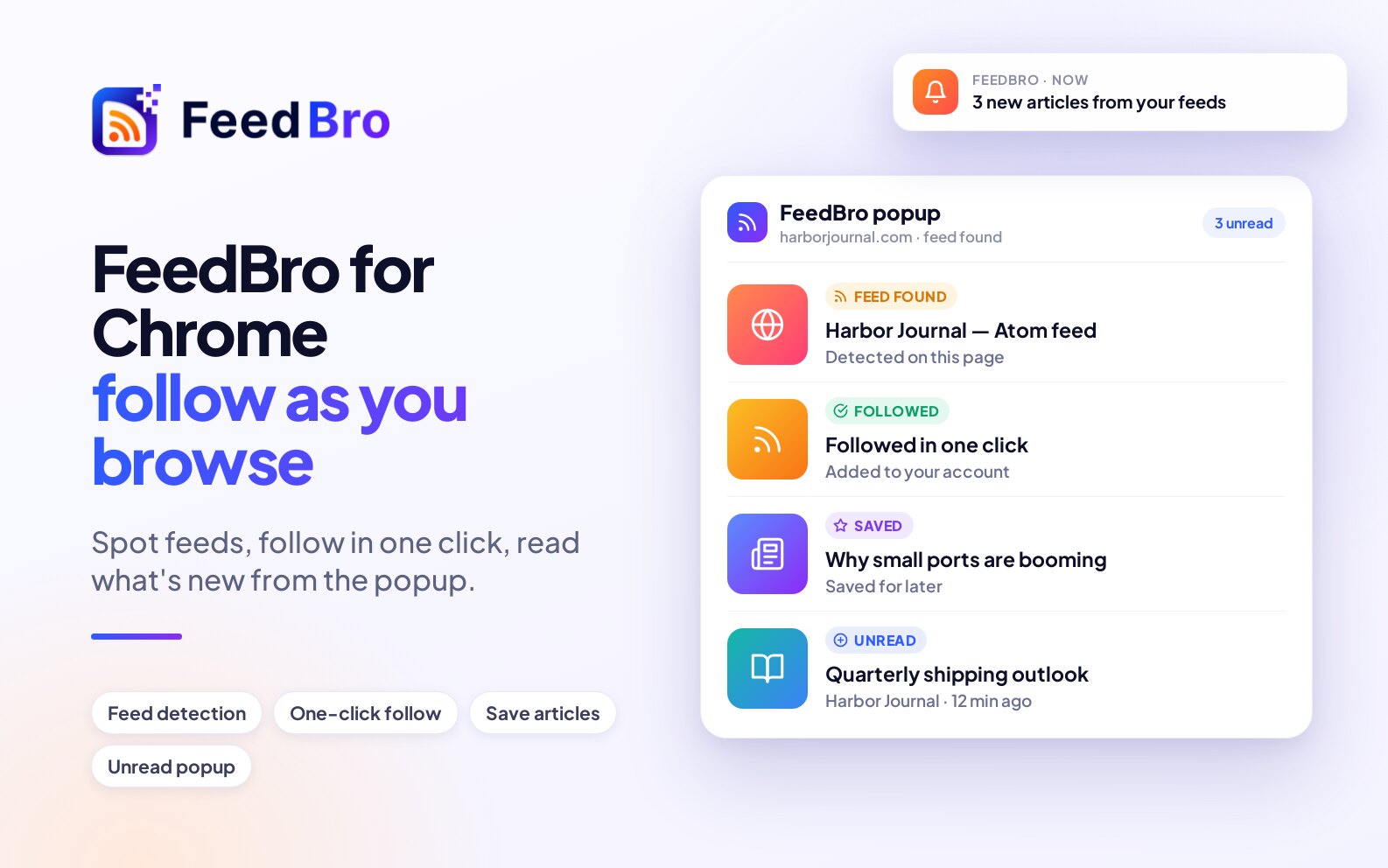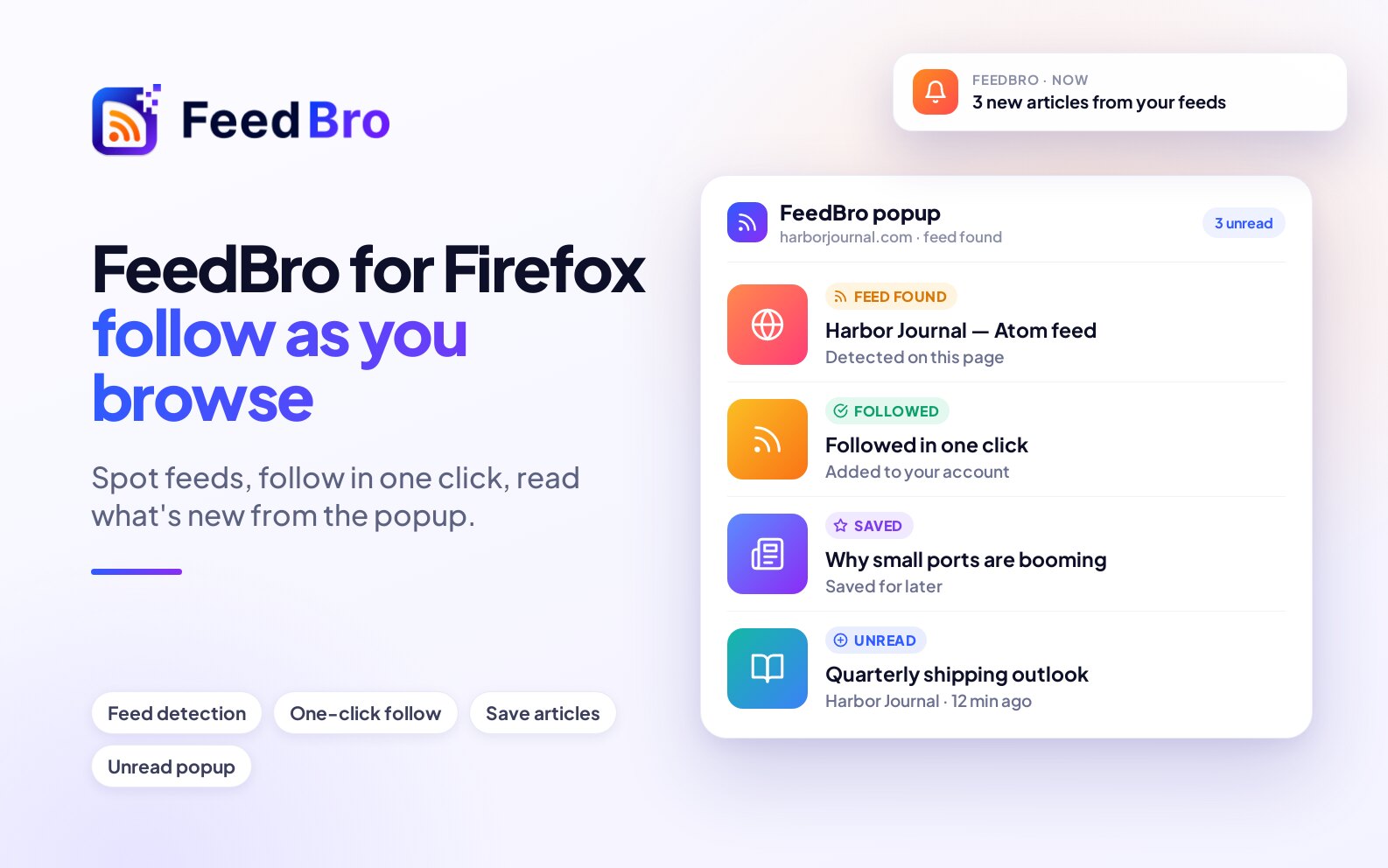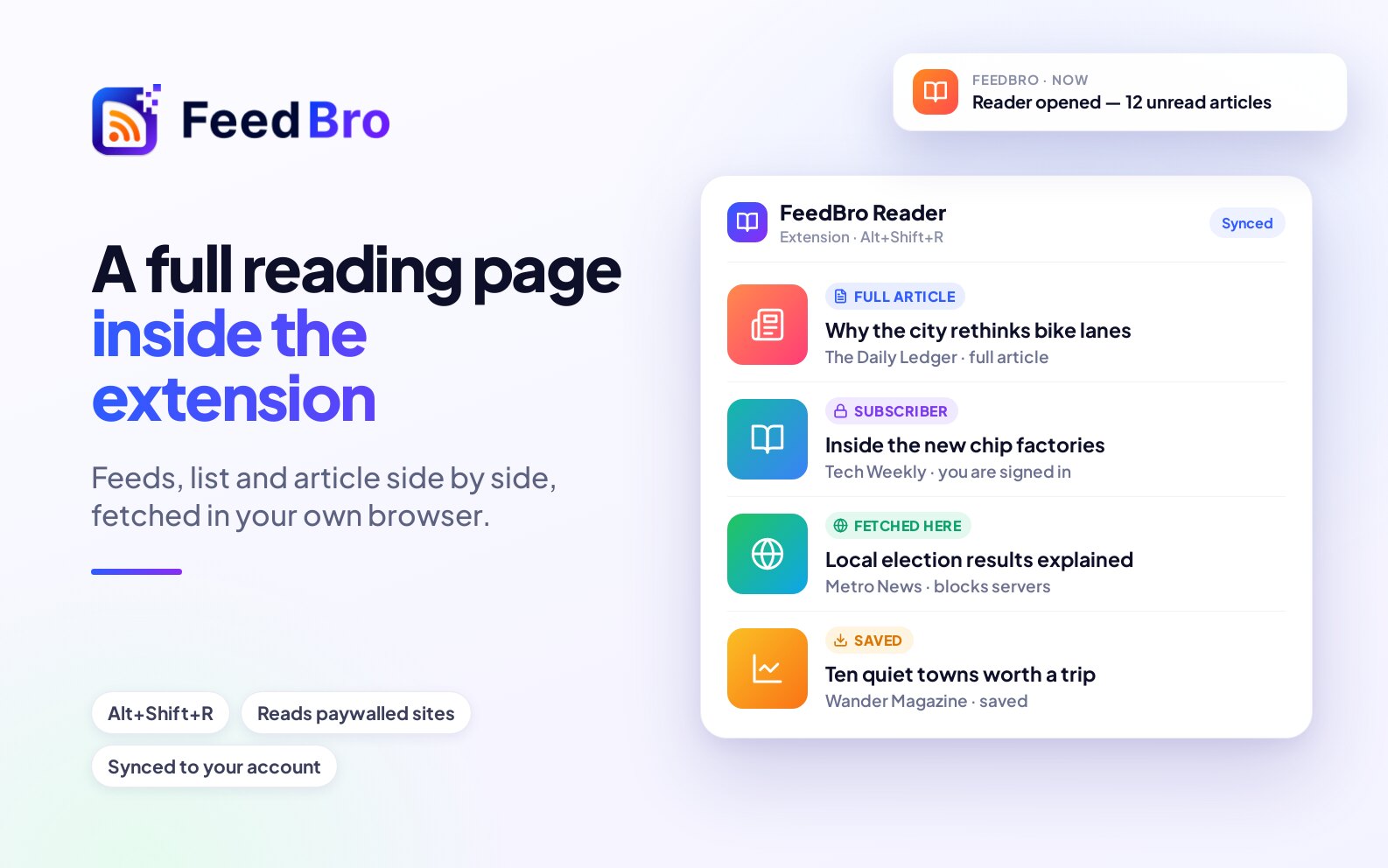
The FeedBro browser extension puts your FeedBro account in your browser's toolbar. It shows how many unread articles you have, lets you follow the site you are looking at in a couple of clicks, and opens a full-page reader in its own tab. It uses the same account as feedbro.com and the Android app, so your feeds, read marks and saved articles are the same everywhere.
An RSS feed is a list a website publishes of its newest articles. FeedBro checks those lists for you and brings every new article into one place, so you don't have to visit each site to see what's new.
What you need
- A FeedBro account. The Free plan is enough, and you can create one when you connect the extension.
- A computer with Chrome, Microsoft Edge, Brave, Vivaldi or another browser built on Chromium, or Firefox 142 or newer.
The extension connects to your account through feedbro.com and never asks for your FeedBro password.
How to install it
Chrome
- Open feedbro.com/get-extension/chrome. It takes you to FeedBro on the Chrome Web Store.
- Click Add to Chrome, then Add extension.
- Click the puzzle-piece icon at the right of the toolbar and click the pin next to FeedBro, so the FeedBro icon stays visible. You need it there to see your unread count.
Microsoft Edge
- Open the same Chrome Web Store page in Edge.
- If Edge shows a banner about extensions from other stores, choose Allow extensions from other stores.
- Click Add to Chrome, then Add extension.
- Pin FeedBro from Edge's puzzle-piece menu.
Brave, Vivaldi and other Chromium browsers
- Open the Chrome Web Store page in your browser. Use that listing even if your browser has a store of its own.
- Click Add to Chrome and confirm.
- Pin FeedBro from the extensions menu.
Firefox
- Open feedbro.com/get-extension/firefox. It takes you to FeedBro on Firefox Add-ons.
- Click Add to Firefox and confirm.
- Pin FeedBro to the toolbar from the extensions button.
The Firefox version works on Firefox for computers. Firefox may ask whether FeedBro can collect usage data. You can say no, and the extension works the same.
How to connect it to your account
- Click the FeedBro icon in the toolbar.
- Click Connect your FeedBro account. A feedbro.com tab opens on Settings, in the Extension section. If you are not signed in to FeedBro in this browser, sign in or create an account first.
- In most cases the page connects the extension by itself and says Connected. Check the extension. If you haven't followed anything yet, FeedBro then takes you to a page where you can choose what to follow.
- If the page shows a code instead (Open the FeedBro extension and enter this code:), click the FeedBro icon again. Type the 8-character code into the box under Enter the code shown on feedbro.com: and click Connect. The code works for 2 minutes. If it runs out, click Connect Extension on the settings page to get a new one.
You can also start from the website: go to Settings, open Extension and click Connect Extension. If this browser is already connected, the page says This browser's extension is already connected (see below).
Every connected browser is listed under Connected devices in that same section, with a name such as "Chrome extension (Windows)" and when it was last used. Disconnect next to one signs that browser out. You can also sign the extension out from its own popup with Disconnect at the bottom.
The toolbar popup
Click the FeedBro icon to open the popup. From top to bottom, it has:
- The unread count. The number on the toolbar icon is your unread articles, the same count as on feedbro.com. It shows up to 999 and refreshes every 15 minutes, and right away after you read or mark articles in the popup.
- Your plan. The label at the top right shows which plan your account is on.
- Open Reader, which opens the full-page reader.
- A card for the page you are on, where you follow or save the current site.
- Tabs: All, Unread, Saved and Feeds. The first three list your latest articles. Saved also shows Saved Pages, the pages you saved from the web that don't belong to a feed. Feeds lists everything you follow with its unread count. Click a feed to see only its articles, or click the ✕ next to it to unfollow it.
- Your collections (groups of feeds) with how many feeds each has. + New creates one.
- Mark all read, which marks the articles in the list as read.
Next to each article, the star saves it and the circle marks it read or unread. Click the article itself and it opens in the full-page reader.
At the bottom of the popup you find Open FeedBro (your dashboard on feedbro.com), the language menu and Disconnect.
How to follow the site you are on
- Go to the site you want to follow, for example a blog or a news site.
- Click the FeedBro icon.
- If the page has a feed, the card shows its name and says RSS feed detected on this page (or RSS feed linked from this page, or This page is an RSS feed). If you have collections, you can pick one in the menu first.
- Click Follow Feed. The card changes to ✓ Following and the site's name. View Feed opens the feed address itself.
If you already follow that feed, the card says ✓ Already following.
When the page names no feed
Many sites have a feed but don't mention it on every page. In that case the card shows these buttons:
- Follow this site: FeedBro looks for the site's feed itself and follows it. If the site has more than one, the card says This site has more than one feed. Pick one to follow: and you click the one you want.
- Save to FeedBro: keeps this page in your Saved list, even though it isn't from a feed you follow.
- Watch this page: opens Website Watch on feedbro.com for this address. FeedBro then checks the page itself and brings you its new posts, products and price changes. Use it for pages that have no feed at all, such as a shop or a careers page.
If Follow this site finds no feed, the card offers Watch this page instead.
The right-click menu
Right-click anywhere on a page to reach FeedBro without opening the popup:
- Save to FeedBro
- Follow this site (when the site has several feeds, this follows the first one; use the popup to choose)
- Watch this page on FeedBro
- Create Alert for this Website, which opens the Rules page on feedbro.com with this address filled in
- Fix this page on FeedBro (see "Sites that block FeedBro" below)
Select some text first and you also get Create FeedBro Alert and Search FeedBro for that text. Right-click the FeedBro icon itself for Open FeedBro Reader.
The full-page reader
The reader is a whole page in its own tab: your lists, collections and feeds on the left, the article list in the middle and the article on the right. You can open it in any of these ways:
- Click Open Reader at the top of the popup.
- Right-click the FeedBro icon and choose Open FeedBro Reader.
- Press Alt+Shift+R. You can change this shortcut on your browser's extension shortcuts page.
If the reader is already open, each of these brings you back to that tab instead of opening a second one.
Finding your way around
- All articles, Unread, Saved and Read later at the top left switch between your lists.
- Under Collections, click a collection to see only its feeds. + New creates a collection.
- Under Feeds, click a feed to see only its articles. + Add opens a box where you paste a feed or website address and click Follow.
- The gear next to a feed opens its own settings: Name (your own name for it), Check for new articles and Show at most (to keep a busy feed from crowding out the rest). Click Save. These settings apply to you only and change nothing for other people who follow the same feed.
- Refresh and Mark all read sit above the article list.
Above each article are buttons to mark it unread, save it, keep it for later and Open original (the article on the publisher's site).
Reader settings
At the bottom of the left column:
- List: Normal, Compact (headlines only) or Cards (with pictures).
- Language: see "Extension language" below.
- Theme: Match my device, Light, Dark or Sepia. The ◐ button at the top cycles through them too.
- Show: Everything, Last 24 hours, Last 7 days or Last 30 days.
- Mark read: When I open it, When I scroll past it or Only when I say so.
- Load full articles in this browser (on at first) and Refresh unreachable feeds from this browser (off at first). Both are explained under "Sites that block FeedBro".
List, Theme, Show and Mark read are stored on your account, so the same choices apply on feedbro.com. The language and the two switches belong to this browser only.
Keyboard shortcuts
In the reader, j and k move to the next or previous article, s saves, l keeps it for later, u marks it unread, o opens the original and r refreshes the list.
Sites that block FeedBro
Some sites turn away servers but let ordinary visitors in. Your browser visits them as an ordinary visitor, with your own connection and your own sign-ins, so the extension can often get what FeedBro's servers can't. Whatever your browser fetches is sent to your account, and the article or feed then also shows on feedbro.com and in the app.
Full articles in the reader
When a feed only sends a short summary, the reader loads the full article from the site in your browser. The first time, it shows a Load full article button. Click it and your browser asks for permission to read sites. Allow it and the reader shows Loaded from the site's name. If you are signed in to a site you subscribe to, this also gets you the articles you already pay for.
Fix this page on FeedBro
If an article on FeedBro came out short or wrong, open it on the publisher's site in your browser, right-click the page and choose Fix this page on FeedBro. A notice tells you the result, for example Thanks. This article now has its full text on FeedBro.
Fix in my browser (for a whole feed)
- On feedbro.com, open a feed that shows We can't reach this feed yet or This feed is behind a sign-in.
- Click Fix in my browser. A small FeedBro window opens.
- If it asks, click Allow FeedBro to read sites from this browser and accept your browser's question.
- The window fetches the feed. If the site shows a check first, a second window opens on the site: get past the check there and FeedBro sends the page as soon as it loads. Send what's on screen now sends it straight away.
- When the window says the feed was saved, reload FeedBro.
The window also offers Keep my unreachable feeds up to date from this browser while it is open, ticked. If you leave it ticked, it turns on Refresh unreachable feeds from this browser and your browser keeps those feeds updated.
Refresh unreachable feeds from this browser
With this switch on in the reader settings, your browser checks the feeds you follow that FeedBro's servers can't reach. It does this when you open the reader and every 30 minutes while the browser is open. It fetches only those feeds, and FeedBro checks that what comes back is a real feed before keeping it. When some of your feeds can only be reached this way, the reader shows a note with a Refresh them from this browser button that turns the switch on for you.
Use my sign-in from this browser (Coffee Club)
Some feeds only work while you are signed in to the site. With Coffee Club you can give FeedBro your sign-in for one of those feeds. With the latest version of the extension you don't have to copy anything by hand:
- In this browser, sign in to the site the feed belongs to.
- On feedbro.com, open the feed's gear and click Authentication required.
- Click Use my sign-in from this browser. A small FeedBro window opens.
- Click Use my sign-in for the site's name. Your browser asks whether FeedBro may read that site's cookies (the small files that keep you signed in). Allow it.
- The window reads your sign-in for that site, sends it to your account and shows the result.
The extension reads the cookies of that one site, and only after you click. FeedBro stores them encrypted and uses them only to fetch that feed. Your copy of the feed becomes private, so other readers never see what you see with your sign-in. If the sign-in stops working, FeedBro tells you once, and you can repeat the steps.
Extension language
The extension is available in the same ten languages as feedbro.com: English, French, German, Spanish, Italian, Portuguese, Japanese, Traditional Chinese, Arabic and Hebrew. In Arabic and Hebrew it reads right to left.
At first it follows your browser's language. To choose another, use the language menu at the bottom of the popup, or Language in the reader's settings. Match my browser goes back to following the browser. The right-click menu follows your choice too.
This choice is separate from the language of your FeedBro account (Settings, Account, Language). Articles themselves are never translated.
Good to know
- Your feeds, collections, read marks, saved articles and Read later list live on your account. Change something in the extension and it is changed on feedbro.com and in the app.
- At install, the extension asks only for what it needs to talk to feedbro.com. It requests permission to read other sites from a button, the first time a feature needs it. If you decline, the reader shows what the feeds themselves send.
- The extension looks at a page only when you open the popup or use the right-click menu on it. It doesn't read your browsing.
- You set up Rules, Website Watch and email settings on feedbro.com. The extension's links take you there.
On the Free plan and Coffee Club
The extension is free on both plans and does the same things, with your plan's limits. On Free you can follow up to 50 feeds, and in a feed's gear the fastest Check for new articles setting that applies is hourly. Coffee Club has no feed limit, refreshes every 15 minutes and adds Use my sign-in from this browser for feeds behind a sign-in. Fetching in your own browser (full articles, Fix this page, Fix in my browser, unreachable feeds) works on every plan.
If something doesn't work
The popup keeps asking me to connect
The extension was signed out, for example because it was disconnected under Connected devices. Click Connect your FeedBro account again. If you get a code, type it within 2 minutes. If the code is refused, get a fresh one with Connect Extension on the settings page.
The code box disappeared
The popup closes when the feedbro.com tab opens. Click the FeedBro icon again and the code box is still there.
The unread count isn't changing
It refreshes every 15 minutes. Opening the popup, marking articles read there or connecting the extension updates it at once. If the icon shows no number at all, either you have nothing unread or the extension is no longer connected. Open the popup to see which. Make sure FeedBro is pinned, or the number stays hidden in the extensions menu.
No Follow button on a site
Extensions can't read some pages at all, such as the browser's own pages and the extension stores. On other sites, try Follow this site, or Watch this page if the site has no feed.
Fix in my browser says to get the extension
The page could not find the extension in this browser, or it found an old version. Install it or let the browser update it, connect it, then try again.
The reader shows only a summary
Check that Load full articles in this browser is on and that you allowed the permission. Some sites still show a check or a sign-in page to your browser. Open the article with Open original, get past the check, then use Fix this page on FeedBro.
If you are still stuck, contact us and tell us which browser you use.