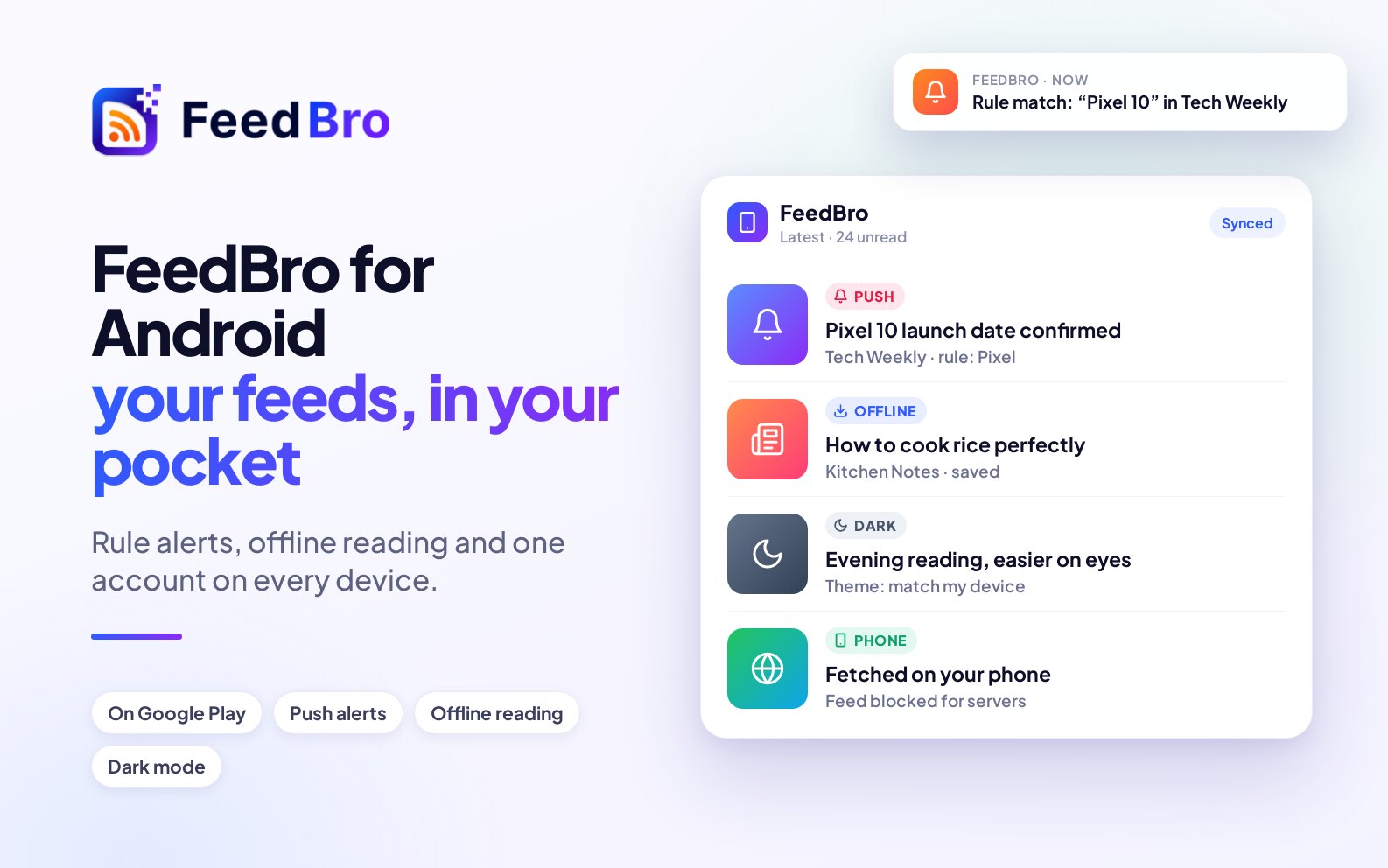
The FeedBro app for Android is your FeedBro reader on your phone. It is signed in to the same account as feedbro.com and the browser extension, so your feeds, collections, saved articles and rules are already there. The app can also send you notifications, keep articles for reading offline, read articles aloud and fetch some pages that block FeedBro's servers. It has no ads, on any plan.
If you are new to FeedBro: an RSS feed is a list a website publishes of its newest articles. FeedBro follows those lists for you and puts every new article in one reading list.
Is there an iPhone app?
Not yet. On an iPhone or iPad, open feedbro.com in Safari or any other browser and sign in. You get the same reader and the same account, and everything you do there shows up on your other devices.
How to install the app
- On your Android phone, open the Google Play Store.
- Search for FeedBro and open the app.
- Tap Install, then Open.
If you already use feedbro.com in your phone's browser, you may see a Read FeedBro on your phone banner with an Install the app button. It opens the same Play Store page. You'll also find Get the app on Google Play on feedbro.com under Settings, Feeds, Blocked feeds.
How to sign in
- Open the app.
- Tap Continue with Google and pick your Google account in the window your phone shows. Or type the email address and password of your FeedBro account.
- If you don't have an account yet, create one from the sign-in screen. The Free plan costs nothing and has no time limit.
Use the same sign-in method you use on the website, so you land in the same account. If you forgot your password, tap Forgot password? on the sign-in screen and FeedBro emails you a code to set a new one.
Finding your way around
The app shows feedbro.com in its phone layout, with five tabs along the bottom:
- Feeds: your reading list, newest articles first. The chips under the search box switch between All, Unread, your collections and more.
- Explore: sources you can follow, by topic and by popularity.
- Add: paste a website, RSS, YouTube or Instagram link to follow it, or switch to Watch a page for a page that has no feed.
- Watch: the pages and shops you follow with Website Watch.
- Menu: your lists (Read Later, Saved and more), My Feeds, Rules, Settings, your collections and your feeds.
Tap an article to read it in FeedBro's clean reading view. The Open original link takes you to the publisher's site.
What the app does
Your feeds and the reader
Everything you have on feedbro.com is in the app: feeds, collections, Saved, Read Later, rules, Website Watch and your reading settings. An article you read on your phone is marked read everywhere, and one you save on your laptop is waiting on your phone.
Notifications
The app can tell you when something you care about arrives. You set up two kinds yourself (see "How to set up notifications" below):
- New-article alerts for a feed: a notification each time that feed posts something new.
- Rules with the Push notification action: a notification when a new article matches words you chose, or when a product you watch changes price.
FeedBro also uses notifications for a few notices about your account, for example when YouTube's feeds are back after their daily pause.
Offline reading
The app keeps up to 50 articles on your phone: your Saved and Read Later articles first, then your newest unread ones. When you have no connection, a bar says You're offline. Showing articles saved on this device. Tap All saved articles to see the list and open any of them. This only works once you have opened FeedBro at least once while online. New articles arrive when you are back online.
Listen
Open an article and tap Listen to hear it read aloud. You get Play, Pause, Previous, Next, Speed and Close. The voice comes from your phone's own text-to-speech, so nothing is sent away to be turned into audio, and how it sounds depends on the voices installed on your phone. If a feed only gives a short summary, Listen reads that summary.
Pages and feeds that block FeedBro
Some sites turn away FeedBro's servers but open fine on a phone. The app can use your phone to get them:
- Open & fix on my phone appears on an article FeedBro could not load in full, and on a feed it can't reach. For feeds, look in Menu, My Feeds, where the button is called Try on my phone. Tap it and the page opens in a small window in the app. Once it has loaded, FeedBro saves it. If the site shows a check first, get past it and tap Save. The article or feed is then fixed for everyone who follows it.
- Fix article, next to Open original at the top of an article, does the same for an article that came out short or wrong.
- For a subscriber-only article, the note under it says Already a subscriber? Tap Fix article, sign in to the site in the window that opens, then tap Save.
The app can also keep such feeds updated in the background, as described in "Feeds that block servers" under "Good to know".
No ads
On feedbro.com, Free readers see a few small, labelled ads. The app shows none, on the Free plan and on Coffee Club.
How to set up notifications
Allow notifications on your phone
If Android asks whether FeedBro may send you notifications, tap Allow. If you said no earlier, open your phone's Settings, go to Apps, then FeedBro, then Notifications, and turn them on. The app uses your phone's notification settings, and the Rules page says Notifications come through the FeedBro app. To turn them on or off, use your phone's settings for FeedBro.
New-article alerts for one feed
- Tap Menu and find the feed in the list under My Feeds.
- Tap the gear next to the feed to open Settings for this feed.
- Under Notify me of new articles, choose On: a push when it posts.
- Tap Save.
A rule that notifies you
- Tap Menu, then Rules.
- Tap + New Rule and give it a Rule name.
- Add the conditions, for example a word that must be in the title.
- Under Actions, turn on Push notification.
- Tap Save rule.
Rules you make in the app work on feedbro.com and in the extension too.
How the app differs from the website
- The app has no ads, on any plan.
- Notifications come from the app, and you switch them on or off in your phone's settings. On a computer, the website asks your browser instead, with Enable Notifications on the Rules page.
- To fix blocked pages, the app uses your phone (Open & fix on my phone, Fix article). On a computer the browser extension's Fix in my browser does the same job, and the app doesn't show that button.
- Keyboard shortcuts don't work in the app, because a key press there is as likely to come from the on-screen keyboard.
- Google sign-in uses your phone's own Google account window.
- Offline reading keeps your latest, saved and read-later articles on the phone.
Your plan, your settings and your limits are the same as on the website, and so is everything else.
Good to know
Feeds that block servers
Some sites block the countries FeedBro's servers run from. While the app is open, it can download those feeds on your phone (a few feeds at most, every 30 minutes at most) so they keep updating for you and everyone who follows them. The app fetches only feeds you follow that FeedBro can't reach, and it reads or sends nothing else from your phone. This is on by default, and the app tells you the first time. To turn it off, go to Menu, Settings, Feeds, and under Blocked feeds switch off Refresh unreachable feeds from this phone (Android app).
Your settings follow you
Theme, list layout, when articles count as read and the other reading settings live on your account. Set the theme to Match my device and the app follows your phone's dark mode. The app also uses your account's language (Settings, Account, Language).
On the Free plan and Coffee Club
The app is free to install, and your plan comes with you. On the Free plan you can follow up to 50 feeds, make 5 rules and turn on new-article alerts for 3 feeds. Coffee Club ($4.99 a month) removes those limits and adds faster refreshes, smart summaries, premium fetching for hard-to-reach sites and the other Coffee Club features. Neither plan has ads in the app.
If something doesn't work
I don't get notifications
- Check that notifications for FeedBro are allowed in your phone's settings.
- Check that the feed's Notify me of new articles is set to On: a push when it posts, or that your rule has Push notification turned on.
- On the Free plan, alerts work for 3 feeds. FeedBro tells you when you reach that limit.
- A notification arrives when FeedBro finds the new article, which depends on how often the feed is checked.
Offline, the app says nothing is saved
The message No articles are saved on this device yet. means the app hasn't been opened online since it was installed. Open it once with a connection and it keeps articles from then on.
Listen isn't there, or says it isn't available
Update the app from Google Play. Listen also needs a text-to-speech voice on your phone, which you can add in your phone's settings.
A feed keeps failing
Open it and tap Open & fix on my phone, or check that Refresh unreachable feeds from this phone (Android app) is on. Some sites need a sign-in, and some are blocked for everyone. Menu, My Feeds says what FeedBro saw the last time it tried each feed.
I see different feeds than on my computer
You are probably signed in to two different accounts, for example one with Google and one with an email and password. Use Log out in the app, then sign in the same way you do on the website.
For anything else, contact us or use the flag on any article to report a problem with it.