Sometimes a feed opens fine in your own browser, but FeedBro says it cannot reach it. (A feed, or RSS feed, is a list a website publishes of its newest articles. FeedBro checks that list for you and shows the new ones.) When that happens, your own browser or phone can often fetch the feed for FeedBro. You can turn this on or off, and there are a few more things to try when a feed still will not update.

Why some sites refuse FeedBro
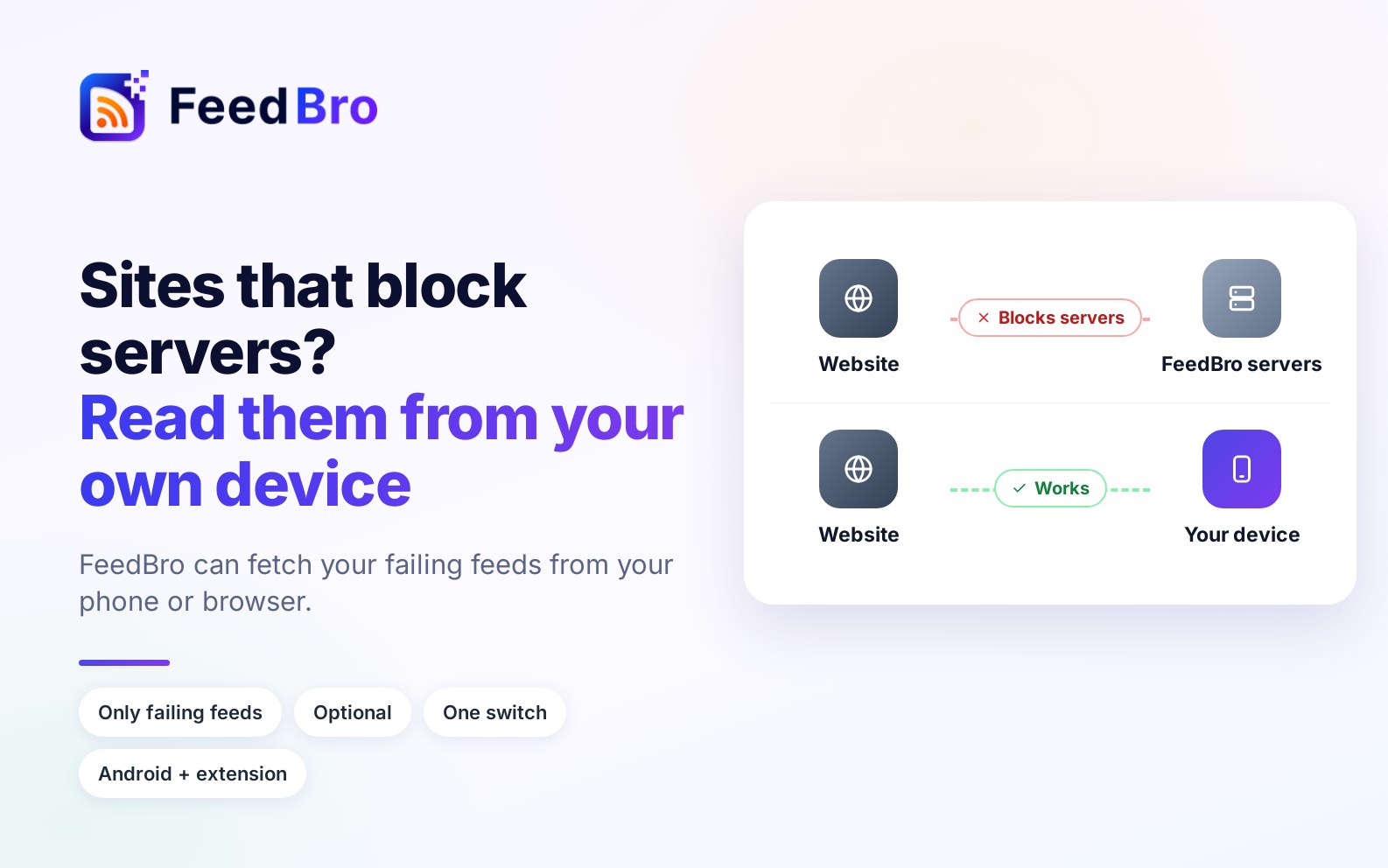
FeedBro checks your feeds from its servers, which are computers in data centres. Some websites block visitors that come from data centres, or from the countries those servers are in, because they treat them as robots. The same site lets an ordinary visitor like you in, because you come from a home, office or phone connection.
Other sites only show their feed to people who are signed in. FeedBro's servers are not signed in, so they get a sign-in page instead.
FeedBro tries several ways to get past this on its own, and premium fetching helps with many hard sites. When none of that works, your own device can often fetch the feed, because a site that refuses a server will usually answer your browser or your phone normally.
How you can tell a feed is blocked
- In the reader's list of feeds, a warning sign appears next to the feed (on the Free plan). Its tooltip says Not updating: see what you can do.
- In My Feeds, the feed has a warning sign. Click it to open Not updating, which explains in plain words what went wrong, for example This website is blocking FeedBro.
- When you open a feed FeedBro has not reached yet, it says We can't reach this feed yet, or This feed is behind a sign-in.
Fetching from your own device
The FeedBro browser extension and the FeedBro Android app can fetch a blocked feed over your own connection and hand it to FeedBro. FeedBro checks it and adds the new articles. A feed is shared by everyone who follows it, so the update reaches the other followers too.
What is fetched and sent
- Your device fetches only the feeds you follow that FeedBro's servers cannot reach. Feeds that work are left alone.
- Only the feed itself is sent to FeedBro. Nothing else on your phone or in your browser is read or sent, including your browsing history, other pages and files.
- FeedBro checks what arrives before using it. It keeps it only if it is a real feed, not too large, and every article in it links to the feed's own website. Anything else is refused.
- The browser extension fetches the feed the way your browser normally would, so if you are signed in to the site, the site sees that. What comes back is added to the shared feed. For a feed that shows personal things when you are signed in (your account, your messages), use Authentication required instead. It is a Coffee Club feature that keeps a private copy only you see.
With the Android app
In the Android app, fetching blocked feeds from your phone is on by default. The app tells you about it with a short notice the first time.
While the app is open, it fetches a few of your blocked feeds at a time (at most five per check), and the same feed at most once every 30 minutes. It stops as soon as you close the app.
How to turn it on or off
- Open Settings.
- Choose Feeds.
- Find the card Blocked feeds.
- Use the switch Refresh unreachable feeds from this phone (Android app).
When the switch is off, nothing is fetched from your phone. You can turn it back on at any time. The choice belongs to your account, so you can also change it from Settings on the website.
Fixing one feed or article on your phone
In the Android app, the Not updating window and an article that did not load in full both offer Open & fix on my phone. Tap it, and the page opens in the app's own browser window. If the site shows a check (for example "I am not a robot"), get past it there. Once the real page has loaded, FeedBro saves the feed or the full article for everyone who follows that feed.
With the browser extension
The FeedBro extension works in Chrome, Firefox, Edge, Brave and other Chromium browsers. Browsers only let an extension read websites after you allow it with a click, so in the extension you switch this on yourself, with one click.
How to turn it on
- Install the extension from feedbro.com/get-extension and connect it to your account (in FeedBro, Settings, then Extension).
- Open the extension's reader: click the FeedBro icon in your browser's toolbar, then Open Reader.
- If some of your feeds are blocked, a box at the top of the list says so, for example "One of your feeds can only be reached from your own browser." Click Refresh them from this browser.
- Your browser asks whether FeedBro may read sites. Allow it. Without this permission, the extension cannot fetch those feeds.
You can also use the switch Refresh unreachable feeds from this browser at the bottom of the extension reader's side panel, and turn it off there whenever you like.
Once it is on, the extension fetches your blocked feeds each time you open its reader, and about every 30 minutes while your browser is open. After a refresh it can say, for example, "Refreshed 2 feeds from this browser".
"Fix in my browser" in the reader
When you open a feed on the FeedBro website and it says We can't reach this feed yet or This feed is behind a sign-in, you see a Fix in my browser button. It fetches that one feed from your browser right away.
- Click Fix in my browser. You need the extension, version 0.6.2 or later, in the same browser. If it is missing, FeedBro shows a link to get it instead.
- A small window opens, called Fixing a feed.
- If it asks, click Allow FeedBro to read sites from this browser.
- It shows "Fetching it from this browser…". If the site shows a check first, the page opens in its own window. Get past the check there, and FeedBro sends the page as soon as it loads. You can also click Send what's on screen now.
- When the window says the feed was saved, reload FeedBro to see the articles.
For a single article that did not load in full, open the article on its own site, right-click the page and choose Fix this page on FeedBro. Your browser loads it and the full text is saved in FeedBro.
On the Free plan and Coffee Club
Fetching from your own browser or phone is free on every plan. The plans differ in what FeedBro's servers try before your device is needed.
On the Free plan, FeedBro uses its own fetching on every check, plus a few tries a day with premium fetching for each feed and each article (three a day), because each premium try costs FeedBro money. When those tries are used up, Free readers also have a one-time trial: up to 10 articles that only open with premium fetching.
With Coffee Club, FeedBro uses premium fetching on every check that needs it, so hard-to-reach sites are tried with it every time.
The Not updating window sums it up as: "Free plan: a few extra retries a day. Coffee Club: retries every time."
If a feed still fails
- Open the feed address yourself. In My Feeds, click the feed's warning sign, and you find the address under Technical details. If it does not open in your browser either, the problem is on the site's side.
- If FeedBro got "404 Not Found", the site says the feed is not there. That same window then offers Open the address, It opens for me and It does not open: unfollow. Some sites really do remove a feed. In that case, look for its new address on the site, or unfollow it.
- Ask to be told when it is fixed. In Not updating, click Tell me when it works again. FeedBro keeps trying in the background and sends you a notification when it works.
- Follow the page instead. If a feed has not worked for a day, FeedBro may offer Watch the site's page instead. Website Watch follows the site's page itself and tells you when it changes.
- If the feed is behind a sign-in, make sure you are signed in to the site in the same browser as the extension, then press Fix in my browser. With Coffee Club, you can also use Authentication required in the feed's gear, so FeedBro's servers fetch it with your own sign-in.
- Tell us. In My Feeds, click the flag next to the feed (Report a problem) and say what you see. It helps to mention whether the feed opens in your own browser.
Good to know
- A site that blocks FeedBro today may let it in tomorrow. FeedBro keeps trying in the background either way.
- If the site itself is broken (for example it shows an error page to everyone), your device cannot fix that. FeedBro tells you so instead of saying the feed is blocked.
- The privacy policy also describes how FeedBro handles your device and what it sends, under "Fetching from your device".