
You find a site worth following. You bookmark it, and promise yourself you'll check back on Sundays. You check twice. Then it quietly joins the couple of hundred bookmarks you never open again.
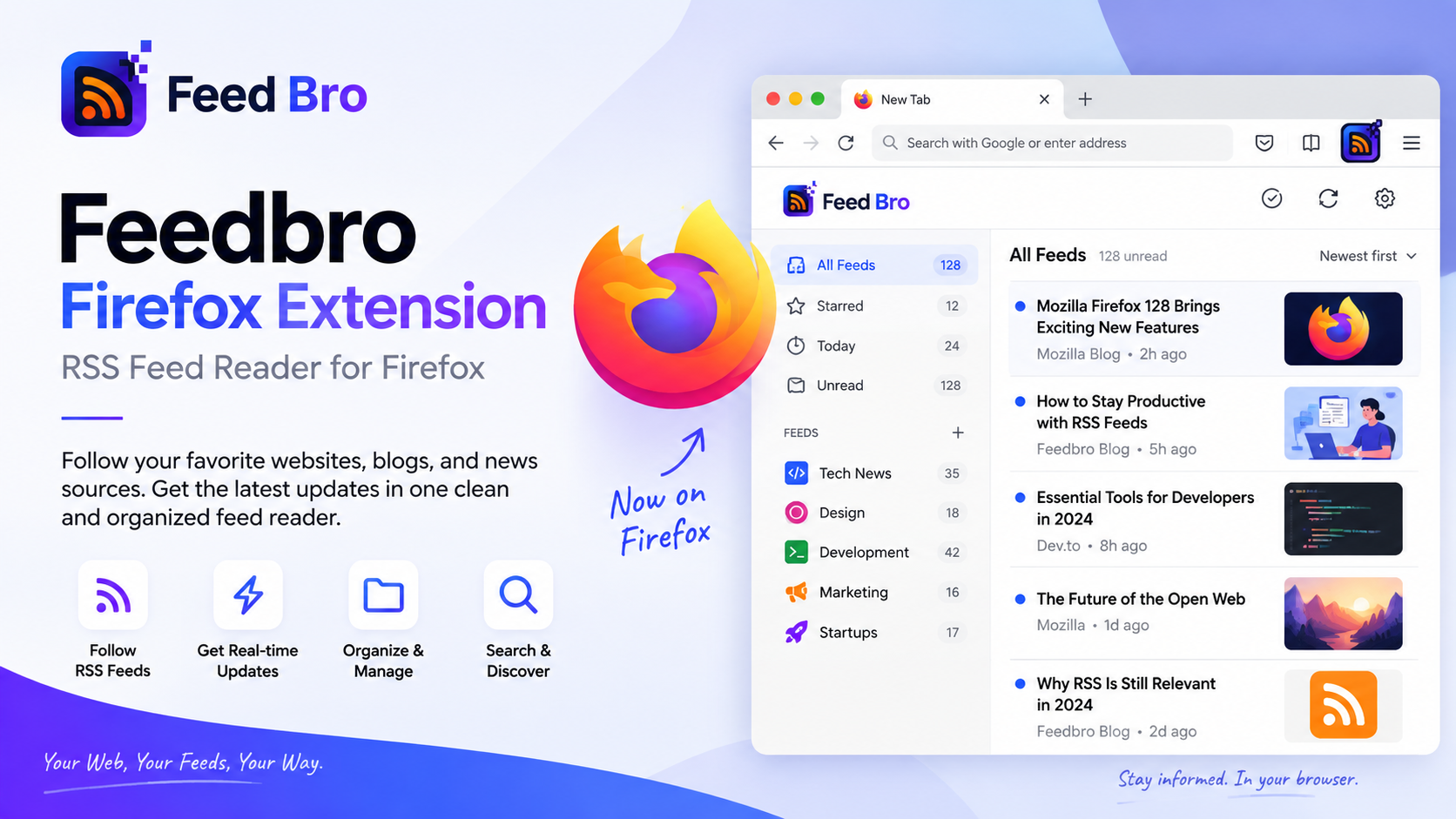
RSS was invented for exactly this, and the FeedBro extension for Firefox puts it where you already spend your time. Follow a site while you're reading it, and its new posts show up in one list — no remembering required.
What Is the FeedBro Firefox Extension?
FeedBro is an RSS reader. Almost every blog, news site and documentation page publishes a feed: a plain list of what they've posted, written for software rather than for people. A reader keeps an eye on those feeds so you don't have to.
The Firefox add-on is the browser end of your FeedBro account. It handles the things that only make sense while you're browsing — spotting that the page in front of you has a feed, following it without a detour, keeping an article you want to come back to, and telling you what's unread without you opening another tab.
On Mozilla's add-on site it's listed as FeedBro – Smarter RSS Reader. It's the same extension as the Chrome one, rebuilt where Firefox does things its own way.
How It Works
There isn't much to it, which is the point.
- It finds the feed. Plenty of sites publish one without ever mentioning it. The extension looks, so you don't have to go hunting for a little orange icon that stopped being fashionable in 2011.
- You follow it. One click, and the feed belongs to your account.
- FeedBro keeps checking. That part happens on our side, whether your browser is open or not.
- New articles wait for you, marked unread, in the popup or on the website.
- You pick up wherever you left off. Your feeds live with your account, not in one browser profile, so Firefox at home and the website at work show the same thing.
Setting It Up
Give it two minutes:
- Install it from Firefox Add-ons, then pin it to the toolbar so you can see the unread badge.
- Connect your account. Open the extension and choose Connect your FeedBro account. If you're already signed in to FeedBro in that browser, it's one click. If not, the site gives you a short code to paste in. You never type your password into the extension, which is deliberate.
- Follow something. Go to a site you read often and open the extension. If there's a feed, Follow Feed is right there.
- Save the odd page. Not everything worth keeping comes from a feed. Save to FeedBro — from the popup or the right-click menu — drops it into your Saved list.
- Catch up from the popup. All, Unread, Saved and Feeds. Read what's new, unfollow what you've gone off, close it again.
Why Bother With RSS?
Firefox used to have a feed reader built in. It was removed years ago, and for a while the whole idea felt retired along with it. It wasn't. The sites still publish the feeds; what disappeared was the convenient way to read them.
What you get back is control. You follow the sites you chose, not a ranking of what somebody's model thinks will hold your attention. Everything new lands in one list rather than twenty tabs you keep open out of guilt. And because unread is tracked per feed, "is there anything new?" finally has an answer that isn't "scroll and find out".
It also scales in a way that checking homepages doesn't. Thirty sources take about as long to skim as three.
What's In the Extension
- Feed detection on the page you're looking at, including sites that never advertise one.
- Follow in one click, straight from the popup.
- Save any page, feed or no feed, from the popup or by right-clicking.
- A reading popup with All, Unread and Saved, plus a Feeds tab for tidying up what you follow.
- An unread badge on the icon, so you can tell at a glance whether it's worth opening.
- A right-click menu for saving a page, following a site, setting up an alert, or searching FeedBro for whatever text you've highlighted.
- Article repair. Some sites put two sentences in their feed and keep the rest for themselves. Fix this article on FeedBro sends the page you're on back to your account so the full text is stored with it.
- Analytics you have to ask for. Firefox makes add-ons declare any data collection separately, and ours is optional and switched off until you agree. Say no and nothing about the extension gets worse — we checked, and there's a test that keeps it that way.
- Tied to your account, not your device. Follow something in Firefox and it's there in Chrome and on the website too.
Collections, alert rules and the rest of the dashboard stay on the FeedBro website on purpose. The extension does the everyday part: notice, follow, save, read.
Who Actually Uses It
Mostly people who read more than one homepage can hold. Developers keeping up with release notes and changelogs. Researchers watching a handful of sites that rarely announce anything loudly. People who want the news from three specific publications rather than the internet's general mood. And anyone who has ever thought "I should check that site again" about a site they last checked in March.
Questions People Ask
What is the FeedBro Firefox extension?
The Firefox add-on for FeedBro, an RSS and Atom reader. It connects to your account and adds feed detection, one-click follow, page saving and a reading popup inside the browser.
Which Firefox do I need?
Firefox 142 or newer, on desktop. There's no Firefox for Android build yet — we'd rather say so than let you find out the hard way.
Is it the same as the Chrome extension?
Same extension, different plumbing. The popup, the right-click menu and the way you connect your account all behave the same, and both talk to the same FeedBro account.
Do I need my password to connect it?
No. It's one click if you're signed in to FeedBro in that browser, or a short code if you aren't. The extension never asks for a password.
How do I add a feed?
Open the extension on a site that has one and follow it. You can also paste a feed address on the FeedBro website, or import an OPML file if you're moving in from another reader.
What does it collect?
The pages you deliberately send it — saving a page, or repairing an article — which go to your own account. Usage analytics are optional and off unless you turn them on.
Getting Started
Install it from Firefox Add-ons, connect your account, and follow the next site you visit that publishes a feed. That's genuinely the whole setup.
If you'd rather look around first, the FeedBro homepage covers what the account adds beyond the browser, and the blog has more guides like this one. It has its own feed, of course.