Some feeds only work while you are signed in to the website that publishes them. A members' area, a paid newsletter archive, a private forum or a company tool may give you a feed address, but when FeedBro asks for it, the site answers with its sign-in page instead of the articles. (A feed, or RSS feed, is a list a website publishes of its newest articles. FeedBro reads that list for you.)
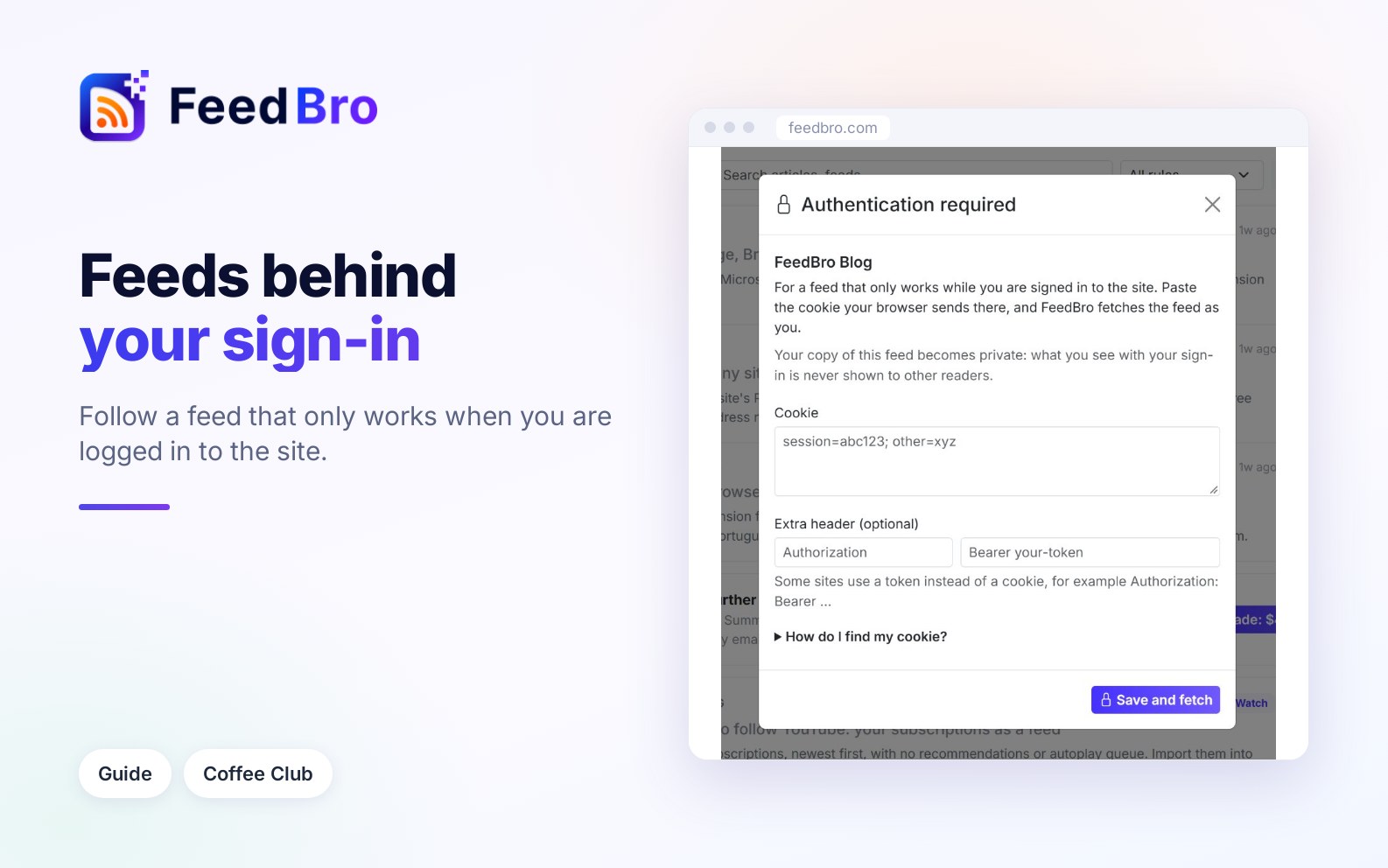
Authentication required is a Coffee Club feature that lets you give FeedBro your sign-in for that one site. FeedBro then fetches the feed as you, so you see the same articles you would see on the site while signed in.
When you need it
Most feeds are public and work without any sign-in. A feed that only works for signed-in visitors usually shows it in one of these ways:
- When you open the feed in FeedBro, it says This feed is behind a sign-in.
- In My Feeds, the feed has a warning sign, and its window says: "This feed sits behind a sign-in, which FeedBro's servers cannot pass."
- The feed address opens fine in your browser while you are signed in to the site, but shows a sign-in page in a private window.
What a cookie is
When you sign in to a website, the site gives your browser a small piece of text called a cookie. Every time your browser asks that site for a page, it sends the cookie along, and that is how the site knows it is you. FeedBro uses that same cookie to ask the site for your feed. You copy it from your browser once and paste it into FeedBro.
Treat your cookie like a key to your account on that site. Anyone who has it can use the site as you until it expires. Paste it only into FeedBro's Authentication required window, and never send it to anyone in an email or chat.
How to add your sign-in to a feed
- Follow the feed in FeedBro first, if you have not already.
- Open the feed's settings: click the gear icon next to the feed (Settings for this feed). The gear is next to each feed in the reader's list of feeds, and on each row in My Feeds.
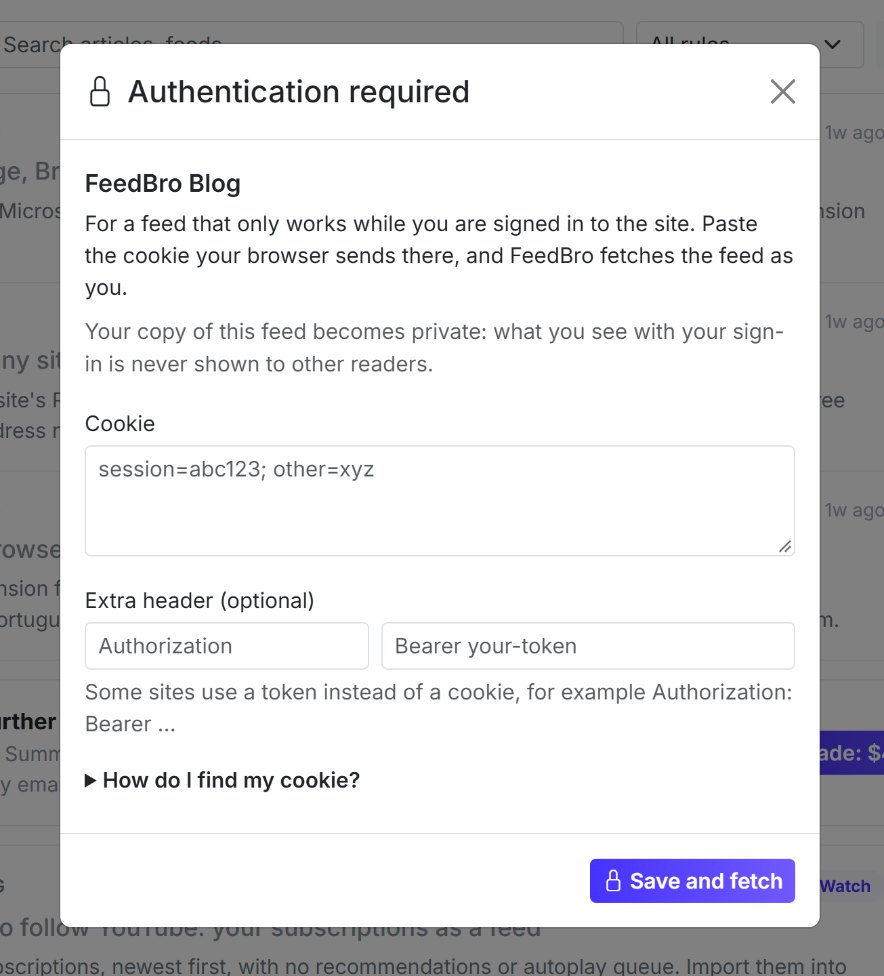
- At the bottom of the settings, click Authentication required. A window with the same name opens.
- Paste your cookie into the Cookie box. The next section explains how to find it.
- Click Save and fetch.
FeedBro saves your sign-in and fetches the feed right away. If it worked, you see: "Saved. FeedBro fetched the feed with your sign-in and found" followed by a number of articles. Close the window and the page reloads with your articles.
If the feed shows This feed is behind a sign-in when you open it, there is also an Authentication required button right there, which opens the same window.
The Extra header (optional) boxes are for the few sites that use a token instead of a cookie, for example Authorization: Bearer followed by a long code. If the site's help pages do not mention a token, leave these empty.
How to find your cookie in your browser
These steps work on a computer. The window in FeedBro has a short version of them under How do I find my cookie?
Before you start, sign in to the website in your browser as you normally would.
Chrome and Edge
- Open a new tab and go to the feed's address (the same address you followed in FeedBro).
- Press F12. On a Mac, press Cmd + Option + I. You can also right-click anywhere on the page and choose Inspect. A panel of developer tools opens. These tools are built into the browser. You only look at them here, and nothing changes.
- At the top of that panel, click the Network tab. In Edge, if you do not see it, click the small arrow or plus sign next to the tabs to find it.
- Reload the page (press F5, or Cmd + R on a Mac). A list of requests fills the panel.
- Click the first line in the list. Its name matches the page you opened.
- On the right, make sure Headers is selected, and scroll down to Request Headers.
- Find the line that starts with cookie. Select all the text after "cookie:" (it is often long) and copy it with Ctrl + C (Cmd + C on a Mac).
- Go back to FeedBro and paste it into the Cookie box.
Firefox
- Open a new tab and go to the feed's address.
- Press F12 (Cmd + Option + I on a Mac), or right-click on the page and choose Inspect.
- Click the Network tab.
- Reload the page (F5, or Cmd + R on a Mac).
- Click the first line in the list.
- In the panel that opens, choose Headers and look under Request Headers for the line Cookie. If you turn on the Raw switch there, the headers show as plain text, which is easier to copy.
- Copy the text after "Cookie:" and paste it into the Cookie box in FeedBro.
If you copy the word "Cookie:" along with it by mistake, FeedBro removes it for you. The cookie must be on one line and can be up to 8,000 characters.
If your browser downloads the feed as a file instead of showing it, open the site's own home page and copy the cookie from there. For most sites it is the same sign-in. When the feed lives on a different address from the site (for example a separate "feeds" address), use the feed address so the cookie matches.
Use the browser extension instead
With the latest version of the FeedBro browser extension, you can skip the developer tools. The extension reads your sign-in for that one site from your browser and sends it to FeedBro for you.
- Install the FeedBro extension and connect it to your account (in FeedBro, Settings, then Extension).
- In the same browser, sign in to the website that publishes the feed.
- In FeedBro, open the feed's gear and click Authentication required.
- Click Use my sign-in from this browser. This button only appears when the extension is installed, up to date and connected.
- A small FeedBro window opens. It names the site and has a button Use my sign-in for followed by the site's name. Click it.
- Your browser asks once whether FeedBro may read this site's cookies. Allow it. FeedBro reads nothing before you click, and it reads only that site's cookies.
- The window shows "Reading your sign-in…" and then "Sending to FeedBro…", followed by the result. When it is done, close the small window. The FeedBro page reloads with your feed.
If the window says the browser has no sign-in for the site, sign in to the site in that browser and try again. If it says to connect the browser to FeedBro first, open the extension's popup and connect it.
What FeedBro does with your sign-in
- Your sign-in is stored encrypted. FeedBro never shows it again, to you or to anyone else.
- It is used only for this feed. FeedBro sends it only with requests to that site, when it fetches the feed and its full articles, and never with requests to any other site.
- Your feed becomes a private copy. What a site shows you while signed in is yours, so FeedBro gives you your own copy of the feed. The articles in it are never shown to other readers, even if they follow the same address. Your private copy is also left out of Explore, trending feeds and suggestions.
- The feed's name, settings and collections carry over to your private copy, and articles you already saved stay in Saved. Read marks do not carry over, so recent articles may show as unread again in the private copy.
When your sign-in expires
When you sign out of the site, change your password, or the site ends your session, the cookie stops working and FeedBro gets the sign-in page instead of your feed.
FeedBro then tells you once. You get a notification: "Your sign-in for" the site "expired", with a note to paste a new cookie in the feed's settings. You will not get the same notice again for that feed until it has worked again.
To renew it:
- Sign in to the site again in your browser.
- Open the feed's gear and click Authentication required. The window now says Your sign-in expired. Paste a new cookie.
- Copy a fresh cookie (the steps above) and paste it in, or click Use my sign-in from this browser.
- Click Save and fetch.
If you sign out of the site in your browser, the cookie FeedBro has usually stops working too. Closing the tab doesn't end it.
How to remove your sign-in
- Open the feed's gear and click Authentication required. While a sign-in is saved, the window says Signed in with your cookie, and the lock icon on the gear's button is filled in.
- Click Remove my sign-in.
FeedBro deletes the stored sign-in and says: "Your sign-in was removed from this feed." The feed stays your private copy. FeedBro keeps checking it without a sign-in, so if the site needs one, you will see This feed is behind a sign-in again.
If you unfollow the feed, FeedBro deletes the stored sign-in within a day.
On the Free plan and Coffee Club
Authentication required is part of Coffee Club. On the Free plan, the button is still in the feed's gear, but the window says: "Feeds behind a sign-in are part of Coffee Club." with a Manage plan link.
On the Free plan you can still read many of these feeds through your own browser. When a feed shows This feed is behind a sign-in, install the FeedBro extension in Chrome or Firefox, make sure you are signed in to the site in that browser, and press Fix in my browser. FeedBro then keeps the feed updated from your browser while it is open. The guide on sites that block servers explains this in more detail.
If something doesn't work
- If you see "Saved, but the site still showed its sign-in page.", the cookie was incomplete or came from a signed-out tab. Make sure you are signed in, reload the page with the Network tab open, and copy the whole cookie line again.
- If you see "Paste the cookie on one line, up to 8,000 characters.", the text has line breaks in it or is too long. Copy only the cookie value, on one line.
- If you see "Saved. FeedBro could not fetch the feed yet" followed by a reason, your sign-in is saved, but the site did not answer properly this time. FeedBro keeps trying in the background.
- If you don't see Use my sign-in from this browser, update the extension to the latest version, connect it in Settings, then Extension, and open the window again.
- If you are on a phone, copy the cookie on a computer instead, because phone browsers do not have developer tools. Once it is saved, the feed works everywhere you use FeedBro, including the Android app.
- If the feed worked and then stopped, your sign-in has most likely expired. Follow the steps under "When your sign-in expires".