
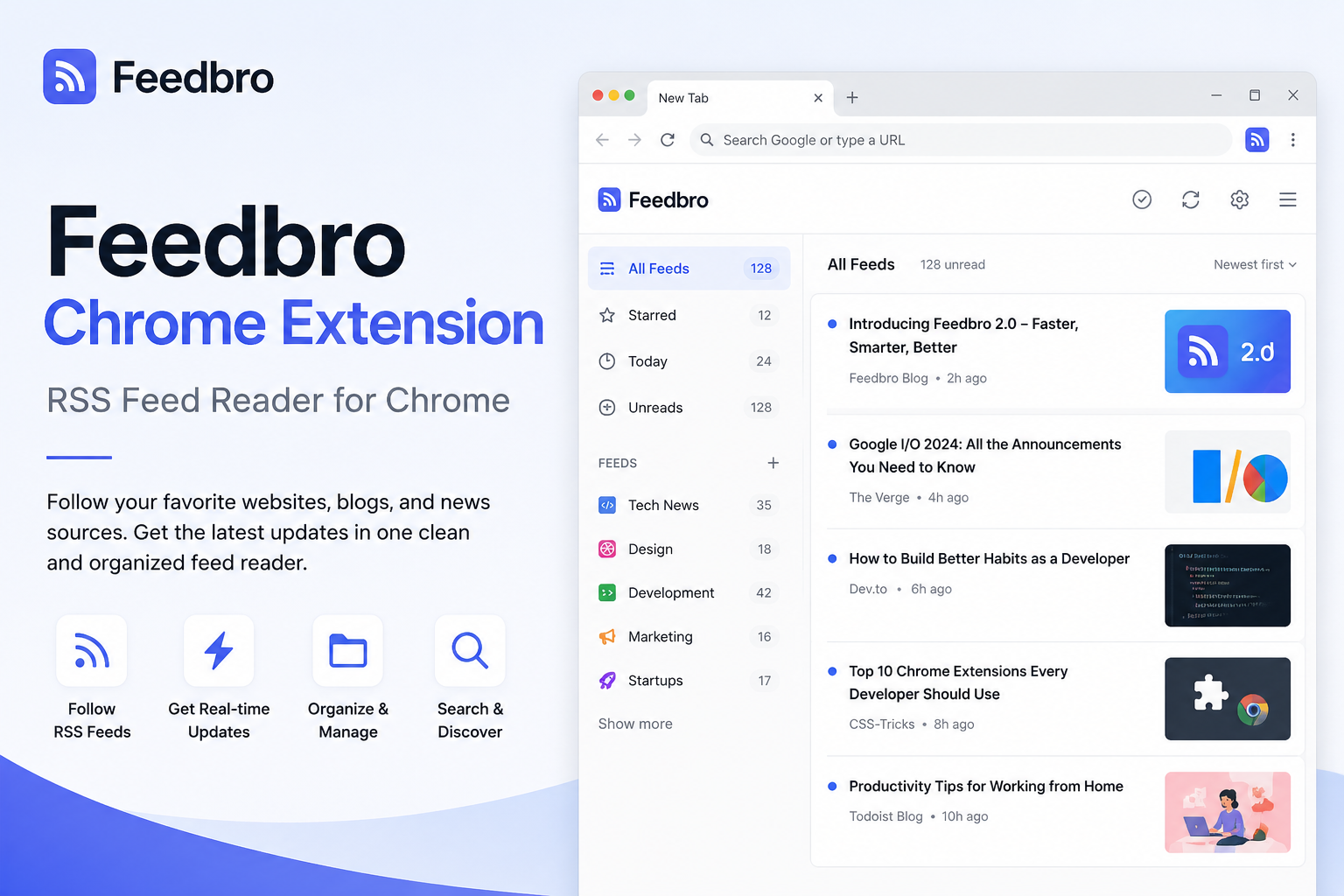
If you follow more than a handful of websites, you've probably felt the pull to check each one individually — or worse, relied on a noisy social feed to surface what's new. The Feedbro Chrome extension is built to fix that: it's the browser companion to FeedBro, an RSS and Atom feed reader, so you can follow sites, catch new articles, and save pages for later without leaving whatever tab you're already in.
This guide covers what the Feedbro Chrome extension actually does, how it works alongside your FeedBro account, and how to start using it.
What Is the Feedbro Chrome Extension?
FeedBro is an RSS reader — a tool that lets you subscribe to the feeds websites publish (the same RSS or Atom feeds that have quietly powered blog subscriptions, news updates, and podcast delivery for years) and read new posts from all of them in one place, instead of checking each site on its own.
The Feedbro Chrome extension is the browser-based companion to your FeedBro account. It connects to the same account you'd use on the FeedBro website, and gives you a few things that only make sense from inside the browser itself: noticing when the page you're on publishes a feed, saving an article you're currently reading, and a quick popup for catching up on unread items without opening a new tab.
It's a good fit if you already read a rotation of blogs, news sites, or documentation pages and would rather have new posts come to you than remember to go check.
How Does Feedbro Work?
The core loop is simple:
- Find a feed. Most blogs and news sites publish an RSS or Atom feed, even when there's no visible "subscribe" button — Feedbro looks for it automatically.
- Follow it. Once a feed is added to your account, FeedBro starts checking it for new articles.
- Organize as needed. Feeds you follow can be grouped into collections on the FeedBro website, so related sources stay together.
- Read what's new. New articles show up in your FeedBro reading list — from the extension's popup or the full dashboard on the website — marked unread until you get to them.
- Come back anytime. Since everything is tied to your FeedBro account rather than stored only in the browser, your feeds and reading progress are the same whether you check in from the extension or the website.
How to Use Feedbro in Chrome
Getting started takes a few minutes:
- Install the extension. Get Feedbro from the Chrome Web Store and pin it to your toolbar.
- Connect your account. Click the Feedbro icon and select Connect your FeedBro account. If you're already signed in to FeedBro in that browser, this is a one-click handshake — no password is ever entered inside the extension. If you don't have an account yet, FeedBro offers a free plan to get started.
- Follow a feed from any page. Visit a site that publishes a feed and open the extension — if Feedbro detects one, you'll see a card with a Follow Feed option right there.
- Save a page for later. Not every page you want to keep comes from a feed you follow. Use Save to FeedBro (from the popup or by right-clicking the page) to keep it in your Saved list.
- Read and manage feeds from the popup. The popup has All, Unread, Saved, and Feeds tabs, so you can catch up on new articles or unfollow a feed without leaving the page you're on.
Why Use an RSS Reader in Chrome?
RSS predates most of what we now call "social," and it's still one of the more direct ways to follow a website:
- You follow the site directly — not an algorithm's guess at what you might want to see.
- Everything lands in one list, instead of a dozen open tabs or bookmarks you meant to revisit.
- You see what's actually new, since unread articles are tracked per feed.
- It scales with how much you follow. Whether it's three blogs or thirty, checking one reading list is faster than checking each site.
Keeping that reader in the browser, rather than a separate app, means following a new site is a couple of clicks from wherever you already are.
Feedbro Features
What's actually in the Chrome extension today:
- Automatic feed detection on the page you're currently viewing.
- One-click follow for feeds Feedbro finds, right from the popup.
- Save to FeedBro for any page, whether or not it's part of a feed you follow — available from the popup or the right-click menu.
- A reading popup with All, Unread, and Saved views, plus a Feeds tab for managing what you follow.
- An unread badge on the toolbar icon so you can tell at a glance whether there's something new.
- A right-click menu for saving a page, following a site, or jumping to FeedBro to set up an alert or search, without opening the popup first.
- Account-based, not device-based. Feeds you follow and articles you save are tied to your FeedBro account, so they're the same whether you're using the extension or the website.
Some things intentionally live on the FeedBro website rather than in the extension — full feed organization into collections, alert rules, and the rest of the account dashboard. The extension focuses on the everyday loop of discovering, following, and reading.
Who Is Feedbro For?
Feedbro tends to be useful for anyone who follows more written content than a single homepage or social feed can reasonably surface:
- Readers who follow a regular rotation of blogs.
- People who want news from specific sources instead of a general feed.
- Researchers keeping an eye on several sites at once.
- Developers following release notes, changelogs, or engineering blogs.
- Professionals tracking industry publications relevant to their work.
- Anyone who'd rather organize the sites they read than rely on remembering to check each one.
Feedbro Chrome Extension FAQ
What is the Feedbro Chrome extension?
It's the browser extension for FeedBro, an RSS/Atom feed reader. It connects to your FeedBro account and adds feed detection, quick-follow, page saving, and a reading popup directly in Chrome.
Is Feedbro an RSS reader?
Yes. FeedBro reads RSS and Atom feeds — the same feed formats most blogs, news sites, and many other publishers already support.
Can I use Feedbro to read RSS feeds?
Yes. Once you follow a feed, new articles appear in your FeedBro reading list, which you can read from the extension's popup or from the FeedBro dashboard on the website.
How do I add an RSS feed to Feedbro?
Open the extension while on a page that publishes a feed — if one is detected, you can follow it directly from the popup. You can also add a feed by its URL from the FeedBro website.
Does Feedbro work with websites that provide RSS feeds?
Yes — Feedbro looks for the standard RSS/Atom feed links a site publishes and can follow any feed it finds that way.
How do I use Feedbro in Chrome?
Install it from the Chrome Web Store, connect it to your FeedBro account, then follow feeds and read new articles from the popup as you browse.
Get Started
The Feedbro Chrome extension is meant to sit quietly in your toolbar until there's something new to read. If you'd like to see the fuller picture first, the FeedBro homepage walks through what the account and dashboard offer beyond the extension, and the FeedBro blog has more guides like this one — including its own RSS feed, if you'd rather follow it that way. Otherwise, installing the extension and connecting your account is enough to get your first feed followed in a couple of minutes.