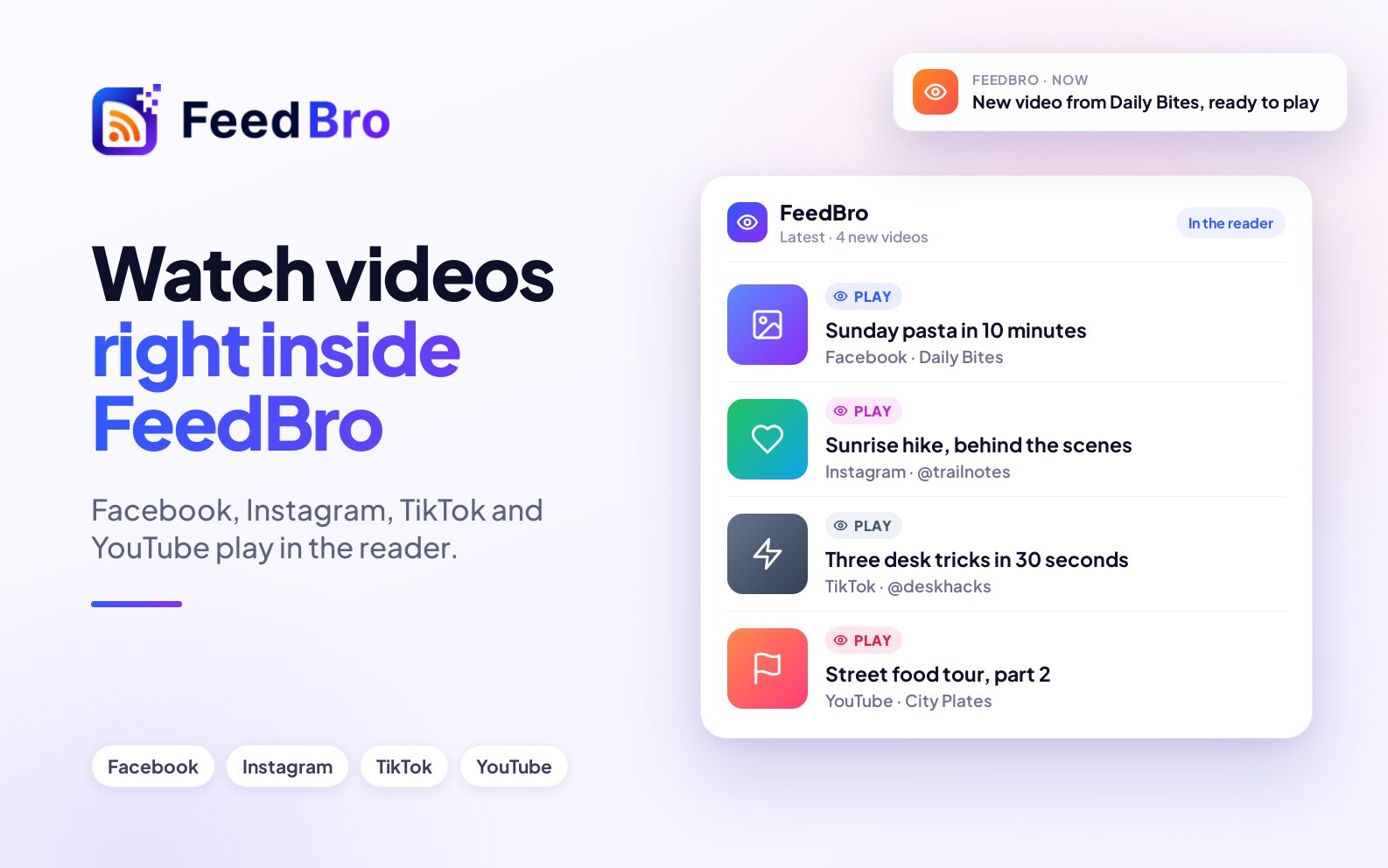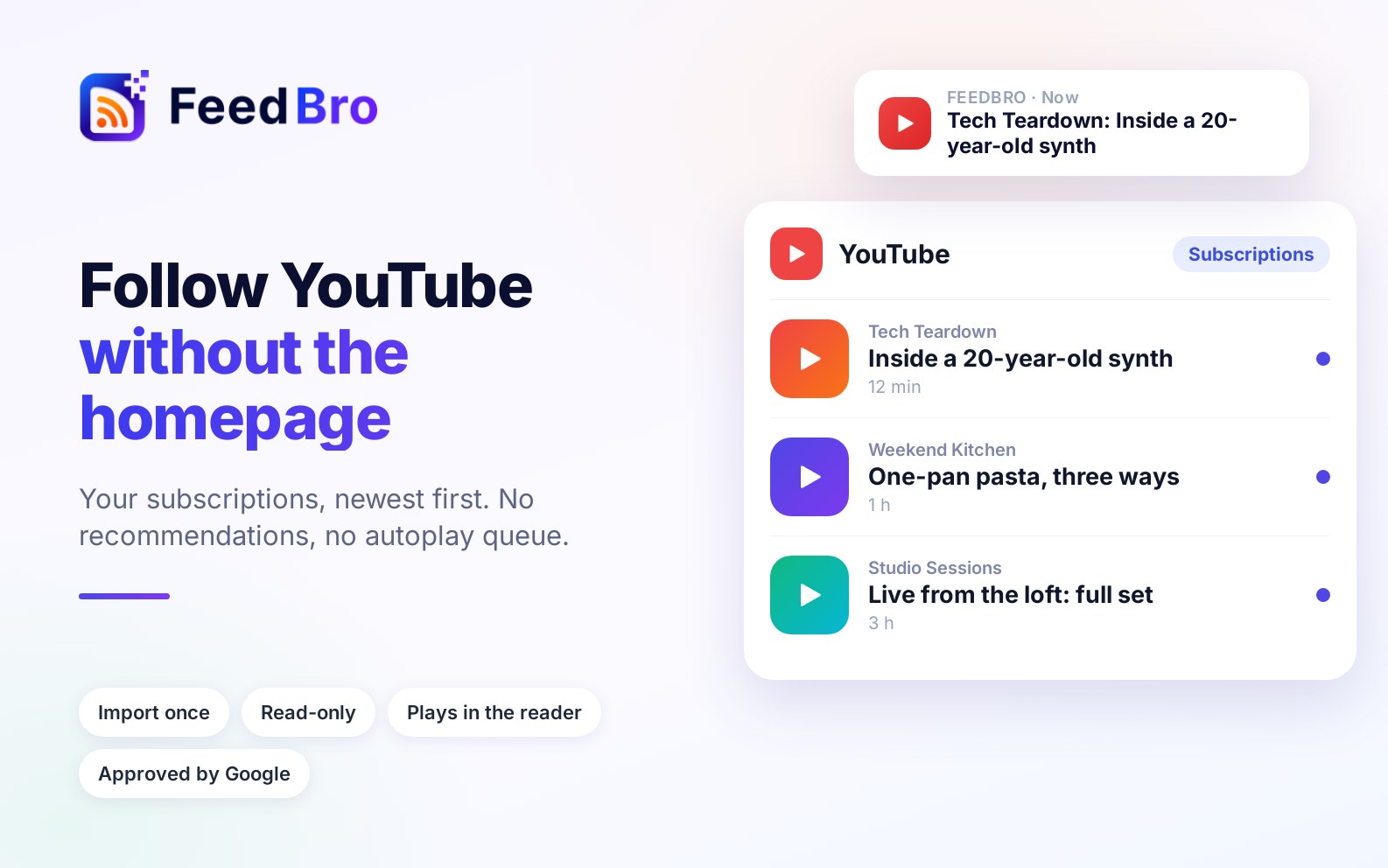
FeedBro can follow YouTube channels the same way it follows blogs and news sites. New videos arrive in your reader, newest first, without recommendations or an autoplay queue, and they play inside the article. Videos from Reddit, RedGIFs, Facebook, Instagram, TikTok and many other sites play there too.
You can also bring in all your YouTube subscriptions at once, hide Shorts, and follow public Instagram accounts. Most days YouTube also pauses its channel feeds for a few hours, so new videos can arrive a little late.
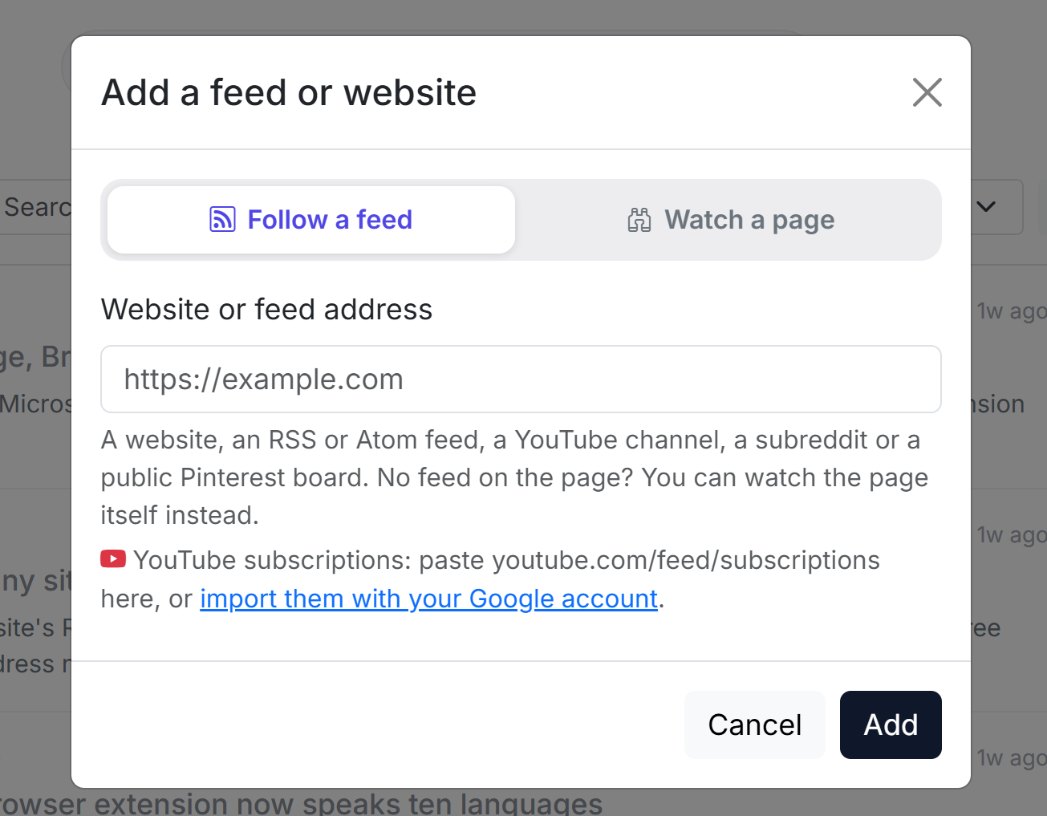
Follow a YouTube channel
- On YouTube, open the channel and copy its address from your browser, for example youtube.com/@channelname. The address of the channel's Videos tab also works, and so do older addresses that start with youtube.com/channel/, youtube.com/c/ or youtube.com/user/.
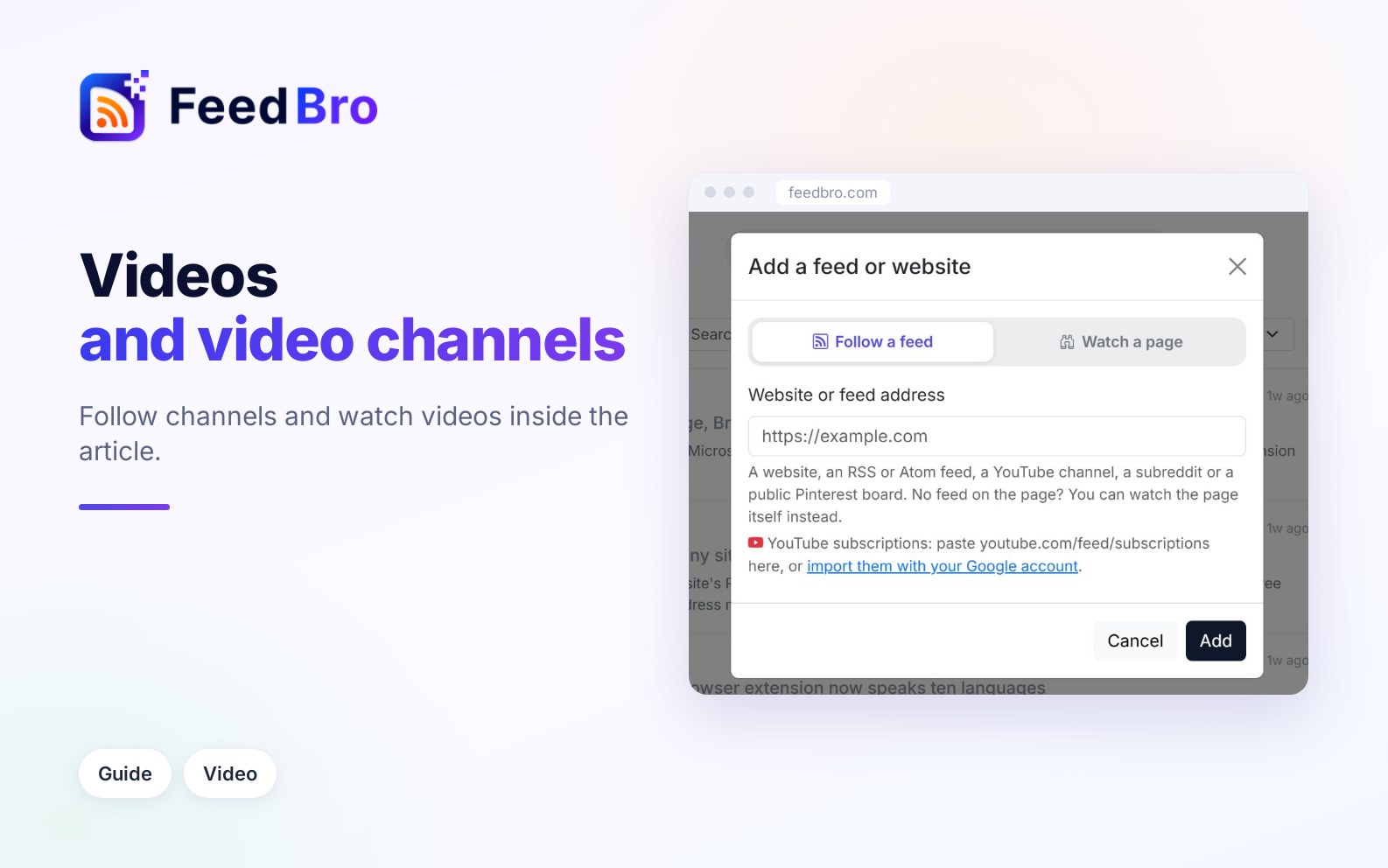
- In FeedBro, press Add a feed or website (on a phone, tap Add in the bottom bar).
- Keep Follow a feed selected, paste the address in Website or feed address and press Add.
- FeedBro finds the channel's own feed (a list YouTube publishes of the channel's newest videos) and adds it. You see a message such as Added "Channel name" (15 articles). Press Read it now to open it, or Read later to stay where you are.
Each channel is one feed, so it counts toward your plan's feed limit (50 on the Free plan, unlimited on the Coffee Club). YouTube's feed only lists a channel's most recent videos, so you won't get every older video from before you followed the channel.
Import your YouTube subscriptions
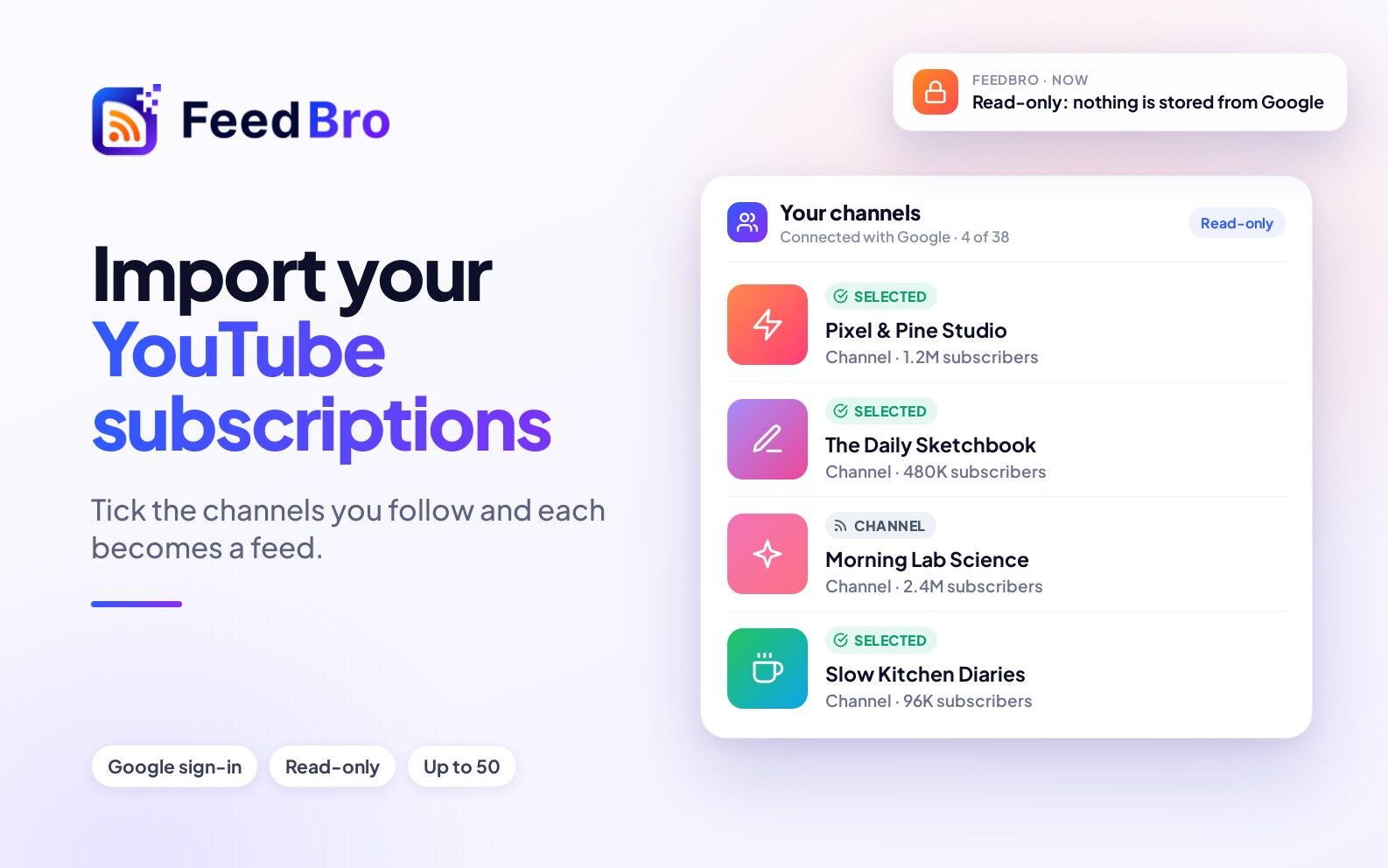
If you already follow many channels on YouTube, you can bring them all in at once. Your subscriptions list is private to your Google account, so FeedBro asks Google once for permission to read it.
- Press Add a feed or website. Under the address box, next to YouTube subscriptions: paste youtube.com/feed/subscriptions here, or, press import them with your Google account. (You can also paste youtube.com/feed/subscriptions and press Add. FeedBro then explains that the page is private and shows a Connect YouTube button.)
- Google's sign-in page opens. Choose the Google account you use on YouTube and allow read-only access.
- FeedBro shows Import your YouTube subscriptions with the number of channels found. Channels you already follow in FeedBro are left out of the list.
- Tick the channels you want, or tick Select all.
- Press Add selected channels.
FeedBro adds the channels and tells you how many were added, for example 24 channels added to your feeds. With a long list, the first channels are added straight away and the rest in the background. You get a note in your notifications when they are all in.
What the Google access allows
- The access is read-only. FeedBro can see which channels you follow. It can't post, change your subscriptions or touch anything else on your account.
- FeedBro uses the access once to read the list, then gives it back to Google straight away. It keeps nothing from Google.
- Only the channels you tick are saved, as feeds in your FeedBro account. The list of channels you didn't pick is kept for an hour so you can come back and add more. After that it is deleted.
In the Android app
When you start the import in the FeedBro Android app, Google's sign-in opens in your phone's browser. When it is done, that browser tab tells you Your YouTube channels are ready. Tap Open FeedBro (or close the tab), and the list of channels opens in the app so you can choose.
Watch videos inside the reader
Open a video's article and press play. The video plays where you are reading, so you stay in FeedBro.
- YouTube videos and Shorts play in YouTube's privacy-enhanced player. Below the player, FeedBro shows the video's description from YouTube. For a talk or a podcast, the description often lists the topics and links.
- Videos uploaded to Reddit play in the reader. When a Reddit post links to a video on RedGIFs or YouTube, that video plays in the post.
- A Facebook video or reel, an Instagram post or reel, and a TikTok video each play in that site's own player.
- Vimeo, Dailymotion, Streamable, Twitch, Loom, TED talks and other video sites play in their own players. Spotify tracks and episodes get a small player.
Inside an ordinary article, a video link that sits on a line of its own becomes a player too. A link in the middle of a sentence stays a link.
When a video won't play here
Each site decides whether its videos may play on other websites. When one can't play in the reader, you see This is a video. It plays on followed by the site's name, and a Watch video ↗ button that opens it there. A player made from a link inside an article also has an Open on link under it, such as Open on Instagram ↗.
If your internet provider or network blocks a video site, FeedBro tells you so instead of showing a broken player: This video is on redgifs.com, which isn't reachable from your connection. Your internet provider may be blocking it. Use Open it there ↗ to try it on the site itself.
Hide YouTube Shorts
Shorts are YouTube's short vertical videos. If you only want full videos from your channels, a rule can hide Shorts from your lists and your unread counts.
Start from the example
- Open Rules from the menu.
- Under Start from an example, tap Hide YouTube Shorts.
- The rule opens already filled in. Press Save rule.
Build the rule yourself
- On the Rules page, press + New Rule and give it a name.
- Keep When a new article arrives as the trigger.
- Under Conditions, open the first list and choose Is a YouTube Short (in the Video group). It needs no words.
- Under Actions, tick Hide article.
- Press Save rule.
When you save, the rule also goes through the videos already in your feeds, which can take a few minutes. YouTube doesn't always mark Shorts in its feeds, so FeedBro checks with YouTube to catch the ones that look like ordinary videos.
You can also use Is a YouTube Short the other way round, with a tag or a highlight, to make Shorts easy to find. On the Free plan, this rule is one of your 5 rules.
"Waiting for YouTube": the daily pause
Most days YouTube stops serving its channel feeds for a few hours, roughly from 03:00 to 07:00 UTC. This happens on YouTube's side, for everyone who reads its channel feeds, and you don't need to fix anything.
- Channels you already follow get their new videos a little later. Once YouTube is back, the videos arrive by themselves.
- Channels you add during the pause are followed straight away. FeedBro tells you Channel added. YouTube is pausing its channel feeds for a few hours right now, as it does most days. In My Feeds such a channel shows Waiting for YouTube with an hourglass, and its page in the reader says the same.
- However many channels you add, you get one notification, YouTube is pausing its feeds (at most one every 12 hours). When all of your waiting channels have loaded, you get one more: YouTube is back.
If a channel still can't be read after a full day, FeedBro stops treating it as the daily pause and shows it as a problem with that channel.
Follow a public Instagram account
Instagram has no feeds, so FeedBro follows an account by watching its profile page with Website Watch.
- Press Add a feed or website and choose Watch a page. (Or open Website Watch and use Page to watch.)
- Paste the account's address, for example instagram.com/natgeo, and press Watch.
- FeedBro reads the profile and adds the account. The posts already there are your starting point. After that, each new post arrives as an article.
Each post comes with its caption. A post with several pictures shows all of them, and reels play in the reader. This works for public accounts only.
Each Instagram account counts as one of your watched pages: 3 on the Free plan, checked once a day, and 10 on the Coffee Club, checked every hour.
If something doesn't work
- If you see "That is your personal YouTube page", you pasted your subscriptions, history or library page. These are private to your Google account. Press Connect YouTube to import your channels, or paste a channel's own address instead.
- If you see "No subscriptions were found on that Google account.", you probably signed in with a different Google account from the one you use on YouTube. Start the import again and pick the right account.
- If you see "You cancelled the Google sign-in, so nothing was imported.", start again and allow access on Google's page.
- If you see "We could not read your YouTube subscriptions. Please try again.", something went wrong between Google and FeedBro. Try again in a few minutes.
- If you see "The feed limit was reached, so the remaining channels were not added.", you reached the Free plan's 50 feeds. Remove feeds you don't read, or join the Coffee Club for unlimited feeds.
- If a video shows a message from its own player, the video may be private, removed or limited to some countries. Use Watch video ↗ or open the original.
- If a channel shows no new videos in the morning, it is usually YouTube's daily pause. The videos arrive by themselves a few hours later.
- If you see "Instagram pages aren't RSS feeds", you used Follow a feed. Choose Watch a page instead, as described above.