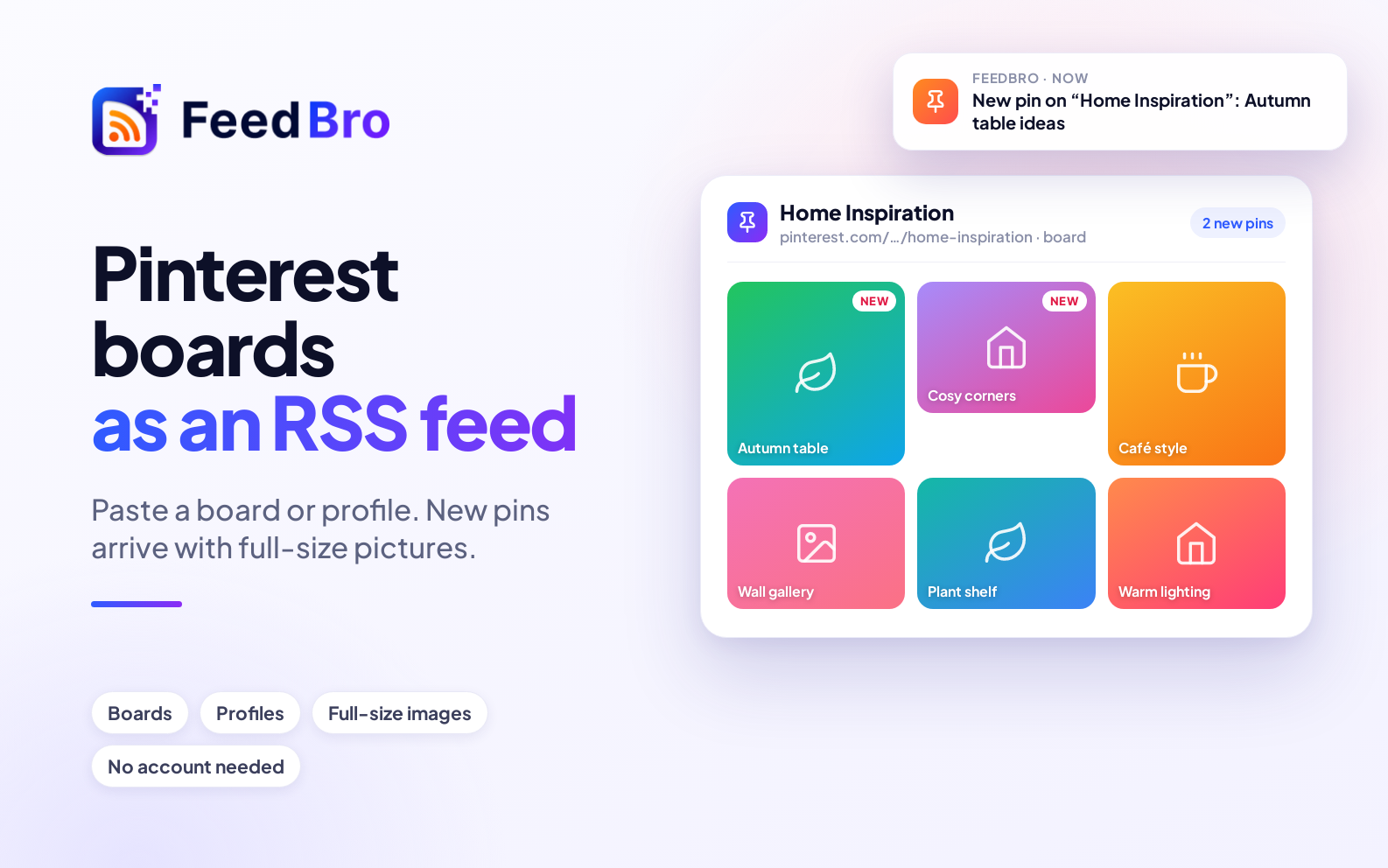
Pinterest boards are great sources of ideas — recipes, design, fashion, travel — but keeping up with the boards you like means opening Pinterest and scrolling. There's a quieter way: every public Pinterest board and profile has an RSS feed, and FeedBro can follow it for you.
The quick way: paste the board into FeedBro
- Open the board on Pinterest and copy its address, e.g.
pinterest.com/marthastewart/martha-stewart-living/. - In FeedBro, use Add feed or Website Watch and paste it.
- That's it — FeedBro turns it into the board's feed and its pins appear in your reader.
A profile works the same way: paste pinterest.com/username/ to follow everything that person pins. Pinterest's country addresses (pinterest.co.uk and so on) work too.
The feed addresses, if you want them
- A board:
https://www.pinterest.com/username/board-name.rss - A profile:
https://www.pinterest.com/username/feed.rss
Full-size pictures
Pinterest's feeds only include small thumbnails. FeedBro shows each pin with its full-size picture instead, so your reader looks like the board, not a list of postage stamps.
Get alerted to the pins you care about
New pins are items in your reader like any feed's, so Rules work on them: a push notification when a board you follow pins something with "vegetarian" or "Christmas" in it, for example.
Good to know
- Only public boards and profiles have feeds; secret boards don't.
- A single pin or a Pinterest search has no feed — follow the board or profile instead.
- Product pins don't carry prices in their feeds. To follow prices, watch the store the pin links to — see price drop alerts from Shopify stores.