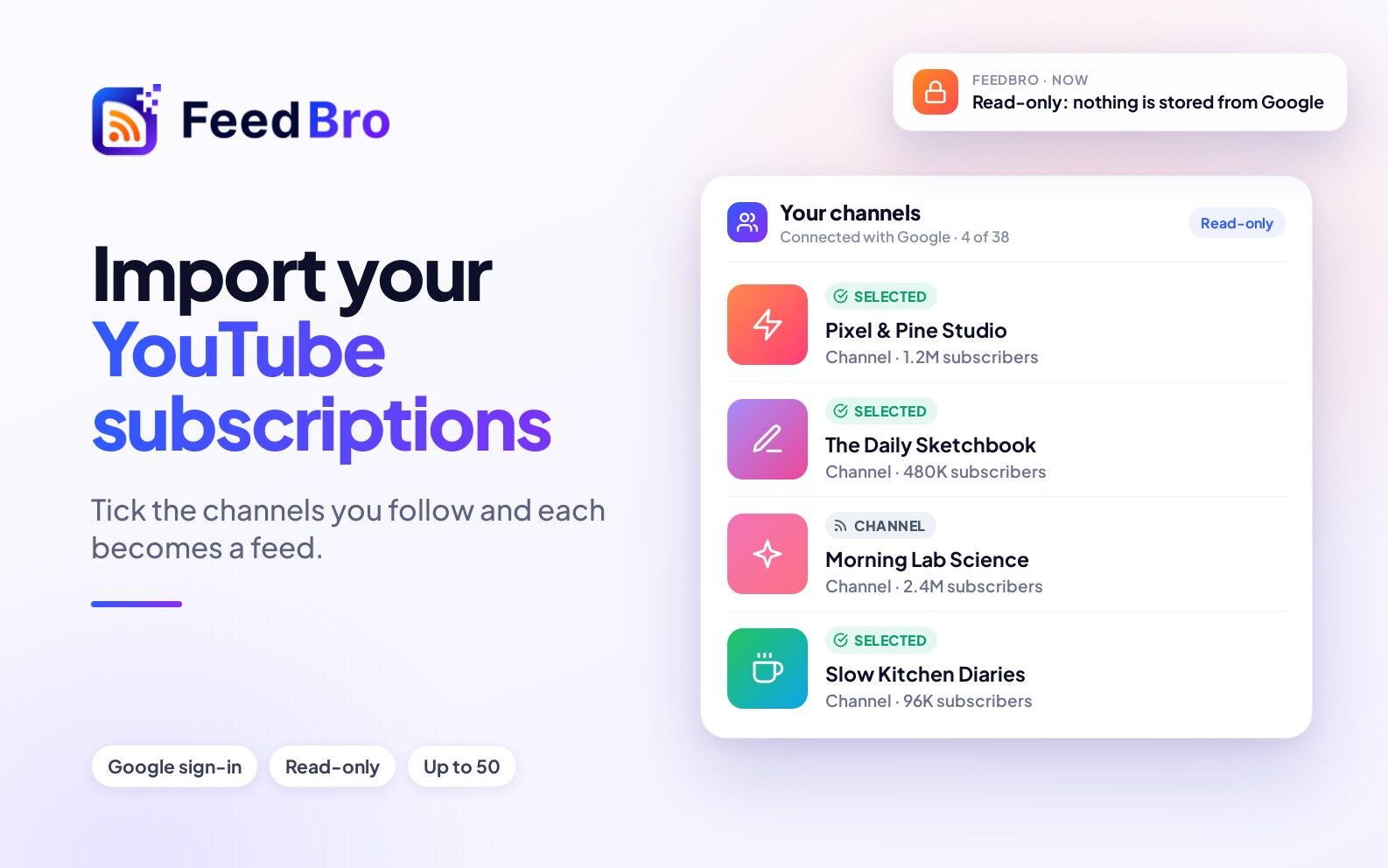
If you follow dozens of YouTube channels, adding them to FeedBro one by one would take a while. Now you can import your YouTube subscriptions in one step: sign in with Google once, tick the channels you want, and each becomes a feed in your reader.
How to import
- Open Add in FeedBro and paste your YouTube subscriptions page, youtube.com/feed/subscriptions. It is private to your Google account, so FeedBro explains that and offers Connect YouTube.
- Sign in with Google and allow read-only access to your YouTube account.
- FeedBro shows the channels you follow. Tick the ones you want, up to 50 at a time, and choose Add selected channels.
Good to know: until Google finishes reviewing FeedBro's access, Google may show a notice that the app is "not verified". That is expected: choose Advanced, then continue to FeedBro. You are only allowing the read-only access described here.
What FeedBro does and does not do
- Read-only. FeedBro can see which channels you follow. It can't change your subscriptions, post, or touch anything else on your YouTube account.
- Used once. FeedBro reads your list a single time and then gives up the access. We don't keep Google's access token, and we don't ask for ongoing access.
- Only what you choose. The channels you tick are saved as feeds in your FeedBro account. Everything else from Google is discarded.
The details are in our privacy policy, in the section on YouTube subscriptions.
Why not just paste the page?
Your subscriptions list belongs to you, behind your Google sign-in, so no website can read it for you. The one-time sign-in is what lets FeedBro read it on your behalf.
After the import
Each channel behaves like any feed: new videos arrive in your reader and play there (see videos inside the reader), and you can group channels in collections or give them rules. You can also add a single channel anytime by pasting its page, for example youtube.com/@channelname.