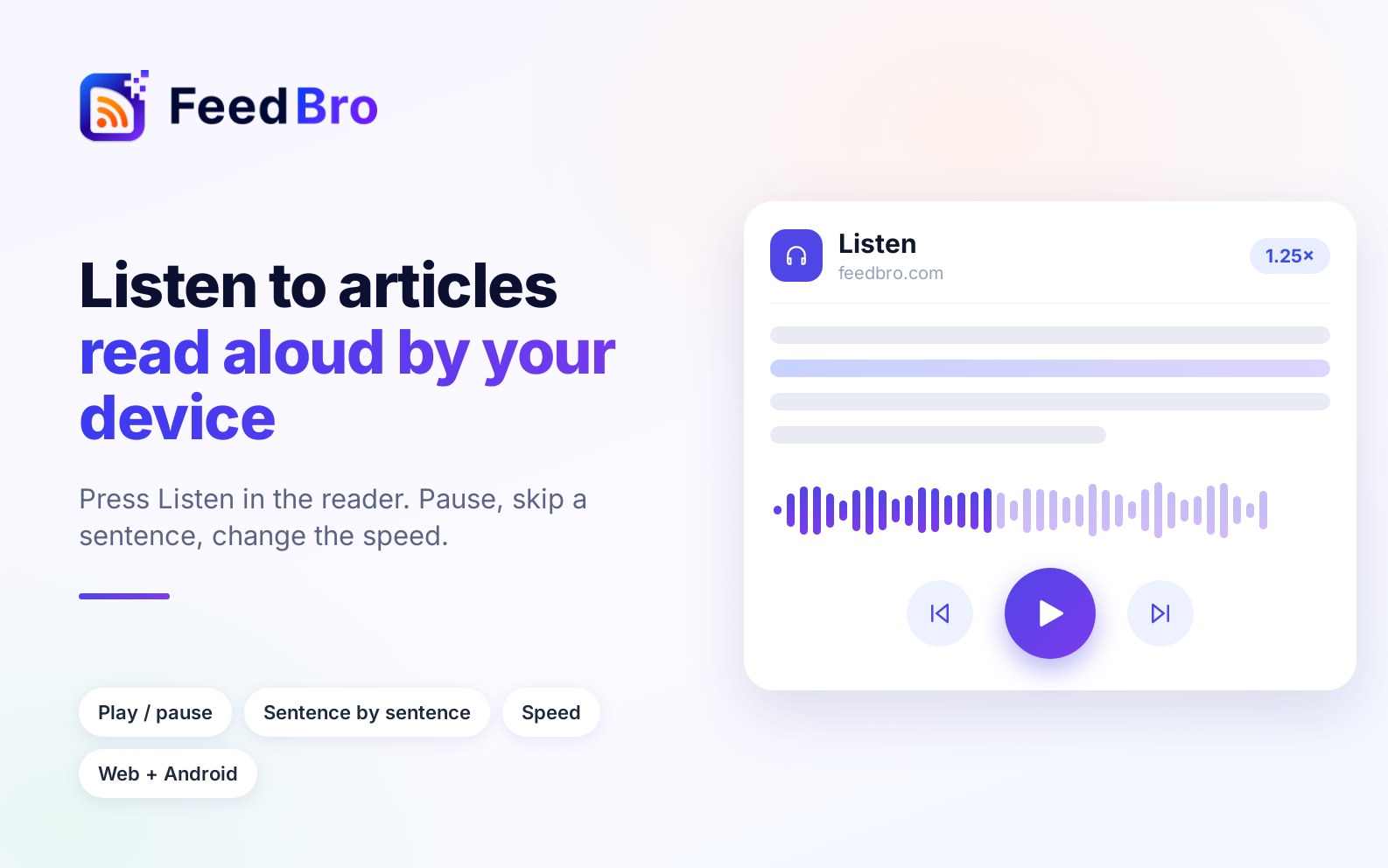
Some articles are better heard than read: on a walk, while cooking, or when your eyes are tired. FeedBro's reader now has a Listen button that reads the article aloud.
How it works
Open an article and press Listen. FeedBro reads it from the top, sentence by sentence, and shows which sentence it is on. You get five controls:
- Play and Pause
- Previous and Next sentence
- Speed, from slower to faster than normal
It uses your device's own voices
The speech comes from the voices already installed on your phone or computer. Nothing is sent to FeedBro to be turned into audio, and there is no extra cost. It also means the voice you hear is the one your device provides, so quality and available languages depend on your device's settings.
On the web and in the Android app
Listen works in the reader on feedbro.com. In the Android app it uses the phone's own text-to-speech engine, so you need the latest version of the app. If a device offers no speech at all, the button simply is not shown.
Good to know
- It reads the article as FeedBro shows it. If a feed only gives a short summary, open the full text first, then press Listen.
- Pressing Next on the last sentence stops the reading.