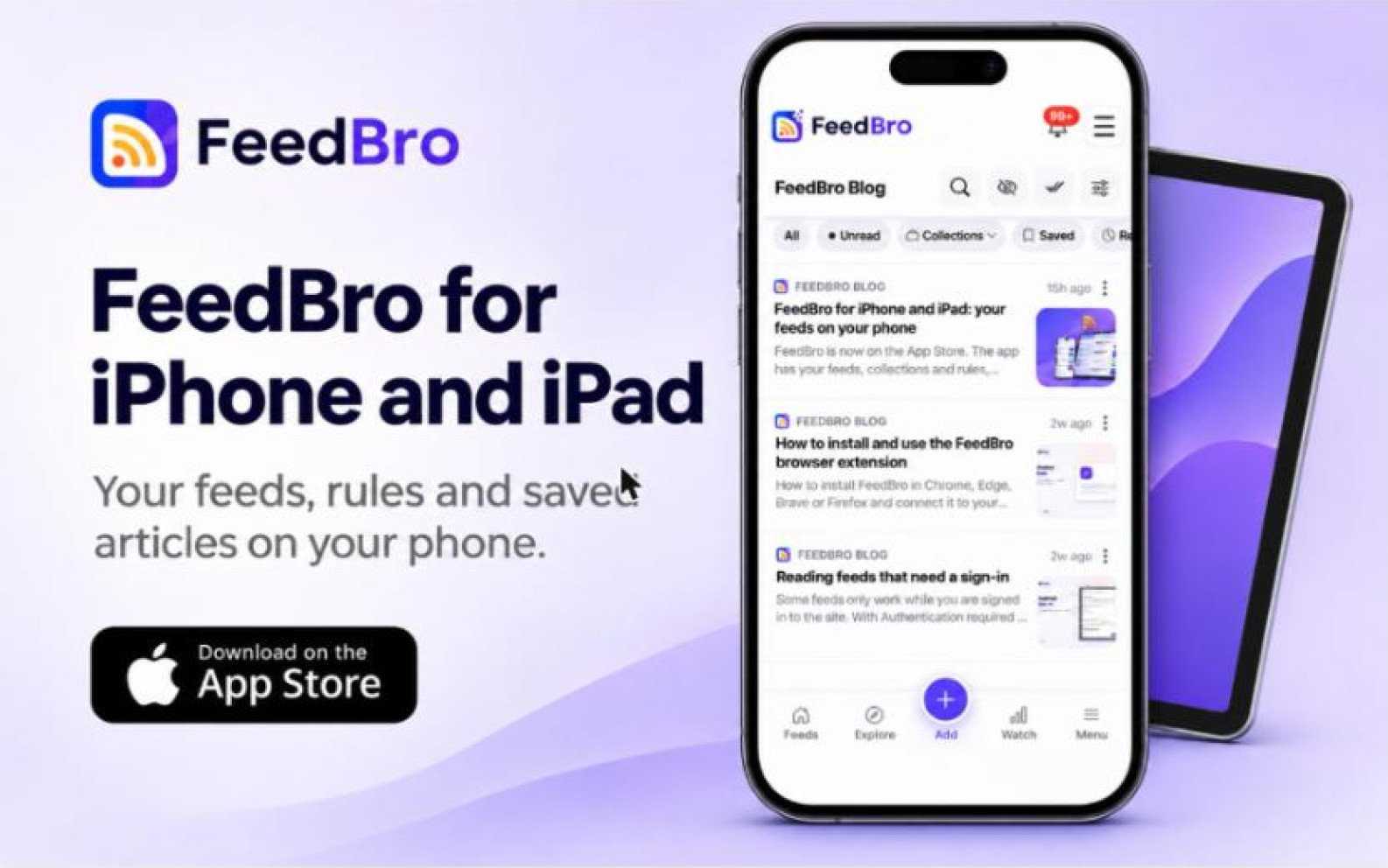

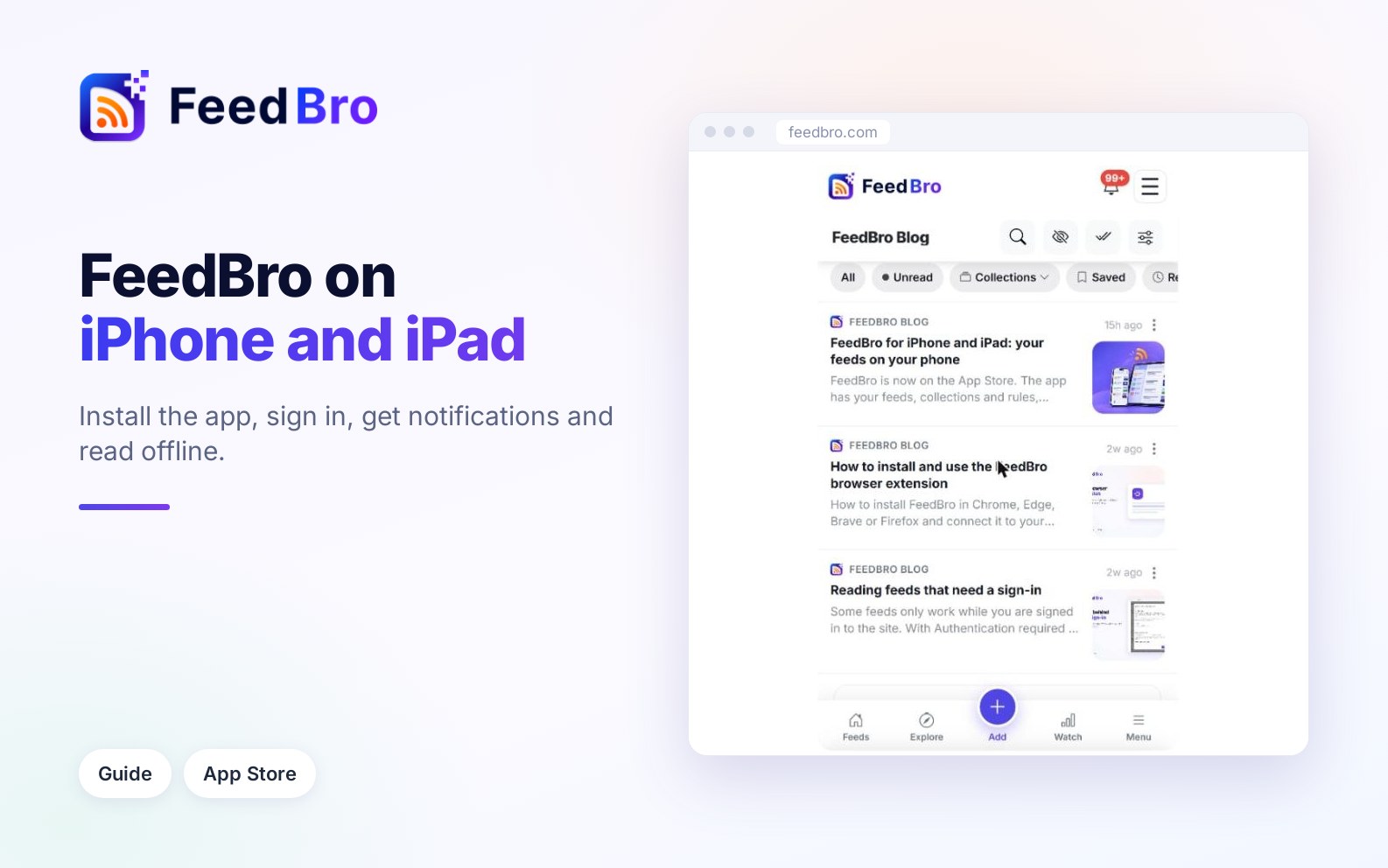
The FeedBro app puts your reader on your iPhone or iPad. It is the same account as feedbro.com, so your feeds, collections and automations are already there when you sign in. This guide takes you from install to your first notification.
Install the app
- On your iPhone or iPad, open the FeedBro page on the App Store.
- Tap Get and confirm with Face ID, Touch ID or your Apple password.
- Open FeedBro from your home screen.
The app is free to install. If you want the story behind it, the launch announcement has it.
Sign in
- On the sign-in screen, enter your email and password and tap Log in.
- Or tap Continue with Google or Continue with Apple to use that account instead.
Use the same sign-in you use on feedbro.com. You land in your reading list with your newest articles first. Tap an article to read it in full.
Refresh the list
Pull down at the top of the page to check for new articles.
Get a notification when an automation matches
Automations watch your feeds for a word or phrase. With the push action turned on, your phone tells you when a matching article arrives.
- Open Automations and tap + New automation.
- Set the word or phrase you want to watch for.
- Under Actions, turn on Push notification.
- Tap Save automation.
- When iOS asks whether FeedBro may send notifications, tap Allow.
An automation you make in the app also works on feedbro.com, and the other way round. To switch notifications on or off later, use the notification settings for FeedBro in the iOS Settings app.
Read without a connection
The app keeps your latest, saved and read-later articles on the device. Open FeedBro once while you are online and they are stored for you. After that, with no signal, you see a message that you are offline and the articles saved on your device, and you can open them as usual. New articles arrive when you are back online.
Two things to know. Buttons that need the server, such as sharing an article or reporting a problem, are hidden while you read offline. And only articles FeedBro has already stored can be opened, so if one was not saved you will be told so.
Choose a theme
- Open Settings and go to Reading.
- Find Theme and pick Match my device, Light, Dark or Sepia.
With Match my device, FeedBro switches to dark mode when your iPhone or iPad does. The choice belongs to your account, so it follows you to other devices.
Good to know
- The app and the website share one account. Read an article on your phone and it is marked read everywhere.
- Your plan is the same in the app as on the website. Free covers 50 feeds, 10 collections and 5 automations.
- If something looks wrong, tap the flag button on an article or use the contact page. Both reach us directly.