
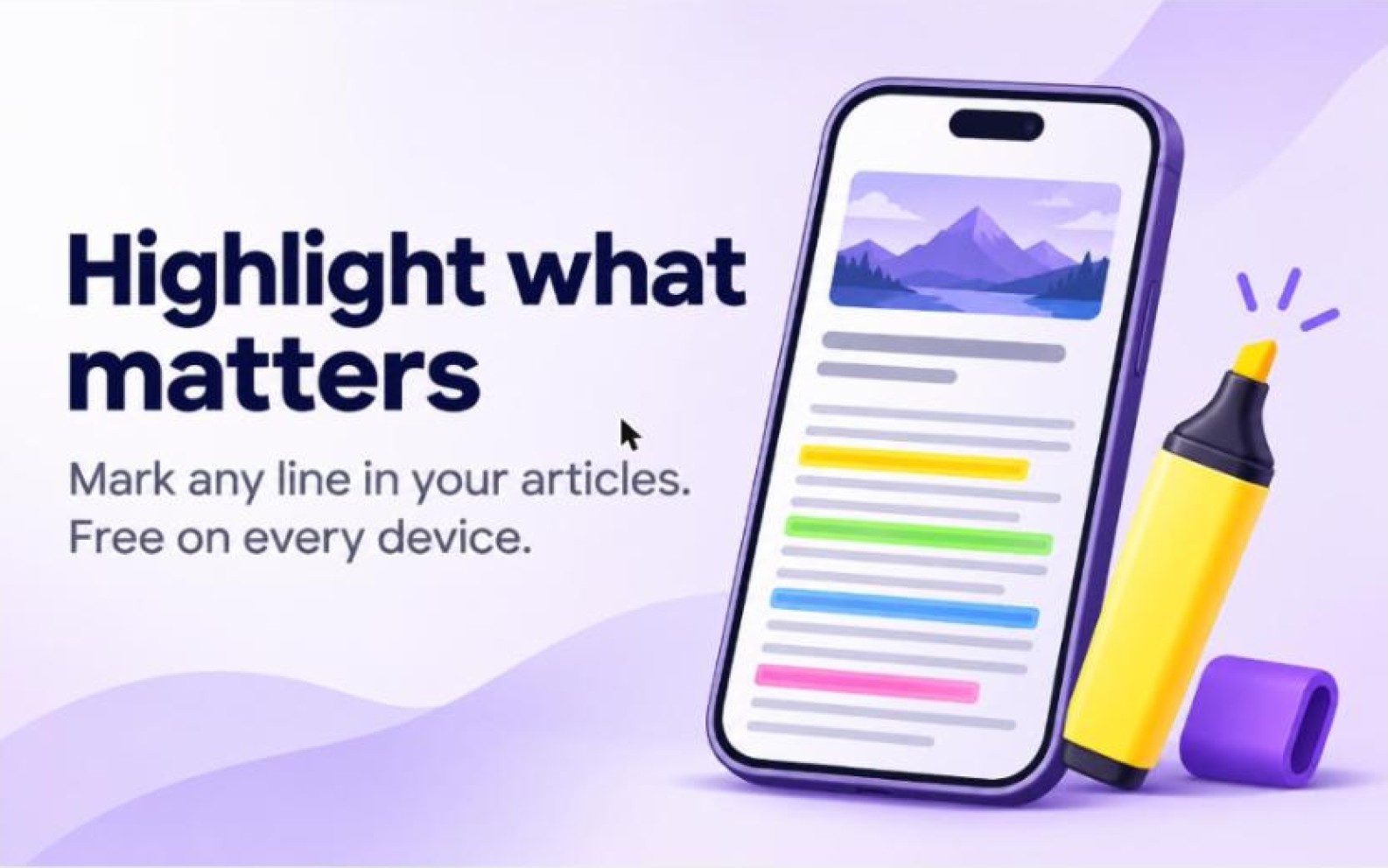
Reading an article and wanting to keep one line of it is ordinary. You might want the figure you will quote later, the sentence that explains the whole thing, or the step you have to repeat tomorrow. FeedBro now lets you mark those passages right in the article, the way you would with a pen on paper.
How to highlight
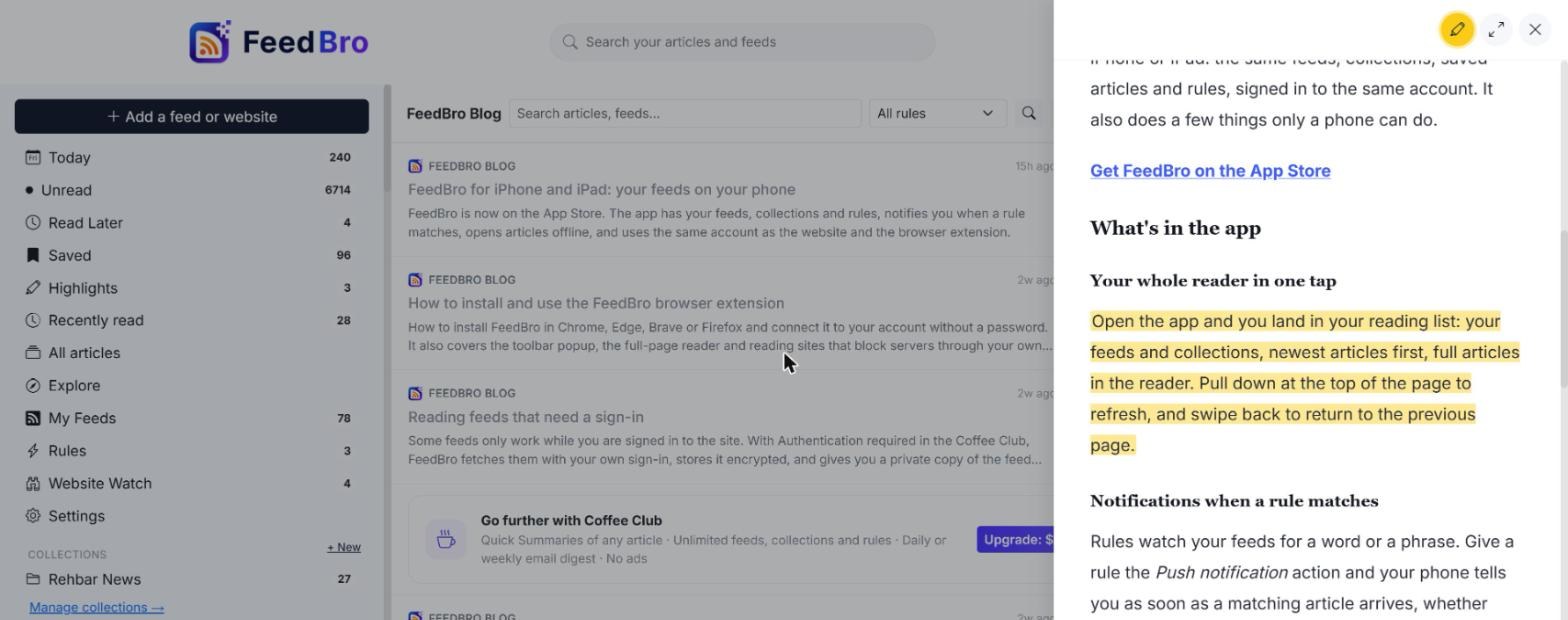
Open an article and select some text. A small bar appears with four colours: yellow, green, blue and pink. Pick one and the passage is marked.
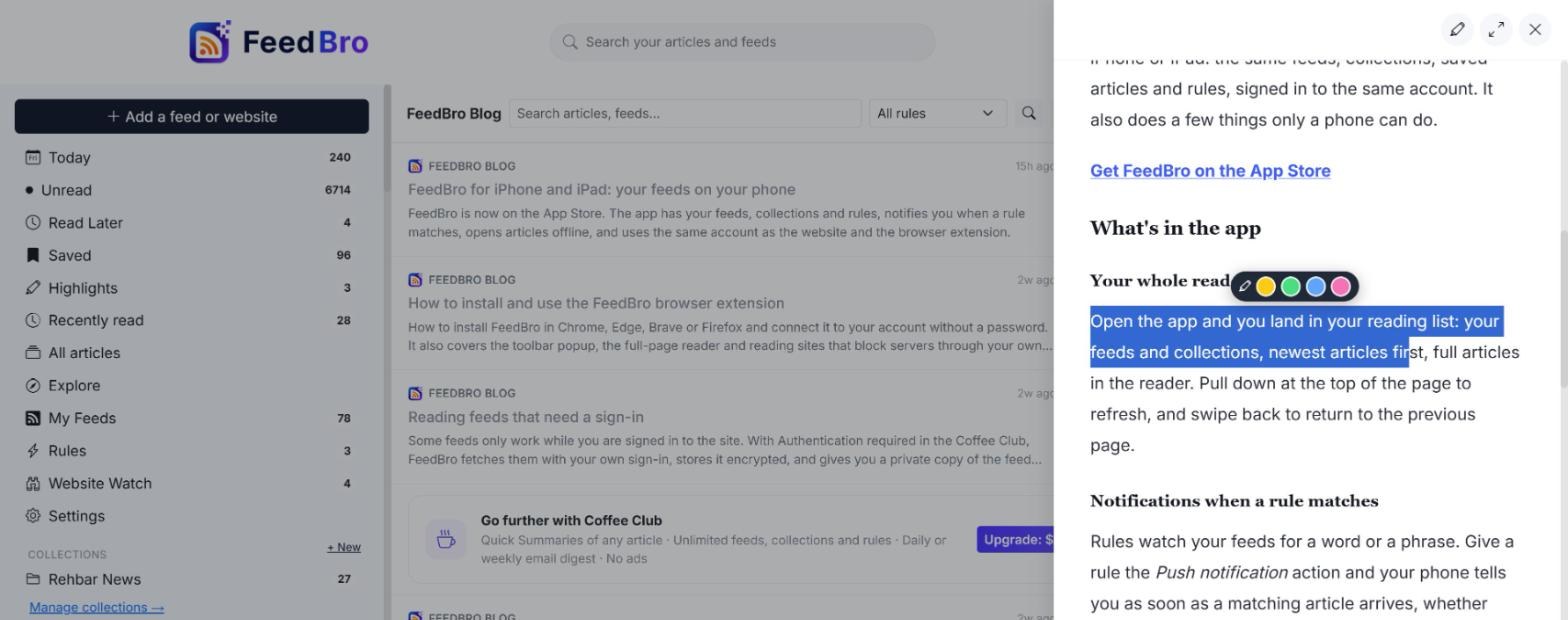
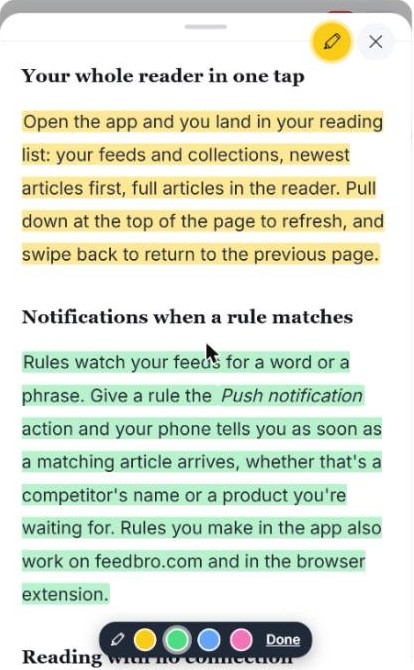
Prefer to keep the highlighter on while you read? Press the pencil button next to the close button. A bar stays at the bottom of the screen with the colours and a Done button, and everything you select is highlighted until you press Done. FeedBro remembers the colour you used last.
On a phone or tablet
Selecting exact words with a finger is fiddly, so the highlighter has two easier ways. With it on, you can tap a sentence and the whole sentence is highlighted. Or slide your finger sideways along the text, and what you cover is highlighted when you lift it. Sliding up or down still scrolls the page as usual.
Take a highlight back
Tap a highlighted passage and a small button lets you remove it. Nothing else in the article changes.
Find them all again
The Highlights list in the sidebar works like Today. It shows every article you have highlighted, with a count, and under each article the passages you marked, in their colours. On a phone it is one of the chips at the top of your reading list.
Everywhere you read
Your highlights belong to your account. They show up on feedbro.com, in the Android and iPhone apps, and on every device you sign in on. They are private: only you can see them.
Free for everyone
Highlighting is part of every FeedBro account, free or Coffee Club. There is a limit of 60 highlights per article, which is plenty for reading, and it keeps articles fast to open.
Good to know
- A highlight is a note on the article as FeedBro shows it. If the publisher later rewrites the article, FeedBro looks for your passage again by its words and keeps it where it can still find it.
- Highlights cover the article text. Pictures, videos and the audio player cannot be highlighted.
Open any article and try it on a line you would normally copy somewhere else. If something does not work the way you expect, tell us through the contact page.