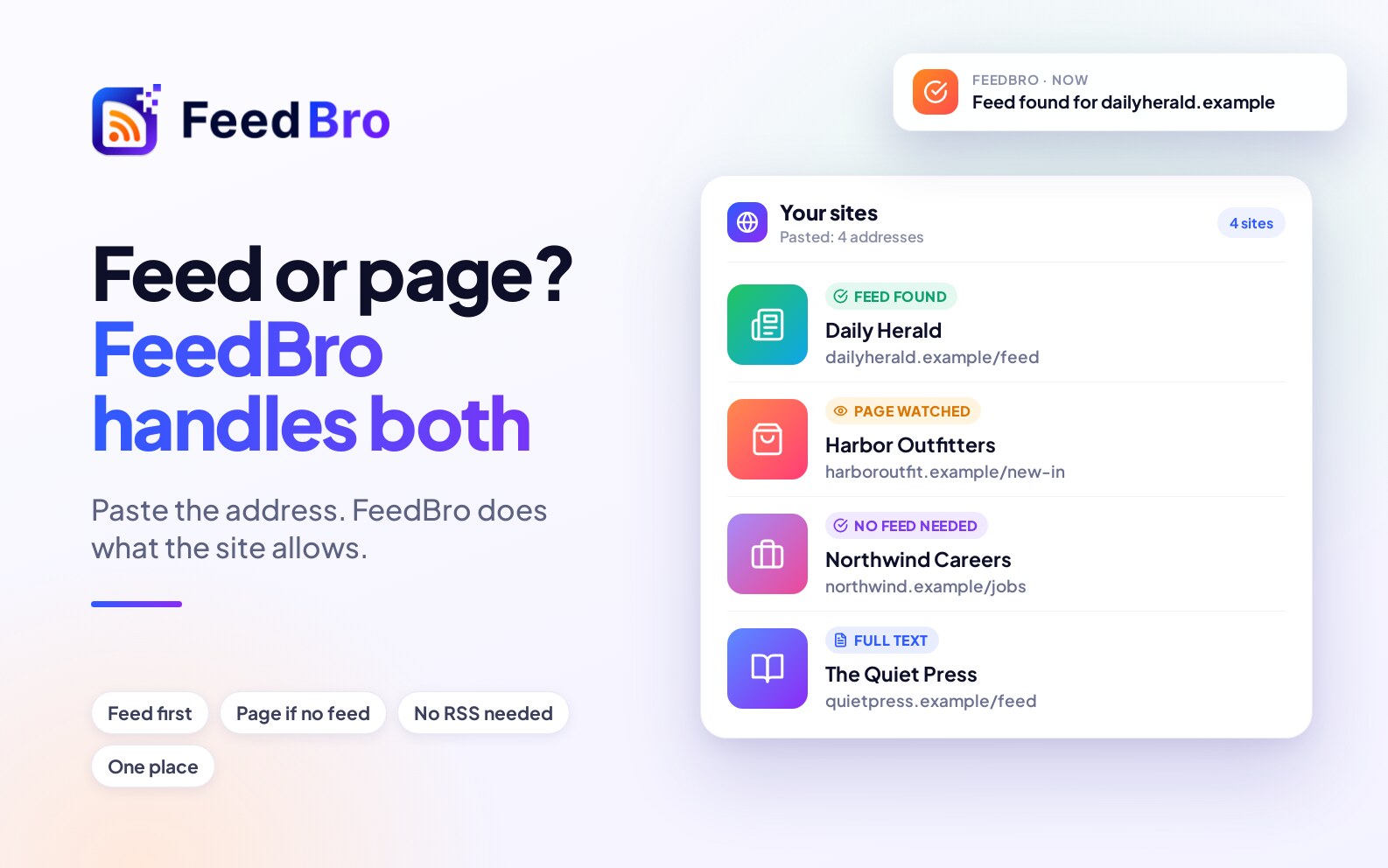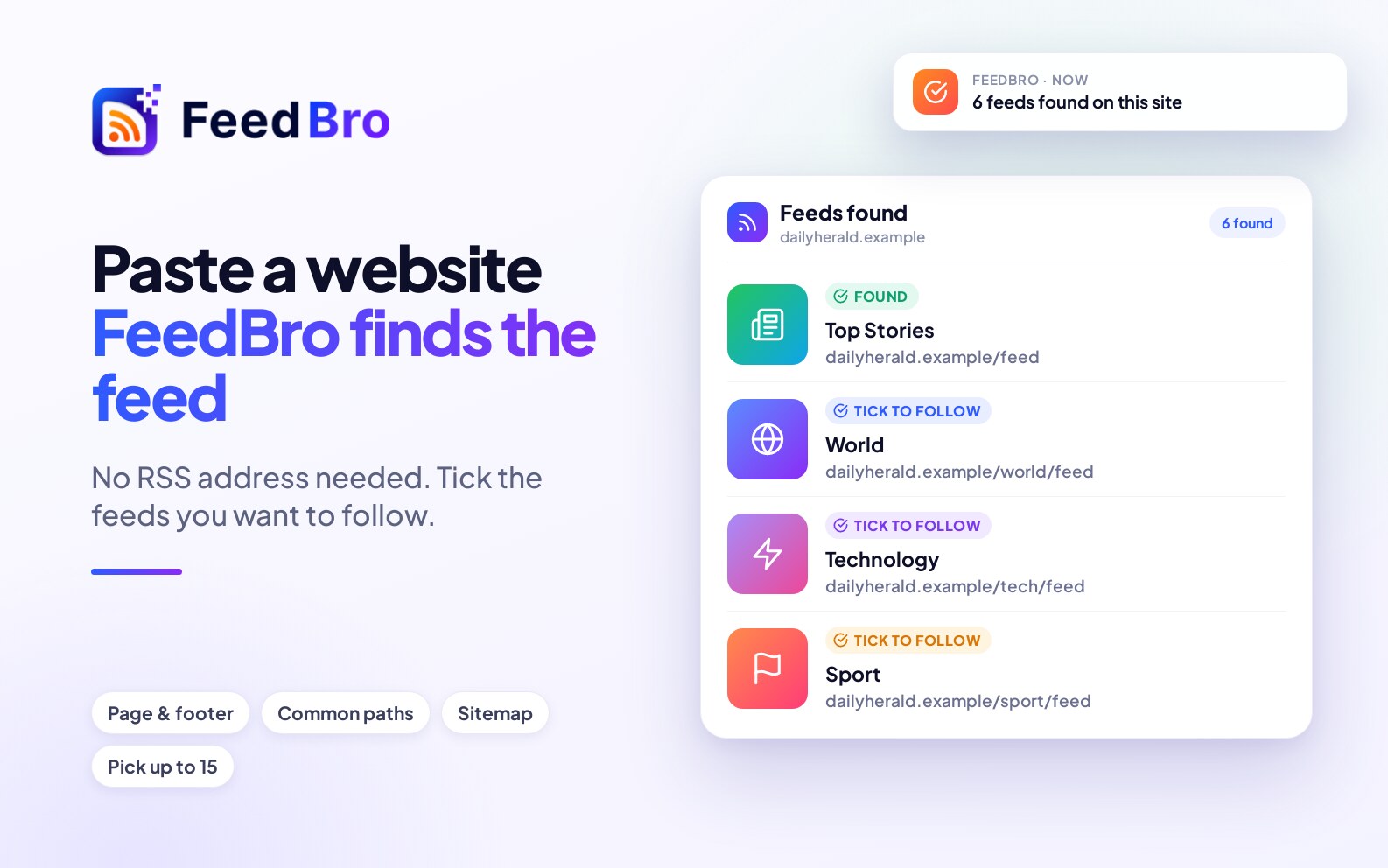
You shouldn't need to know what an RSS address looks like. In FeedBro you can paste a website, and FeedBro finds its feed for you. When a site has several feeds, it shows you the list and you choose.
Where FeedBro looks
- The page itself. Most sites name their feed in the page's header. FeedBro reads it.
- Links on the page. A feed link in the footer or sidebar counts.
- The usual addresses. If the page names nothing, FeedBro tries the common ones: /feed, /rss, /rss.xml, /atom.xml, /blog/feed, a Blogger feed and a WordPress feed.
- The sitemap. As a last step, FeedBro looks at the site's sitemap for a feed, or for a blog or news section that has one.
A wrong address still works
If you type a feed address that doesn't exist on a site that does, FeedBro no longer gives up. It looks at the site's home page and finds the real feed from there.
When a site has many feeds
Some pages list dozens of feeds: a newspaper with one for each section, or a news site with a feed for each region. Instead of choosing one for you, FeedBro shows the list with a tick box for each. Choose the ones you want, up to 15 at a time, and tap Follow selected. You see how many were added, and the left menu updates without reloading the page.
After you add a feed
A new feed now shows a clear message first, then asks whether to read it now or later. Choose now and that feed opens in the list. Choose later and the page stays as it is, with the feed added to your menu.
No feed at all?
Some sites really have none. FeedBro tells you, and offers to watch the page instead: see how to follow any website without RSS.